Use infoodle's label printing feature to print recipient addresses, your sender details, and postal permit information directly onto DLE envelopes. This article walks you through setting up a DLE envelope format, designing your label content using a table, and printing correctly.
Before you start
Permissions required:
- Update system information — to create or edit Label Formats under Administration
- Contact people by label — to generate and print labels
If you are not sure whether you have these permissions, check with your infoodle Administrator. If Administration → Label Formats is not visible in your menu, you do not have the first permission.
Overview
Setting up envelope printing involves two stages:
- Create a Label Format — this tells infoodle the physical size of the envelope and where on the page to position the content.
- Design a Label Template — this is the content that prints on the envelope: your sender address, the recipient's name and address, and any postal permit image.
Stage 1: Set up a DLE Envelope Label Format
A DLE envelope is treated by infoodle as a single-label "sheet". The Label Format defines the page dimensions and the margins that position the printed content in the right zone of the envelope.
- Go to Administration in the top navigation bar.
- Click Label Formats from the tile grid.
- Click + Add in the top-right corner.
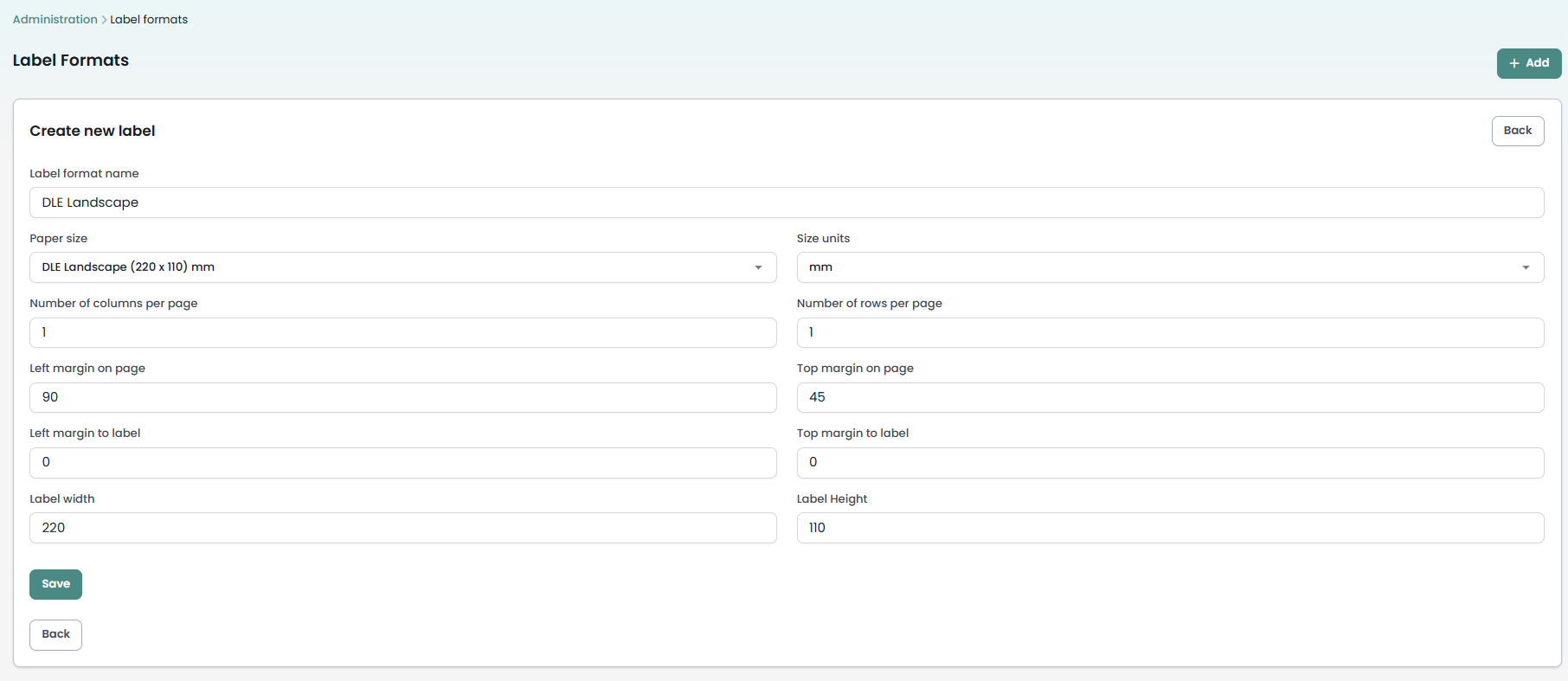
- Fill in the fields as follows:
| Field | Value | Notes |
|---|---|---|
| Label format name | e.g. DLE Landscape | Choose a name you'll recognise |
| Paper size | DLE Landscape (220 x 110) mm | This is the correct setting for a landscape envelope — do not choose "DLE" alone, which prints portrait |
| Size units | mm | |
| Number of columns per page | 1 | One envelope = one label |
| Number of rows per page | 1 | |
| Left margin on page | 90 | Positions the content block across the envelope — adjust to fine-tune |
| Top margin on page | 45 | Positions the content block down the envelope — adjust to fine-tune |
| Left margin to label | 0 | Not used for a single-label sheet |
| Top margin to label | 0 | Not used for a single-label sheet |
- Click Save.
Note on DLE dimensions: The paper size "DLE Landscape (220 x 110) mm" refers to DIN DL paper. A physical DLE envelope is sometimes quoted as 225 x 114 mm — that is the outer envelope dimension. The difference is small and the address position is controlled by your margins rather than the page edge, so this rarely affects the result.
Tip: The Left margin on page and Top margin on page fields are what move the address block around. The Left margin to label and Top margin to label fields only control spacing between labels on a multi-label sheet — they have no effect on a single envelope format.
Stage 2: Understand the envelope layout (NZ Post guidelines)
Before designing your template, it helps to understand where each element belongs on the envelope.
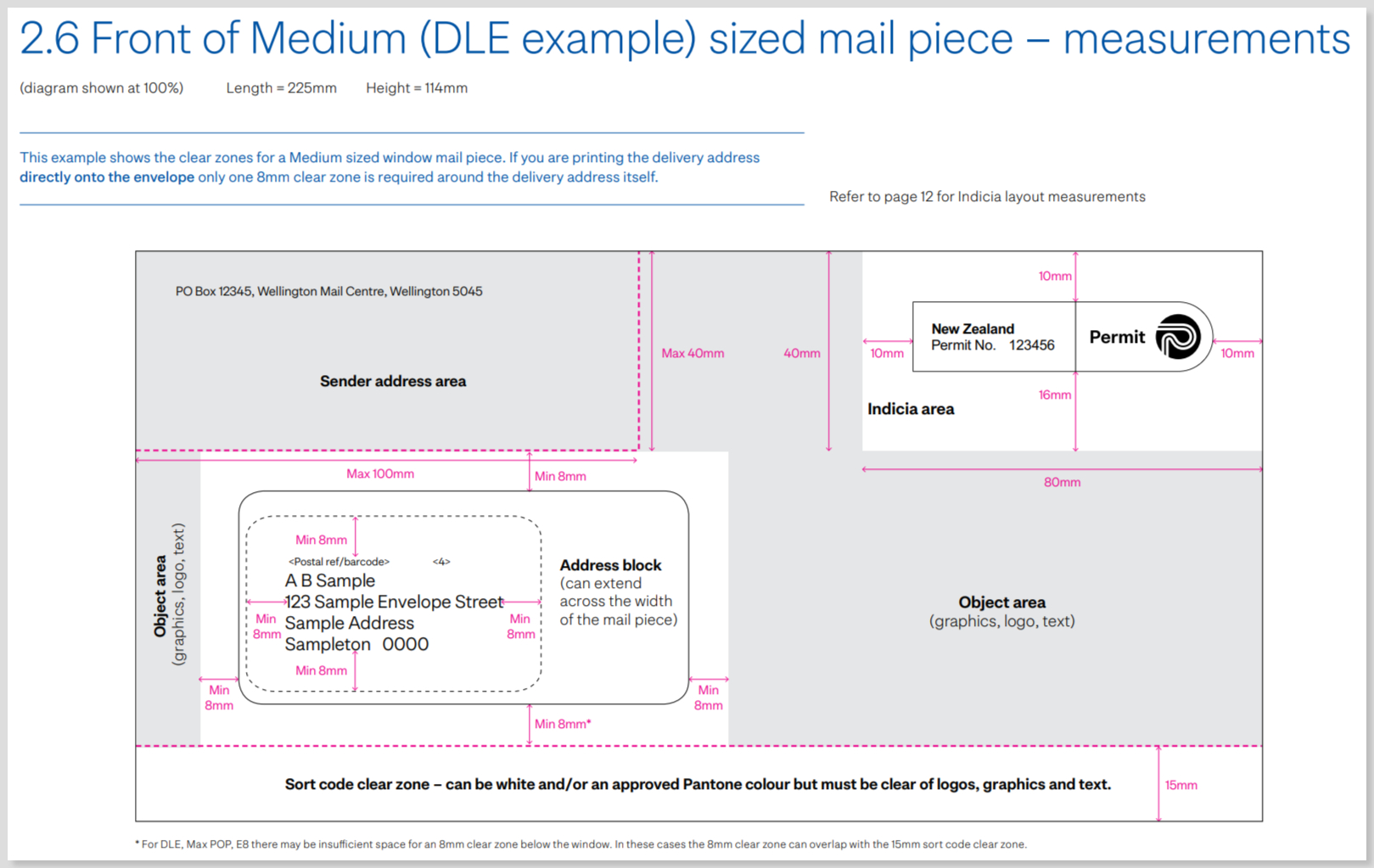
The front of a DLE envelope has three zones:
| Zone | Position | Size limit | Notes |
|---|---|---|---|
| Sender address (your organisation) | Upper left | Max 100mm wide × 40mm tall | Up to two lines; use 8pt font, commas between address parts |
| Recipient address block | Centre/lower | 8mm clear space required all around | Font: Arial, Calibri, Helvetica, or Verdana at 10–12pt |
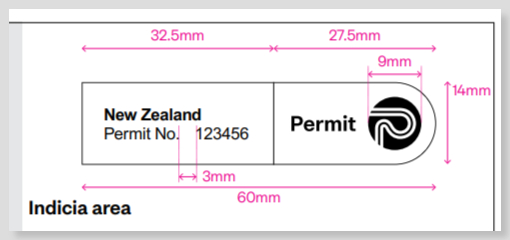
| Indicia / PostPermit | Upper right | Max 80mm wide × 40mm tall | 5–10mm from top and right edges; 9pt font |
Stage 3: Design the Label Template using a table
The easiest way to arrange the three envelope zones is to use a table inside the label content editor. This gives you precise control over where each element sits.
Step 1: Open the label content editor
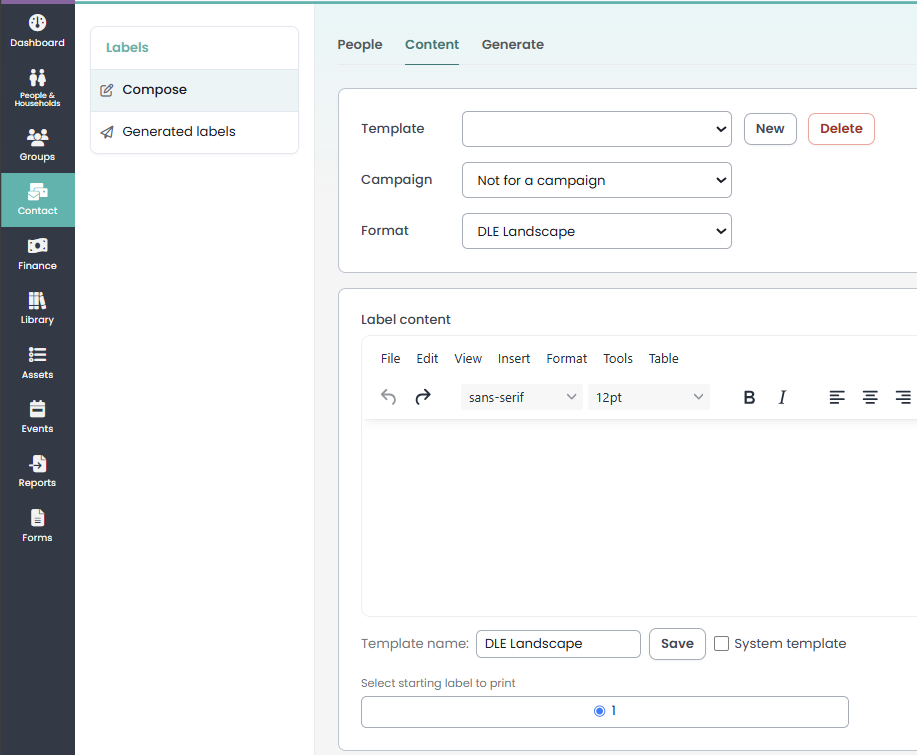
- Go to Contact → Labels in the navigation menu.
- Click the Content tab.
- Either select an existing template from the Template dropdown, or type a new name in the Template name field and click Save.
- Make sure the correct Label Format (e.g. DLE Landscape) is selected.
Step 2: Insert a table
The dotted boxes you see in the label editor preview are table cells. Here is how to create them:
- Click inside the Label content editor area.
- Click Insert in the editor menu bar.
- Choose Table and select the number of columns and rows. A good starting point for a DLE envelope is:
- 3 columns — left (sender), centre (recipient address), right (PostPermit/Indicia)
- 3 rows — top row for sender and permit, middle row as a spacer, bottom row for the recipient address
- If the PostPermit is already printed on your envelopes, you only need 2 columns.
- If you don't need a spacer row, a 2-row table with cell padding works equally well.
Tip: Each table cell can have its content aligned Left, Centre, or Right independently.
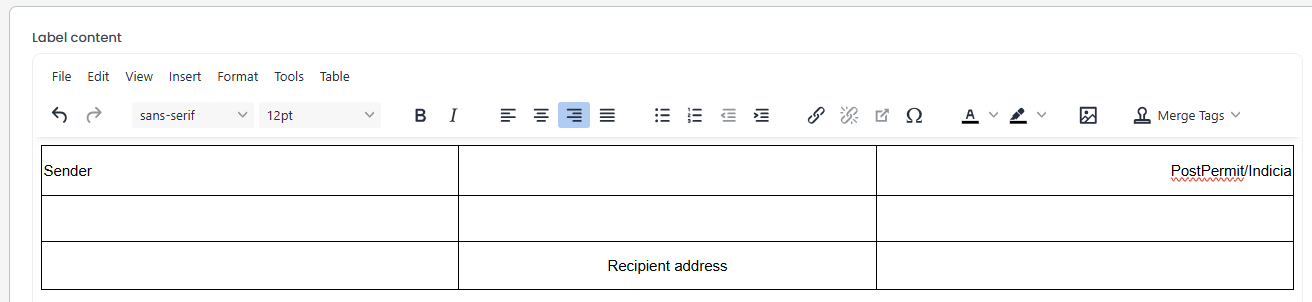
Step 3: Add your content using merge tags
Click inside the appropriate table cell and add content:
- Sender address cell (top left): Type your organisation's name and address directly, or use merge tags. For a one-line sender address with commas, type it as plain text.
- Recipient address cell (centre or lower): From the Personalisation panel on the right, click:
- {address name} — for the addressed name (e.g. "Mr. J Doe"), or
- {full name} — for the full name (e.g. "Mr John Doe")
- Then click {label address} on a new line — this inserts the full multi-line address automatically.
- Permit/Indicia cell (top right): Insert your PostPermit image using the image insert button in the toolbar, or type the permit details as text at 9pt.
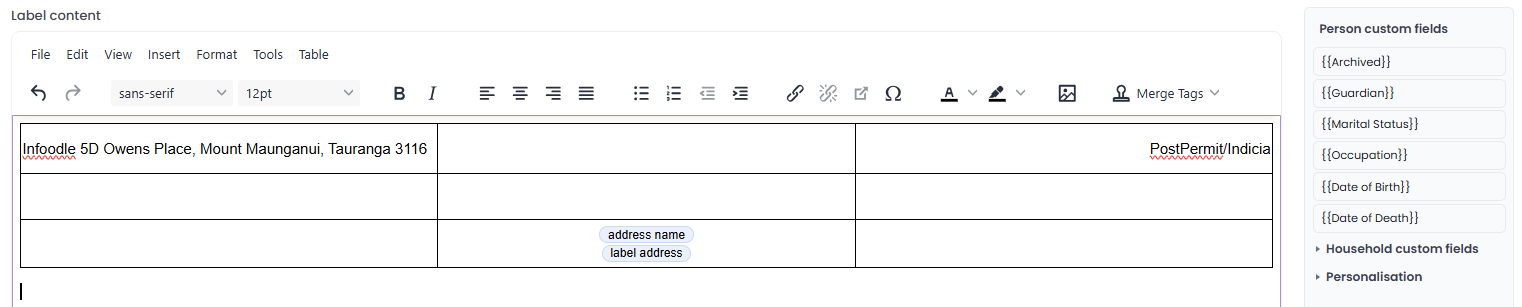
Which name merge tag should I use?
Use {address name} when you want the formal addressed version (e.g. "Mr. J Doe"). Use {full name} for the complete name (e.g. "Mr John Doe"). The {label address} tag fills in the street address, suburb, city, and postcode on separate lines automatically.
Step 4: Remove the table borders
Once your content is in place, remove the visible borders so only your content prints — not the table grid.
- Click anywhere inside the table.
- Click Table in the editor menu bar, then choose Table properties.

- Set Border width to 0.
- Add Cell padding if you want extra breathing room inside each cell (e.g. 5 for 5px padding).
- Click Save.
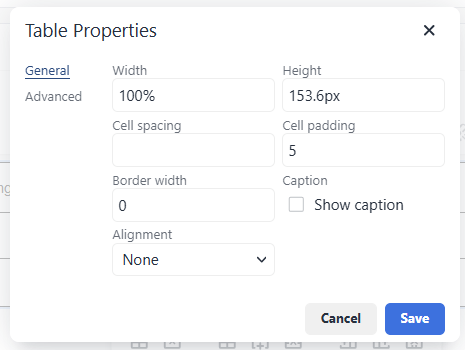
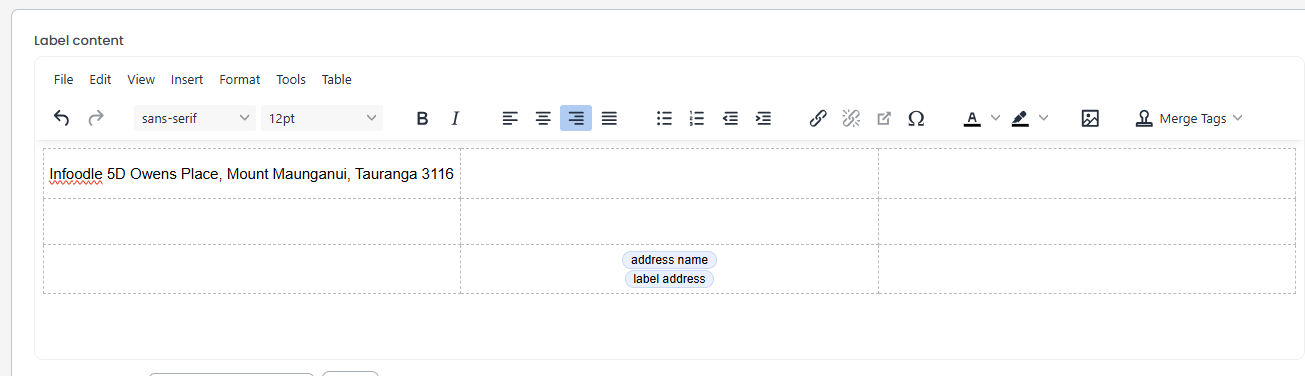
The table grid lines will disappear, but the layout structure remains intact.
Stage 4: Print your envelopes
- Go to the People tab in the Labels section.
- Select the group or individuals you want to print envelopes for.
- Review the list and enable One per household if appropriate.
- Go to the Generate tab.
- Choose a sort order.
- Click Test and then Show generated labels to preview the first envelope before printing the full run.
- When the layout looks correct, click Create for All, then Show generated labels to open the PDF.
- In your PDF viewer, set the print scale to Actual size or 100% — do not use "Fit to page", as this rescales the output and shifts the address position.
- Print onto your envelopes.
Fine-tuning the position
If the address block is not landing in quite the right spot on the envelope:
- Move everything left/right: Increase or decrease Left margin on page in the Label Format (Administration → Label Formats).
- Move everything up/down: Increase or decrease Top margin on page in the Label Format.
- Content always starts from top-left of the label area, so use cell padding, blank rows, or line spacing within the template to position content vertically within the address zone.
- Good starting values are Left margin on page = 90 and Top margin on page = 45 — adjust in small steps and test on plain paper first.
Tip: Open two browser tabs — one on the Label Format edit page and one on the Labels generator — so you can save a change and immediately retest without navigating back and forth.
Common questions
Why does my address print in the wrong place even though my template looks right?
Make sure you are printing at Actual size / 100% in your PDF viewer. "Fit to page" rescales the output and moves everything.
I selected DLE as the paper size but the envelope prints portrait (tall and narrow) instead of landscape.
The plain "DLE" paper size in infoodle prints portrait. For an envelope lying flat (landscape), choose DLE Landscape (220 x 110) mm from the Paper size dropdown instead.
What is the difference between "Left margin to label" and "Left margin on page"?
"Left margin on page" shifts all content left or right across the page — this is the one to use for a single envelope. "Left margin to label" only controls the gap between multiple labels on a sheet and has no effect when you have just one label per page.
I can see the table grid lines on screen but I don't want them to print. How do I remove them?
The dotted lines you see while editing are the editor's visual guides — they won't print. However, if you have an actual border set, go to Table → Table properties and set Border width to 0.
Do I need the third column for the PostPermit if it's already printed on the envelope?
No. If the Indicia / PostPermit is pre-printed on your envelopes, you only need two columns — one for the sender address and one for the recipient address.
My sender address is longer than two lines. Is that okay?
NZ Post guidelines recommend the sender address is on no more than two lines, using 8pt font, ideally on one line with commas separating parts (e.g. MMM New Zealand, 1 Kane Street, Pirongia 3802).
Can I use any font for the envelope?
NZ Post accepts Arial, Calibri, Helvetica, and Verdana at 10–12pt for the recipient address, and 9pt for the PostPermit text. These are all available in the infoodle label editor.