The Sent & Scheduled list keeps a record of every email you have sent from infoodle, together with any emails that are still scheduled to go out. When that list grows long, the search options let you find a specific email by its subject, its content, or the date it was sent, so you can review it, check how it was delivered, or resend it without scrolling through months of history.
Before you start
Role Permissions
- Contact people: lets you open the Contact area.
- Contact people by email: gives you the email tools, including the Sent & Scheduled list and its search options.
- See emails others have sent: lets you also search emails sent by other people, not just your own. This works only when your role does not also have the Online Directory permission.
Not sure what each permission does or where to turn it on? See Contact Permissions for what each Contact permission controls. An administrator manages these for your role.
Open the search options
- Click or hover on Contact on the main menu bar on the left. The email area opens.
- In the email menu on the left, open Sent & Scheduled. Your sent and scheduled emails load, newest first.
- Click Search at the top right of the list to open the search options.
Choose your search criteria
Fill in one or more of the following, then click the Search button. You can combine criteria: for example, a subject word together with a date range narrows the list to matching emails sent in that period.

- Subject contains: finds emails whose subject line includes the text you type.
- Content contains: searches the text of the message body for the words you type. Single words and short, plain phrases work best.
- Date sent between: click the From and To fields and pick dates from the calendar to limit results to emails sent in that range. Set just one side to search before or after a single date.
- Search emails others have sent: tick this to include emails sent by other people alongside your own. This checkbox appears only when your role includes the See emails others have sent permission and does not include Online Directory. If your role has both, the checkbox is hidden.
When you search other people's emails, infoodle returns only emails that were shared with a group you belong to, or made visible to anyone. An email another person made visible to themselves only, or sent to a group you are not in, will not appear. If your role includes both Maintain all groups and Has Staff view of all people, you can search others' emails across all groups.
To clear your criteria and return to the full list, click Clear. This button appears once a search is active.
What the results show
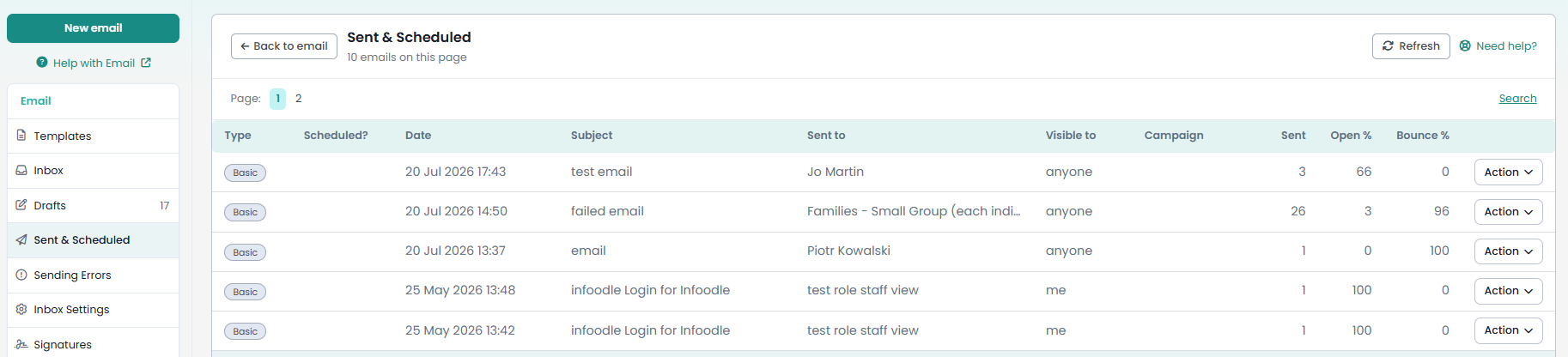
Each matching email is one row. The columns give you enough at a glance to pick the right email before you open it.

| Column | What it shows |
|---|---|
| Type | How the email was built: Basic, Designer, or Mailchimp. |
| Scheduled? | A clock icon marks an email that is still waiting to be sent at a future date and time. |
| Date | The date and time the email was sent or is scheduled for. When you search other people's emails, the sender's name appears above the date. |
| Attachment (no column heading) | A paperclip icon marks emails that included an attachment. |
| Subject | The subject line of the email. |
| Sent to | The people or lists the email was addressed to. |
| Sent by | Who sent the email. This column appears only when Search emails others have sent is ticked. |
| Visible to | Who else in your infoodle can see this email in the sent list. |
| Campaign | The finance campaign the email is linked to. This column appears if you have finance access. |
| Sent | The number of recipients the email went to. |
| Open % | The percentage of recipients who opened the email. |
| Bounce % | The percentage of recipients whose address bounced. |
| Action (no column heading) | Opens a menu to view the email's delivery Report and to Delete forever. For emails whose original content infoodle can still open, Edit and Forward also appear. |
Long lists are split into pages. Use the page numbers above and below the table to move through the results. A search covers your whole history, not just the page you are viewing.
Common questions
Why can't I find an email I know was sent?
By default the search looks at your own sent emails. To include emails other people sent, tick Search emails others have sent (this appears only if your role allows it). When you search others' emails, infoodle returns only emails shared with a group you belong to or made visible to anyone, so an email sent to a group you are not in will not appear. Also check that your date range is not excluding the email, and that the text in Subject contains or Content contains matches the wording in the email.
Does the search look inside the message body?
Yes. Content contains searches the text of the message body, not just the subject line. Single words and short, plain phrases give the most reliable matches.
Can I search emails other staff sent?
Yes, tick Search emails others have sent. This checkbox appears only when your role includes the See emails others have sent permission and does not include Online Directory. If you have the See emails others have sent permission but the checkbox is missing, it is because your role also has Online Directory: the two cannot be combined for this search. Ask an administrator to remove Online Directory from your role if you need to search other people's emails.
Next steps
Once you have found the email you want, open the Action menu on its row. From there you can view its delivery Email Report or resend it. See Resending Email for the resend and reuse steps.
Related articles