Rocketspark is a website builder a lot of infoodle customers use for their public site. You can drop any infoodle form into a Rocketspark page by copying the form's embed code from infoodle's Publish tab and pasting it into a Code Block on the Rocketspark page. The form then appears on your Rocketspark site, but submissions still come back into infoodle.
There is no Rocketspark-specific setup inside infoodle. The same embed code works for any website that accepts custom HTML, Rocketspark just happens to make it easy with their Code Block.
Before you start
Role Permissions
- Need forms menu item
- Create and manage forms and entries
For an explanation of role permissions, see People role permissions.
You will also need a Rocketspark account and a page on your Rocketspark site to embed the form into.
You will need the form already created and published in infoodle. The Publish tab does not show the Share or Embed code until the form has been saved and published at least once.
Step 1: Open the Publish tab on your infoodle form
In infoodle, click Forms on the main menu on the left, then click the form you want to embed.
Open the Publish tab at the top of the form editor.
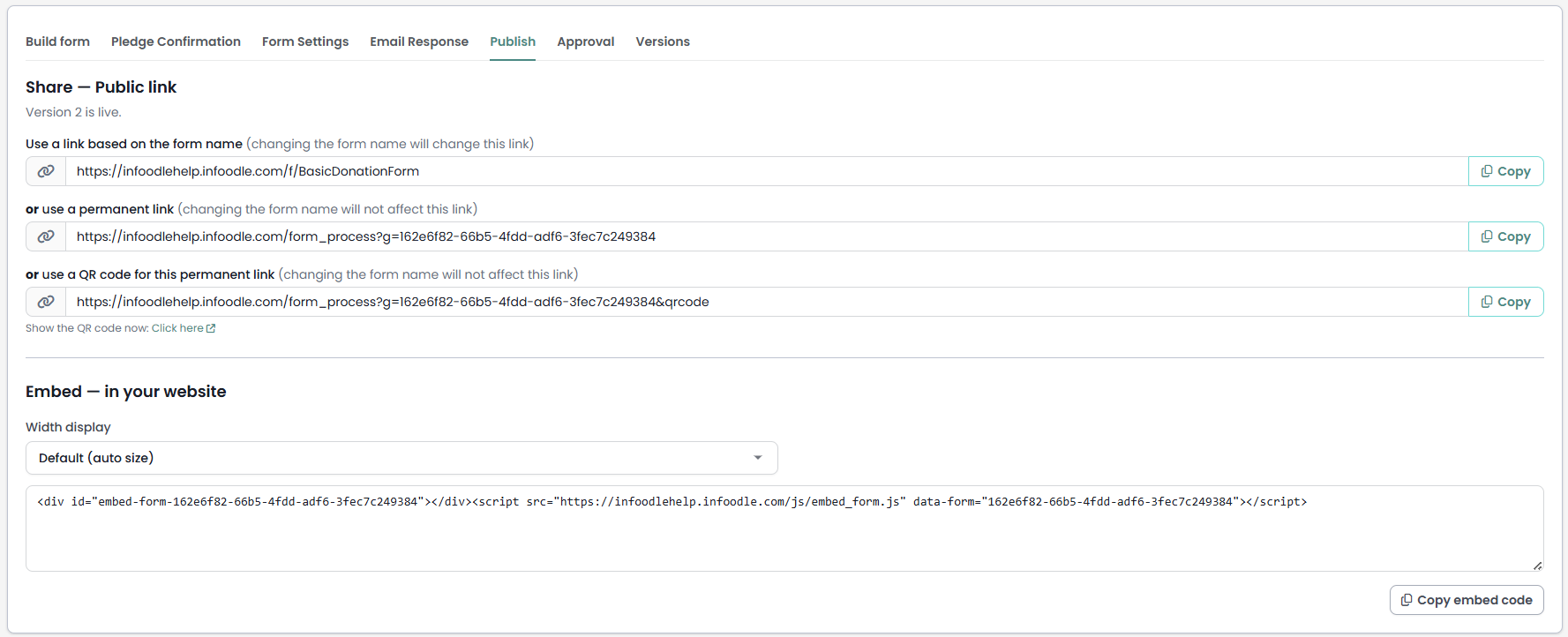
If the form has never been published, you will see a message at the top of the Publish tab reading Use the Test button to preview it, or Publish to make it live. Publish the form first; the Share and Embed sections only appear once the form has a live version. If the form is already published, you can skip straight to Step 2.
Step 2: Copy the embed code
Scroll to Embed, in your website. Click Copy embed code below the embed code textarea. The button changes to Copied for a second to confirm.
Most pages can leave the width on Default (auto size), which lets the form fill the Rocketspark Code Block it sits in. If you want a fixed width, pick one from the dropdown above the embed code and the code will update automatically.
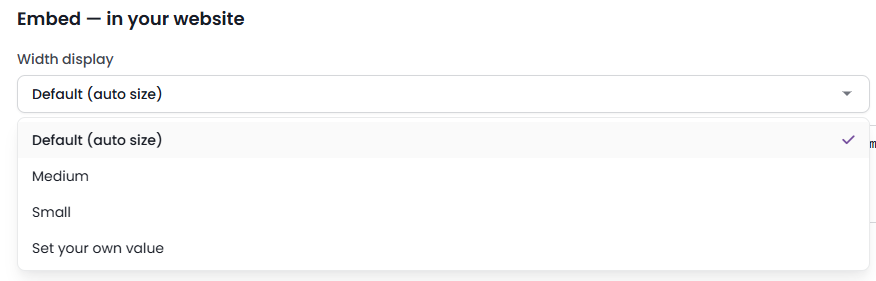
Width options if you do want to change them: Default (auto size) fills the Code Block; Medium is 768 pixels; Small is 481 pixels; Set your own value reveals a Size (px) field, and infoodle suggests 300 as a minimum.
Step 3: Paste the embed code into a Rocketspark Code Block
In Rocketspark, open the page where you want the form to appear and edit it. Add a Code Block widget at the position you want the form. Paste the embed code into the Code Block.
Save and publish the Rocketspark page. The infoodle form will appear on your live Rocketspark site, sized according to the width you chose.
For Rocketspark's own instructions on adding custom HTML to a page, see Rocketspark's help article How to add custom HTML code to your website / embed widgets.
What flows between Rocketspark and infoodle
The embed is one-way. infoodle displays the form inside the Rocketspark page, and submissions go straight to infoodle.
- Form display: the Rocketspark page loads infoodle's embed code, which fetches and shows the form inside the Code Block.
- Submissions: when a visitor submits the form on your Rocketspark page, the entry is sent to infoodle and appears under Forms, Entries, the same as a submission from any other channel.
- Payments, workflows, notifications: anything attached to the infoodle form (payment processing, workflows, email responses, notifications to internal users) runs as normal. Rocketspark is just the page the visitor sees.
- Rocketspark contact data: infoodle does not read anything from Rocketspark. There is no two-way contact sync.
Common questions
Do submissions still come into infoodle when the form is on Rocketspark?
Yes. The embed only changes where the form is shown. Every submission, payment, and workflow trigger runs in infoodle exactly as if the form had been opened from the infoodle Share link.
Will the embed break if I change the form?
The embed code stays linked to the specific form you copied it from, not to the form's name. Changing the form's name, fields, or settings updates what visitors see on Rocketspark the next time the page loads. You only need to re-copy the embed code if you delete the form and create a new one in its place.
Can I use the QR code or shareable link instead?
Yes. Under Share, Public link in the same Publish tab you can copy a link based on the form name, a permanent link, or a QR code linking to the permanent URL. Use these when you want to send the form by email, print it on flyers, or link to it from social media rather than embed it on a page.
The form is not showing on my Rocketspark page. What should I check?
- Confirm the form has been published in infoodle. An unpublished form will not appear.
- Confirm the embed code was pasted into a Code Block in Rocketspark, not a text block. Rocketspark text blocks remove the code that makes the form work, so it will not display.
- Confirm the Rocketspark page itself was published after the Code Block was added.
Can I embed more than one form on a single Rocketspark page?
Yes. Add a separate Code Block for each form and paste its own embed code into each block. Each embed code is linked to its own form, so they do not conflict.
Make the form match your Rocketspark site
By default the embedded form uses infoodle's standard styling. Once the form is live on your Rocketspark site, you can override fonts, colours, and spacing so the form matches your Rocketspark theme.
See Advanced CSS design for the CSS options available on infoodle forms.
Next steps
After the form is live on your Rocketspark site, watch the entries come in under Forms, Entries on the original form. You can approve, export, and report on them the same as any other infoodle form entry.