A recorded video is a great way to share content in your infoodle App, such as a welcome message, a recent sermon, a training clip or a video about the work your organisation does. You can bring a video from YouTube straight into your app by adding an app menu item that links to it, so your community can watch from inside the app. Unlike a live stream (see Adding a Youtube Live Stream), a recorded video is a single clip with its own link, so you add one menu item per video you want to share. This article shows you how to find a video's link and add it to your app menu.
Before you start
Role Permissions
- Update System information: lets you open the Phone App settings under Administration and add or change app menu items.
See People Roles and Permissions for what this role permission means and how an administrator turns it on under Settings, Roles.
You will also need:
- The infoodle App enabled for your site. If you have not done this yet, see Enabling the infoodle App. The Menu Sections and Homepage Items settings only appear once the app is enabled.
- The link to the video you want to share. This is the ordinary web address of the video, which you copy from YouTube in Step 1.
Step 1: Find the video's link
Open the video on YouTube and copy its web address. There are two ways to get it, and both give you a link you can use:
- Address bar link: while you are watching the video, copy the address from your browser's address bar. It looks like https://www.youtube.com/watch?v=VIDEO_ID .
- Share link: right-click the video, or use YouTube's Share button, to get the shorter form https://youtu.be/VIDEO_ID .
Either form points to the same video, so use whichever is easier to copy. If you would rather show just the player without the surrounding YouTube page, you can use the embed form https://www.youtube.com/embed/VIDEO_ID instead. Whichever link you copy, use the https:// address so that it opens correctly on a phone.

Step 2: Open Menu Sections in the Phone App settings
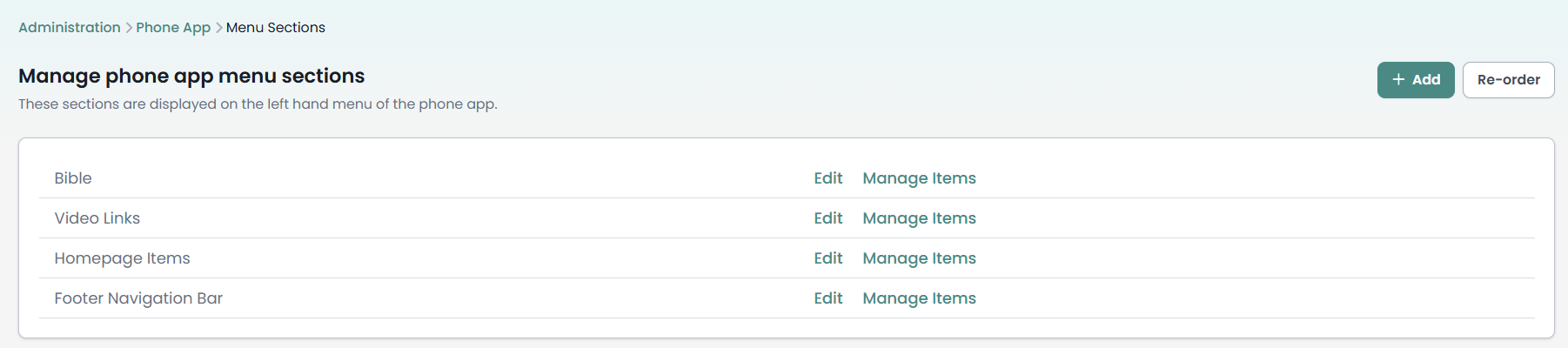
- Click the administration cog in the top right hand corner to open Administration.
- Open Phone App.
- Click Menu Sections.
- Open the menu section you want the video to sit in, or add a new section for it.
Step 3: Add a new menu item
Inside the menu section you opened, you will see the list of menu items already in that section, with an Add button at the top of the list. Click Add to open the Add a Menu Item form, where you choose what the item links to and how it appears in the app.

Step 4: Fill in the video details
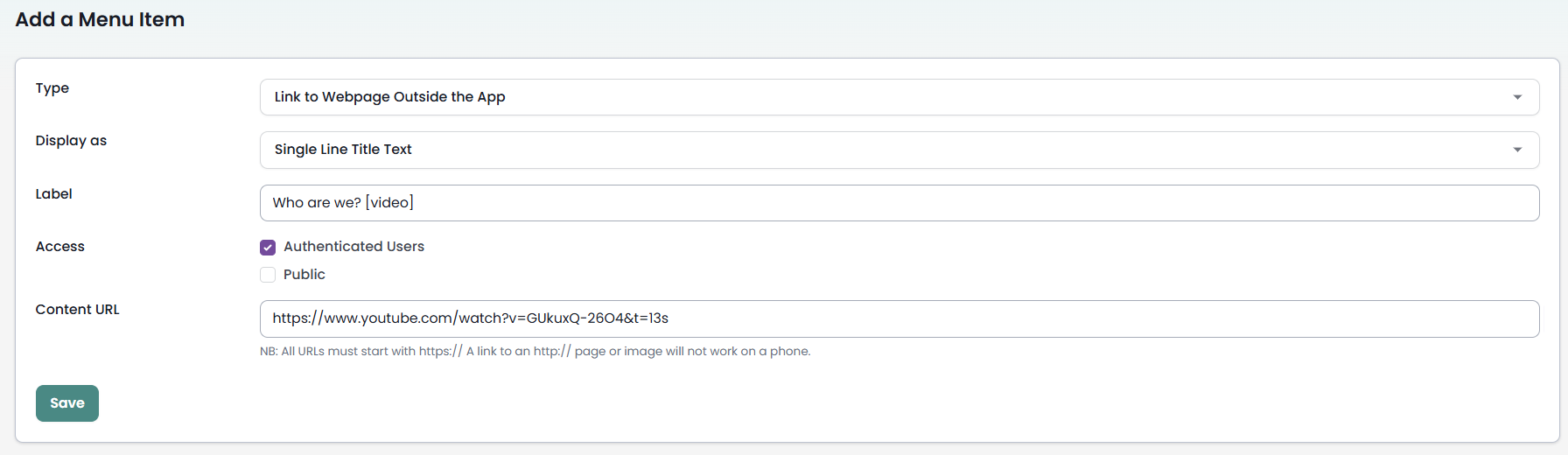
On the Add a Menu Item form, set the following:
- Type: choose Link to Webpage Within App. This opens the video inside your app so users stay in infoodle. Choose Link to Webpage Outside the App instead if you would rather the video open in the phone's own web browser.
- Display as: choose how the item looks in the menu. The options are:
- Single Line Title Text: a single line of text, using the Label you enter.
- Multiline Standard Text: a longer plain text label.
- Image on a Card Background: shows an image inside a card.
- Image with no Background: shows an image on its own.
- Label: the text shown for the item, for example Watch Video. When you choose an image display, an Image URL field appears so you can point to the picture you want to show, such as the video's thumbnail.
- Content URL: paste the video link you copied in Step 1, for example https://www.youtube.com/watch?v=VIDEO_ID . Use the https:// address so it opens on a phone.
Step 5: Set who can see it and save
Under Access, choose who sees the video in the app:
- Authenticated Users: people who are logged in to your app.
- Public: people using the app without logging in.
Tick both if you want everyone to see it. Then click Save. The video now appears in that menu section in the app.

What your app users see
When someone taps the video item, the video opens and plays inside the app. If you used the embed link, they see just the player. A watch?v= or youtu.be link opens the standard YouTube video page inside the app instead. To share another video, add a second menu item the same way with that video's own link.
Common questions
What is the difference between this and Adding a Youtube Live Stream?
A YouTube video is a single recorded clip with its own link, so you add one menu item per video you want to share. A YouTube live stream is your live broadcast, and it uses one permanent link tied to your channel that works for every broadcast. Use a video for a recording people can watch any time, and a live stream for services and events you broadcast live. See Adding a Youtube Live Stream.
Which link form should I use, watch or embed?
Both work. The watch?v= or youtu.be link opens the normal YouTube video page, which is the simplest to copy. The embed link, https://www.youtube.com/embed/VIDEO_ID , shows just the player without the surrounding YouTube page, which can be a cleaner experience on a phone. Pick whichever suits you.
Can I use a video from Vimeo or another site?
Yes. The menu item accepts any video link, so a Vimeo address or another platform's link works the same way. Copy the video's web address and paste it into the Content URL field, using the https:// address.
Can I add the video to the app home page instead of a menu?
Yes. Open Homepage Items under the Phone App settings and add an item the same way, choosing the same Type, Display as and Content URL. See Configuring Your Home Page.
Why should the video link start with https://?
A YouTube link already starts with https://, so a link copied straight from YouTube will work. An http:// address will not open inside the app on a phone, so use the https:// form.
Next steps
Once the video is in place, you can add other online resources to your app the same way, such as a live stream of your services or a link to the Bible. You can also reorder your menu items with the Re-order button at the top of the section's menu items list, so the video sits where your community will find it.