Many churches and charities want to offer the Bible as a resource inside their infoodle App. You can do this by adding a menu item that links to any website that provides the Bible online, such as bible.com. The link can open the Bible inside your app, so your community can read scripture without leaving infoodle. This article shows you how to add that link to your app menu.
Before you start
Role Permissions
- Update System information: lets you open the Phone App settings under Administration and add or change app menu items.
See People Roles and Permissions for what this role permission means and how an administrator turns it on under Settings, Roles.
You will also need:
- The infoodle App enabled for your site. If you have not done this yet, see Enabling the infoodle App. The Menu Sections and Homepage Items settings only appear once the app is enabled.
- The web address of the Bible site you want to link to. bible.com is a common choice: the general reading link is https://www.bible.com/bible/. Any Bible website works. Use the https:// version of the address so the link opens on a phone.
Step 1: Choose the Bible web address
Decide which Bible website you want your app users to open. Copy the full web address from your browser's address bar. For bible.com the reading link is https://www.bible.com/bible/, and you can use any other Bible site your organisation prefers. Use the https:// version of the address: an http:// link will save, but it will not open on a phone.
Step 2: Open Menu Sections in the Phone App settings
- Click the administration cog in the top right hand corner to open Administration.
- Open Phone App.
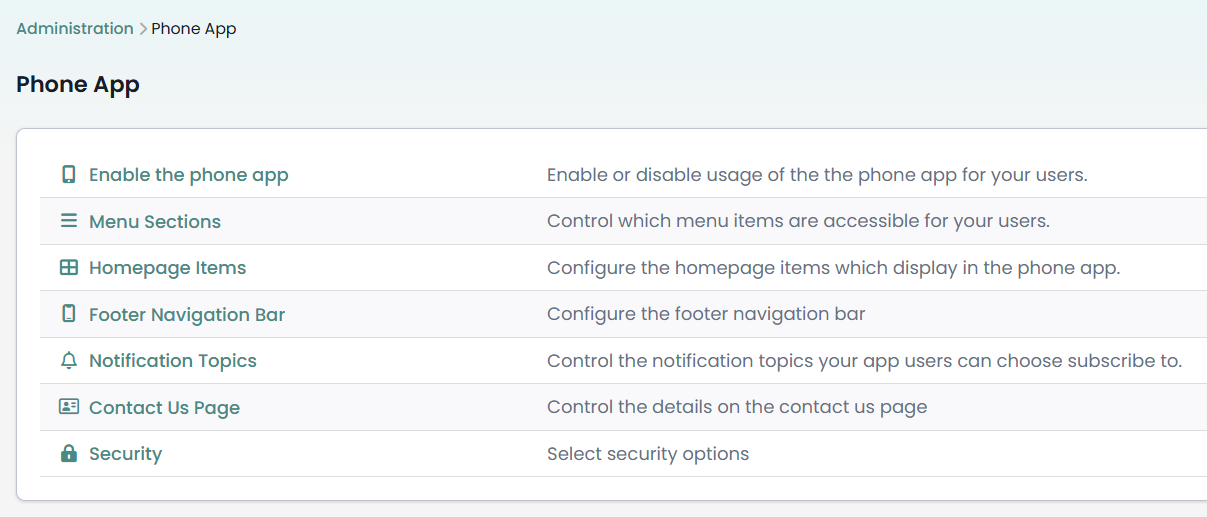
- Click Menu Sections.

- Open the menu section you want the Bible link to sit in. If you do not have a section yet, click Add on the Menu Sections page, give the new section a name and save it, then open it.
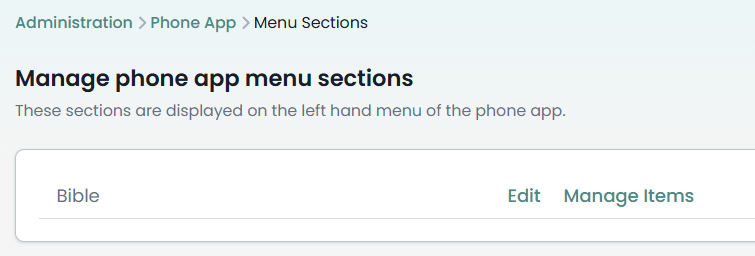
Step 3: Add a new menu item
Inside the menu section, add a new menu item. This opens the Add a Menu Item form, where you choose what the item links to and how it appears in the app.

Step 4: Fill in the Bible link details
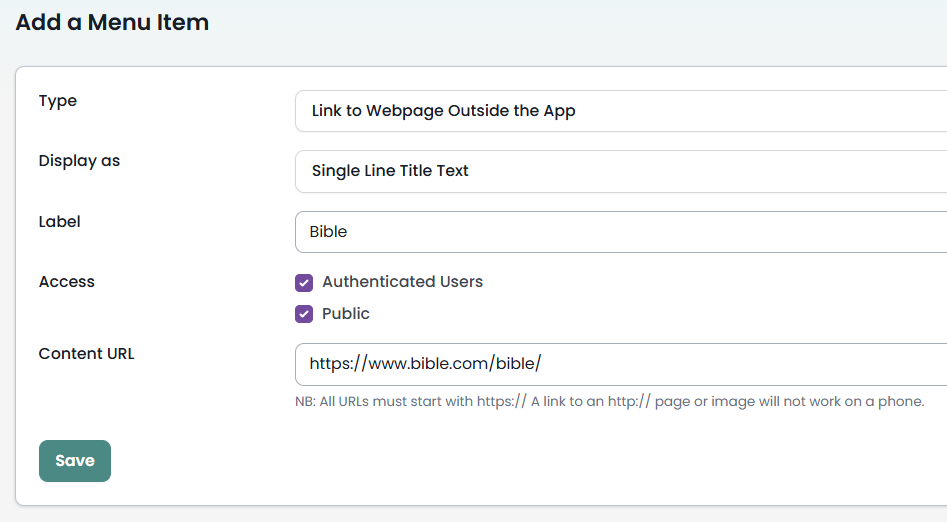
The Add a Menu Item form shows the fields in this order. Fill them in top to bottom:
- Type: choose Link to Webpage Within App so the Bible website opens inside your app and users stay in infoodle. Choose Link to Webpage Outside the App to open the link in the phone's own web browser instead. If a Bible site does not display inside the app, use Link to Webpage Outside the App.
- Display as: choose how the item looks in the menu. For a plain Bible link, Single Line Title Text is the simplest choice. The options are:
- Single Line Title Text: a single line of text, using the Label you enter.
- Multiline Standard Text: a longer plain text label.
- Image on a Card Background: shows an image inside a card.
- Image with no Background: shows an image on its own.
- Label: the text shown for the item, for example Bible. When you choose an image display, an Image URL field appears so you can point to the picture you want to show.
- Access: choose who sees the Bible link in the app. Authenticated Users covers people who are logged in to your app and is ticked by default for a new item. Public covers people using the app without logging in. Tick both if you want everyone to see it.
- Content URL: paste the Bible web address you copied in Step 1, for example https://www.bible.com/bible/. Use the https:// version so it opens on a phone.
Step 5: Save
Click Save. The Bible link now appears in that menu section in the app.
Common questions
Which Bible link should I use?
Any Bible website works. bible.com is a popular choice, with a general reading link of https://www.bible.com/bible/. Pick the site your organisation already uses and copy its address from your browser.
Can I add the Bible to the app home page instead of a menu?
Yes. Open Homepage Items under the Phone App settings and add an item the same way, choosing the same Type, Display as and Content URL. See Configuring Your Home Page.
What happens if I use an http:// link?
An http:// link will save without an error, but it will not open on a phone, so your app users will not reach the Bible site. Use the https:// version of the address instead. Most Bible websites already use https://.
What is the difference between Link to Webpage Within App and Link to Webpage Outside the App?
Link to Webpage Within App opens the Bible site inside your app, so users stay in infoodle. Link to Webpage Outside the App opens the site in the phone's own web browser instead.
Next steps
Once the Bible link is in place, you can add other online resources to your app the same way, such as a sermon video or a live stream. You can also reorder your menu items so the Bible sits where your community will find it.