If a label format is no longer needed — for example, because you've switched to a different label sheet — you can delete it from the Label Formats list.
Before you start
Permissions required
Update system information — gives full System setup access, which includes Administration tiles like Label Formats.
How to delete label formats
- Click Administration in the top navigation bar.
- Click Label Formats from the tile grid.
- Find the format you want to remove and click Edit on that row.
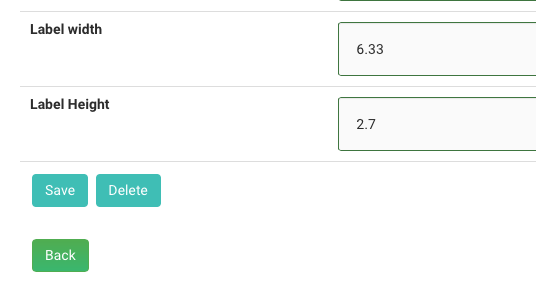
- At the bottom of the form, click Delete.
- Click OK to confirm. The format is removed immediately and you are returned to the list.
Deletion is permanent and immediate. There is no undo and no warning if the format is in use.
Any saved label templates that referenced the deleted format will fall back to the first format in your list, which may produce incorrectly sized output next time that template is used. Before deleting a format, check that no saved label templates in Contact > Labels are pointing to it.
If you delete a format by mistake, you'll need to recreate it from scratch — see Add a new Label Format.