infoodle keeps a full history of the fields associated with every version of a form you publish. You can edit a live form, test your changes privately, and push them live only when you're ready — without affecting submissions already collected.
How it works
When you first publish a form it is saved as v1. Every submission is linked to the version that was live at the time, so the system always knows exactly what the person saw when they filled it in.
When you need to make changes to the fields, clicking Edit form creates a new draft (v2, v3, etc.). The current published version stays live while you work. When you're happy, click Publish to make the new version live.
Save vs Publish: While editing, Save applies changes to form settings (email response, approval rules) immediately. However, changes made in the Build form tab are only pushed live when you click Publish. Existing links and embedded instances update automatically — you don't need to update them.
The Versions tab
The Versions tab shows the full history of a form. It's only visible when you're inside the form editor, not from the forms list.
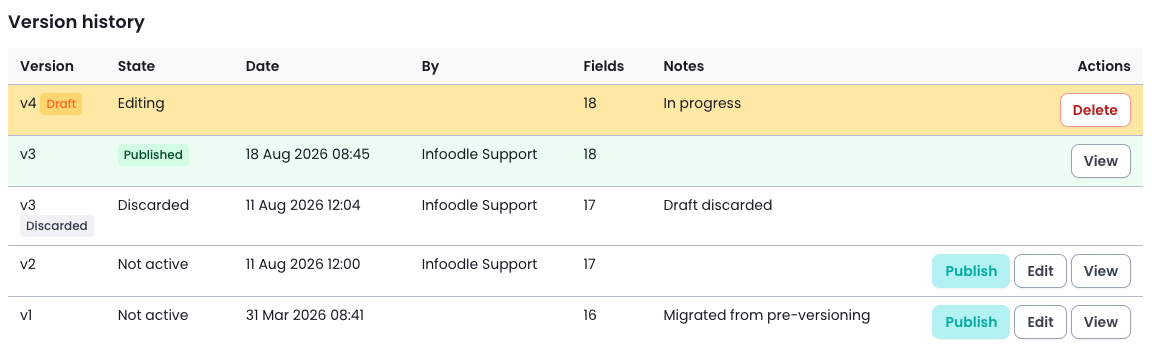
| Column | What it shows |
|---|---|
| Version | v1, v2, v3, etc. |
| State | Draft, Published, or Not active |
| Date / By | When it was published and who published it (blank for a draft not yet published) |
| Fields | How many fields the form had at that version |
| Notes | e.g. "Reverted from version 2" or "Migrated from pre-versioning" |
| Actions | View (read-only), Edit (load as a new draft), Publish (revert to this version), Delete (Remove this version - only available for the version in Edit state) |
The "Published" state

When a form is published, there are several aspects of the form you can review and change without needing to create a new version.
| Tab | State | |
|---|---|---|
| Build Form | Read Only | Review each of the fields and its current settings |
| Pledge Confirmation | Edit | Change the fields and text shown to the users |
| Form Settings | Edit | Change Usage settings including CSS, labels, access dates |
| Email Response | Edit | Change the content of the email sent to users |
| Publish | Read Only | Access the links to the form and embed code for websites |
| Approval | Edit | Change the available workflows and auto-approval settings |
To create a new version - click Edit Fields on the Build Form tab.
The "Editing" state
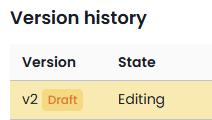
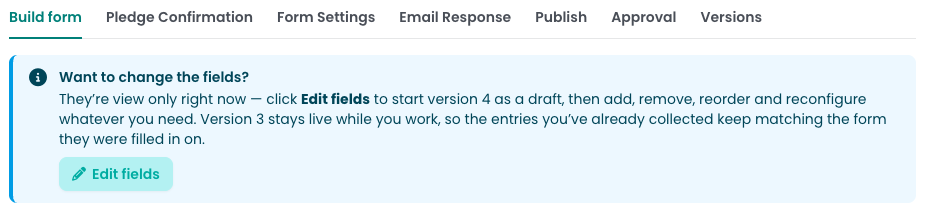
When someone clicks Edit fields, the form shows as Editing in the forms list. Only the person who opened it for editing can see the edit and publish buttons — other team members see it as Editing but cannot make changes until the session is completed.
If a form is stuck in Editing mode, the person who started the session needs to either publish their changes or cancel out of the editor.
Note: The published version remains live the entire time a draft is being edited, so there is no interruption for people using the form.
Reverting to an older version
You can roll back to any previous version at any time:
- Open the form and go to the Versions tab.
- Find the version you want and click Edit to load it as a new draft, or Publish to make it live immediately.
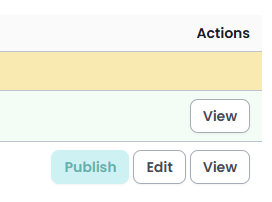
- Once published, the Notes column will show "Reverted from version #".

Delete a form in edit mode

If you wish to discard a version of a form that you are currently editing, go to the Versions tab, then click Delete on the version that is being edited.
Inherited (child) forms
If you use parent/child forms:
- When a parent form is published, all its child forms are automatically versioned to match.
- Any field overrides on the child (such as custom labels) are preserved.
- The child's version number increments automatically alongside the parent's.
Exporting entries across versions
When a form has multiple versions, the export dialog includes a version filter dropdown. You can export entries from a specific version, or from all versions combined.


Exporting all versions together produces a spreadsheet with a separate set of columns for each version. Fields added or removed between versions appear as their own columns, which can make the sheet look like it has duplicates — this is expected.
To consolidate, cut the data from later-version columns and paste it into the matching earlier-version columns, working left to right.
Version mismatch
If someone has the form open in their browser and a new version is published before they submit, they'll see a prompt to reload the page. Their entry is not lost — they just need to refresh and resubmit.