The Batches screen gives you an overview of all your transaction batches — their totals, reconciliation status, and available actions.
Getting there
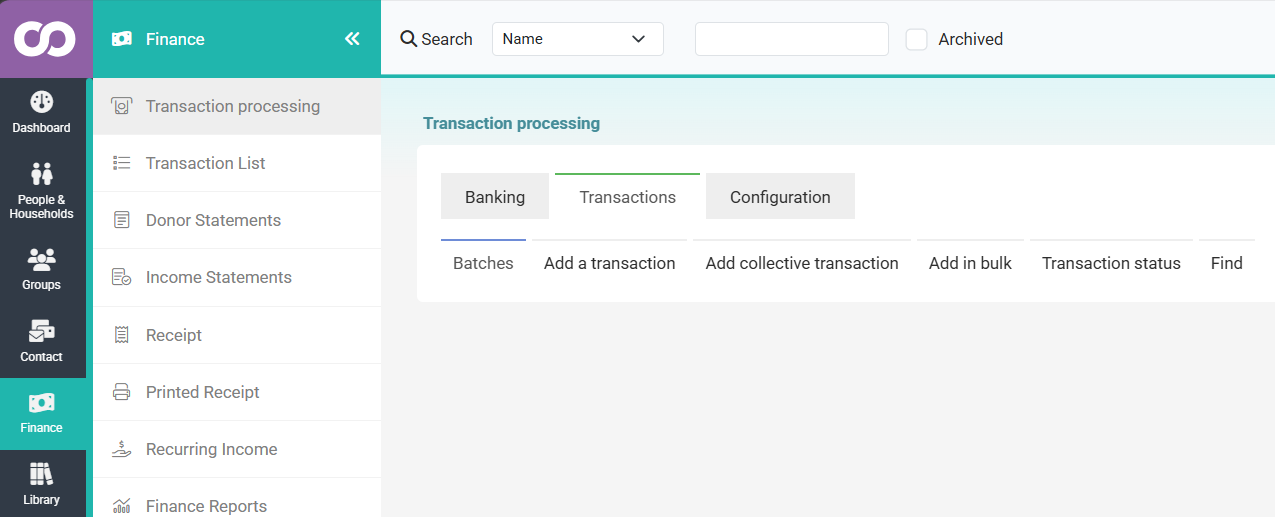
- Click Finance in the left navigation menu.
- Click Transaction processing.
- Under the Transactions tab, click Batches.
 {height="" width=""}Searching for batches
Searching for batchesches screen you'll find three search filters:
| Filter | What it does |
|---|---|
| Batch name (starts with) | Type the beginning of a batch code to narrow the list — e.g. 2026 to show all batches from that year |
| Created on or after | Enter a date to show only batches created from that date onwards |
| Created before | Enter a date to show only batches created before that date |
| Include empty batches | Tick this to include batches that have no transactions yet. Untick it to hide them and reduce clutter |
Leave all fields blank and click Search to show all batches.
Reading the batch list
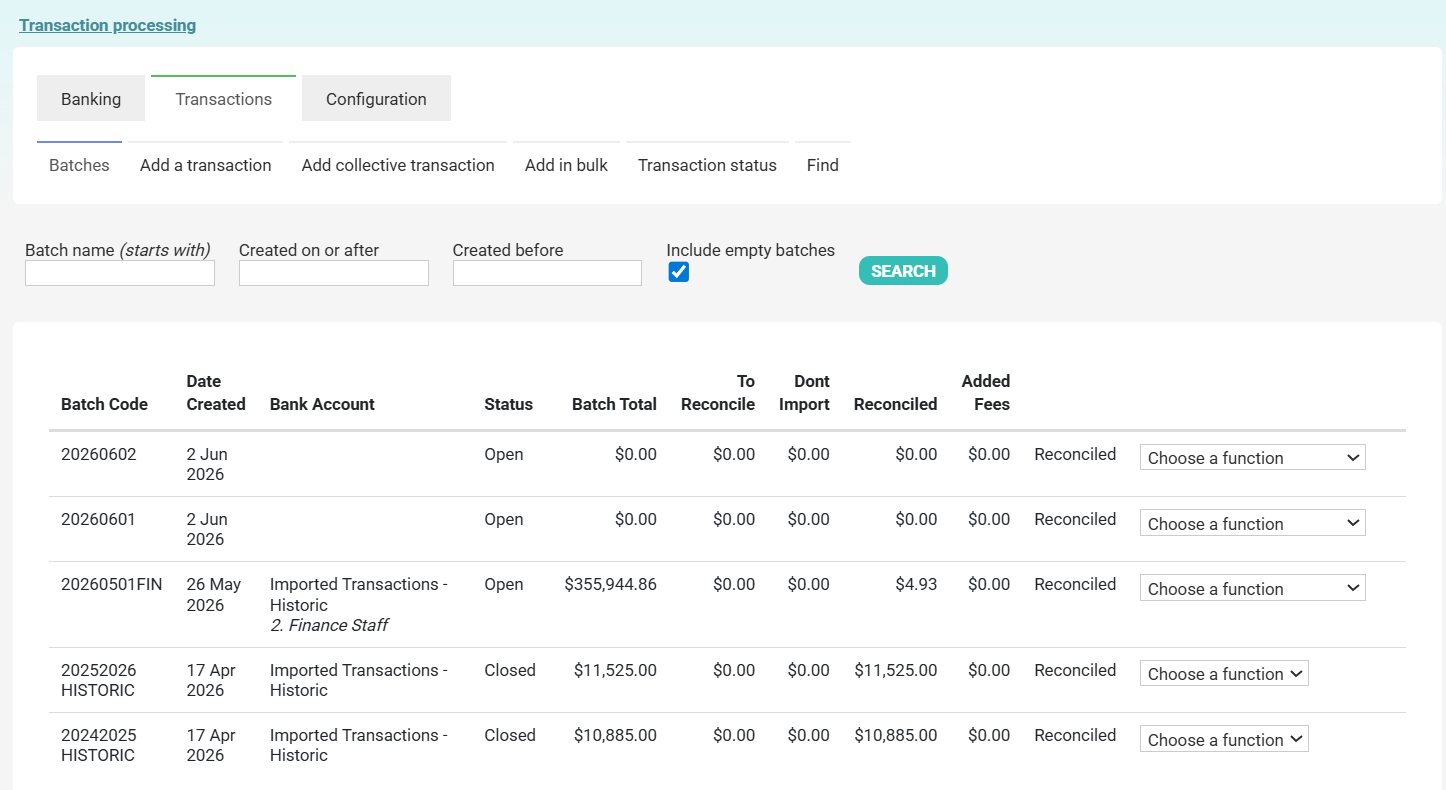
Each row in the results represents one batch. The columns are:
| Column | What it shows |
|---|---|
| Batch Code | The unique identifier for the batch, along with its description and any associated bank account group on the lines below |
| Date Created | When the batch was created |
| Bank Account | The bank account the batch is linked to (if set) |
| Status | Whether the batch is Open or Closed. Open batches can still have transactions added to them; closed batches are locked |
| Batch Total | The sum of all transaction amounts in the batch |
| To Reconcile | The amount still awaiting reconciliation against a bank statement |
| Don't Import | The amount marked as excluded from import/reconciliation |
| Reconciled | The amount that has been successfully reconciled |
| Added Fees | Any fees added to the batch (e.g. bank charges) |
The final column shows the batch's reconciliation state (e.g. Reconciled) and a Choose a function dropdown for actions you can take on that batch.
What you can do from here
Click the Choose a function dropdown on any batch to access actions. The options available depend on whether the batch is open or closed:
Open batches:
- View transactions
- View report
- Add individual transaction
- Add collective transaction
- Add bulk
- Statement Import
- Send to Xero
- Close
Closed batches:
- View transactions
- View report
- Send to Xero
- Re-open
If a batch is closed and you need to edit it, you'll need to re-open it first. See Editing a Batch for details.
Related articles