Before you begin
Permissions required:
You will need the Finance Admin role to edit, close, or re-open a batch.
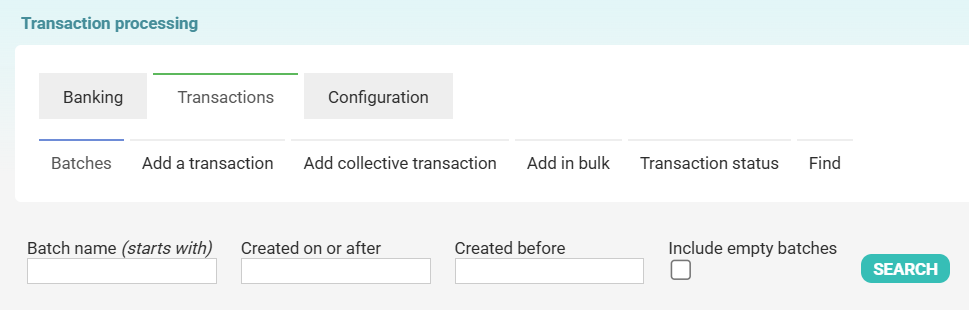
Where to edit a batch
- Click Finance in the left navigation menu.
- Click Transaction Processing.
- Click the Batches tab.
- Use the search filters to find your batch, then click Search. Leaving the fields blank returns all batches.
Adding transactions to an open batch
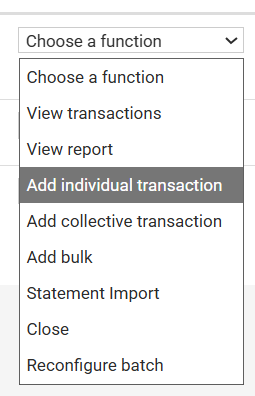
Open batches let you add transactions at any time. From the Choose a function dropdown, select one of:
| Option | What it does |
|---|---|
| Add individual transaction | Enter a single transaction manually |
| Add collective transaction | Record a collective (grouped) transaction |
| Add bulk | Add multiple transactions at once |
| Statement Import | Import transactions from a bank statement file |
Editing individual transactions within a batch
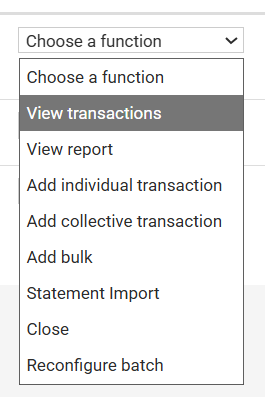
- Click Choose a function next to the batch and select View transactions.
- Locate the transaction you want to edit.
- Click Edit next to it.
Locked transactions: If a transaction has already been included on a generated tax receipt, the Edit button is replaced by the receipt number. To edit the transaction you must first go to Finance → Printed Receipts, delete the receipt to unlock it, make your changes, then re-issue the receipt. The new receipt will have a new receipt number — the original number is not reused.
Viewing reports
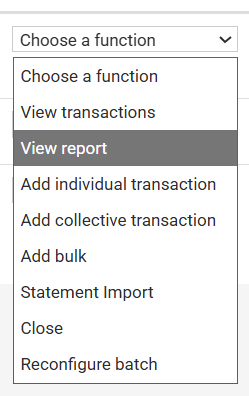
From the Choose a function dropdown, select View report to see a summary report for that batch.
Related articles