Creating a new Group Type
- Click on the administration cog icon, then click Group Types
- On the Group Types screen, click Add
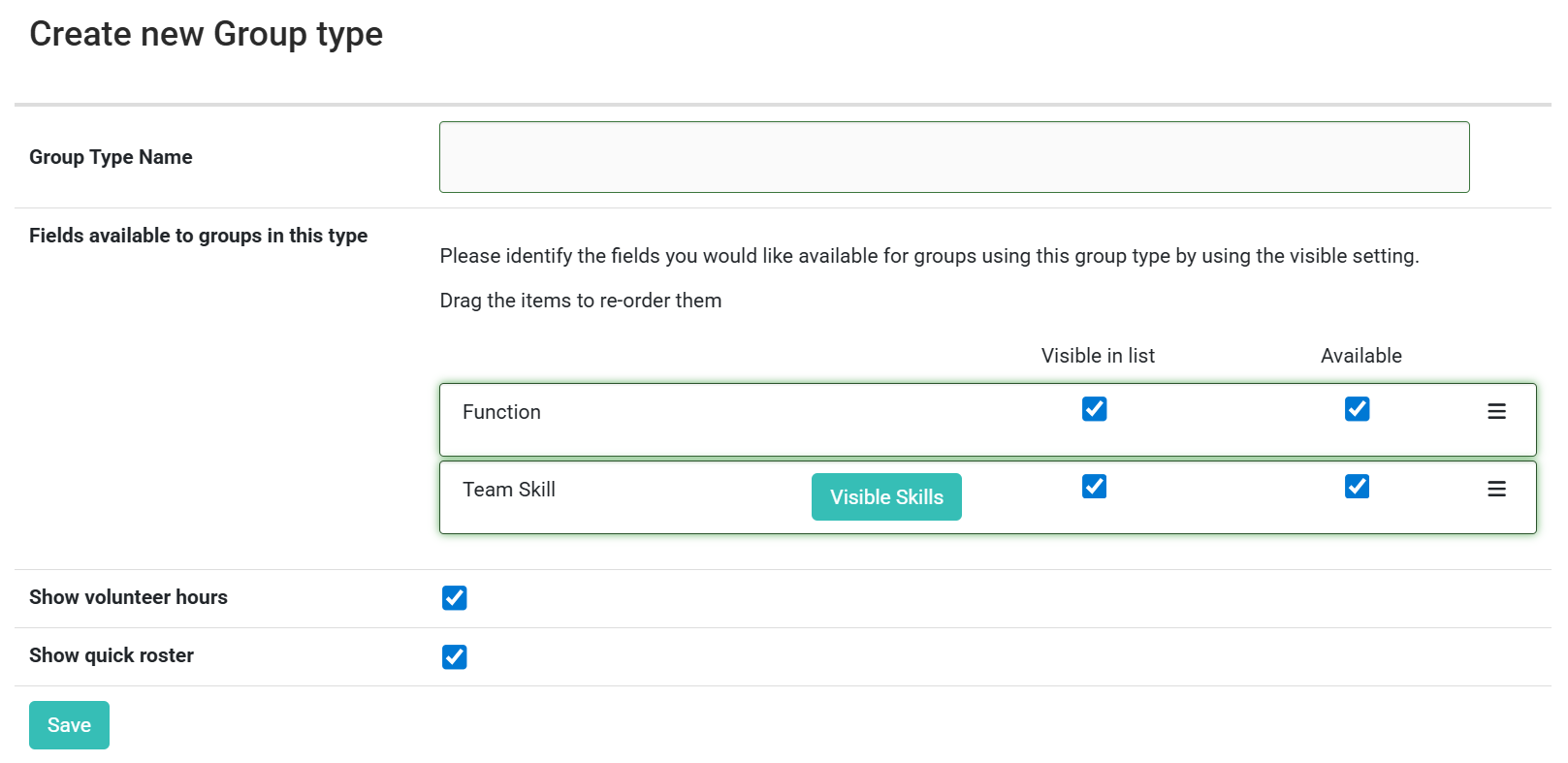
- Enter a Group Type Name (up to 255 characters)
- Configure the fields, options, and icons you want available for this type (see sections below). You may have other fields here if you have added group custom fields.
- Click Save
Configuring fields available to a Group Type
Each Group Type has its own set of fields that are available to the groups within it. This is where you control which columns and data are shown for groups of this type.
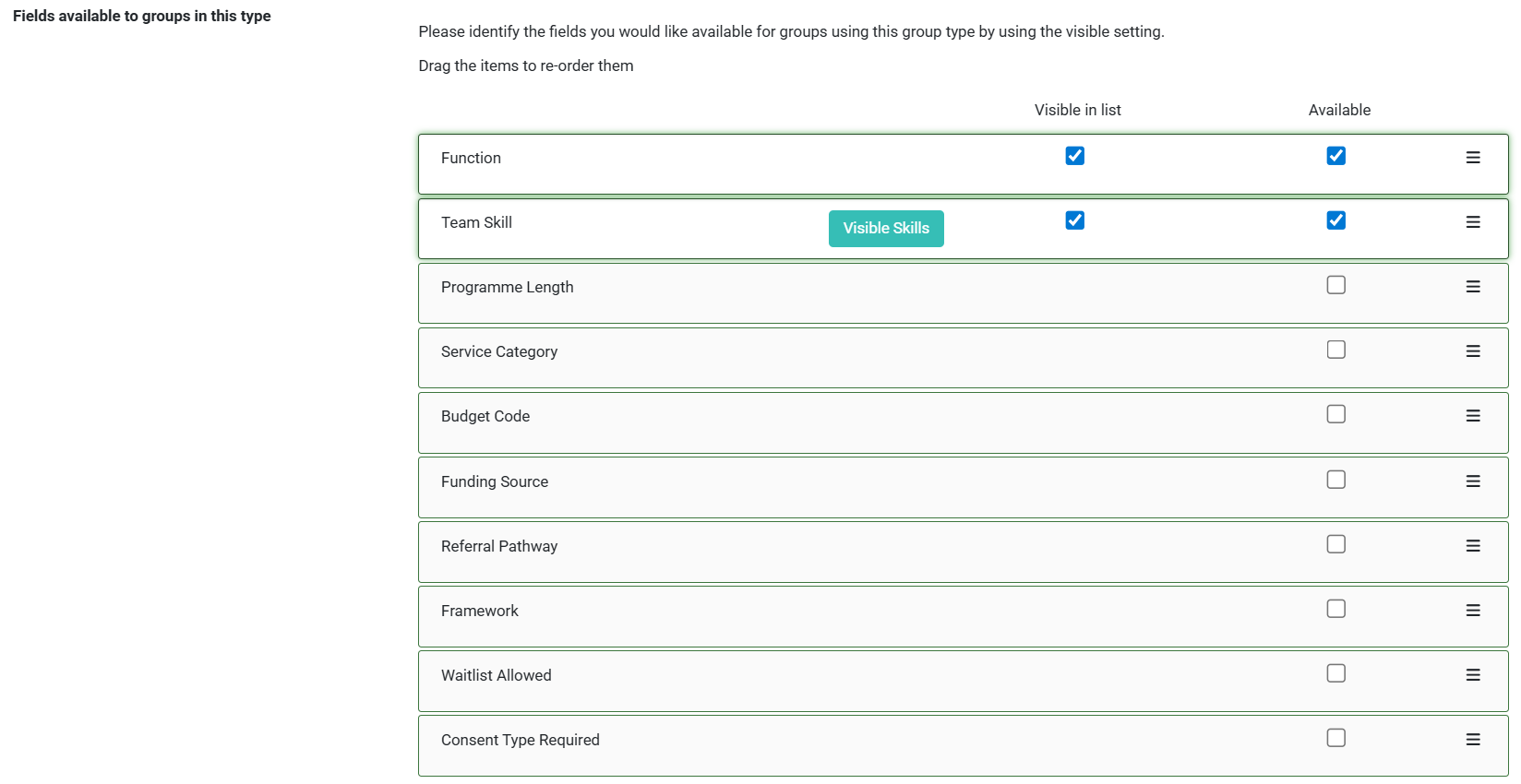
The fields list shows three built-in items by default, plus any Group Custom Fields you have created:
- Function - The role or function a member performs within a group (e.g. Leader, Member)
- Team Skill - Skills associated with a team member (e.g. Sound, Lighting, Hospitality)
- Custom Fields - Any Group Custom Fields you have created appear here too
For each field you have two checkboxes:
- Available - turns the field on for this Group Type. When ticked, the field can be seen and used within individual groups of this type
- Visible in list - when ticked, the field appears as a column on the group membership list (the page that shows all members of a group). Only available to tick if Available is also ticked
Reordering fields
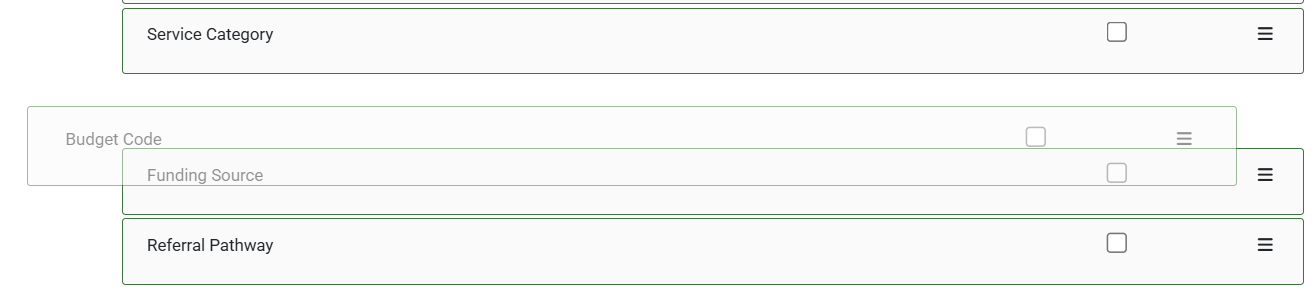
You can drag and drop the fields into your preferred order. Click and hold the drag handle (the three-line icon on the right of each row) and drag the field to the position you want. The order here determines the column order shown in the group membership list.
Choosing which Team Skills are visible
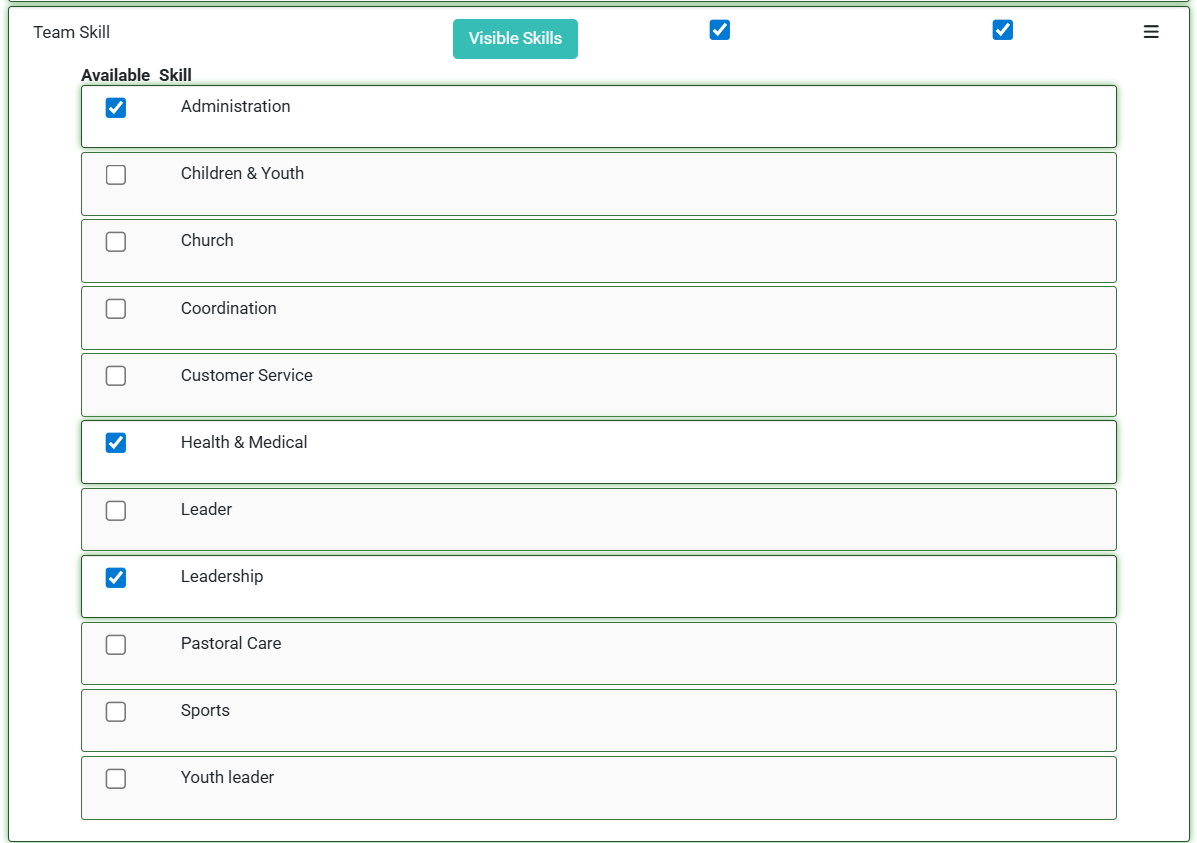
If you tick Available next to Team Skill, a Visible Skills button appears. Click it to expand a list of all your Team Skills and tick or untick the individual skills you want available for groups of this type. This lets you offer a different subset of skills to each Group Type.
Volunteer Hours and Quick Roster icons
Two additional options appear on the form:
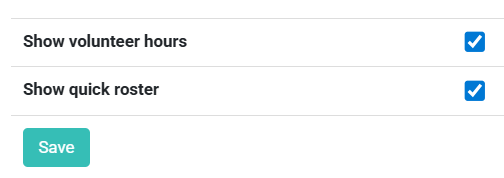
Show volunteer hours
When ticked, the Volunteer Hours icon appears on the groups list for groups of this type, giving quick access to logging volunteer time. This is ticked by default for new Group Types.
Show quick roster
When ticked, the Quick Roster icon appears on the groups list for groups of this type. This is also ticked by default. Untick either option if you don't want those icons cluttering the groups list for that type.
The Quick Roster option only appears if your organisation has the infoodle Events and Rosters package. If you don't have that package, the setting is automatically saved as enabled but the icon won't appear. See more information on Packages and Views.