The Email Response is an email that is sent to the person who completed the form. You can use this to thank them, confirm you have received the information or perhaps to provide them with a follow up action.
The follow-up email is the form's Email Response. Open the Email Response tab to write it.
The Email Response tab works the same way on every form. For which address it sends to, the From name and subject settings, and how to build the content, see Email Response. The rest of this section covers only what is specific to a pledge form.
Type of email to send
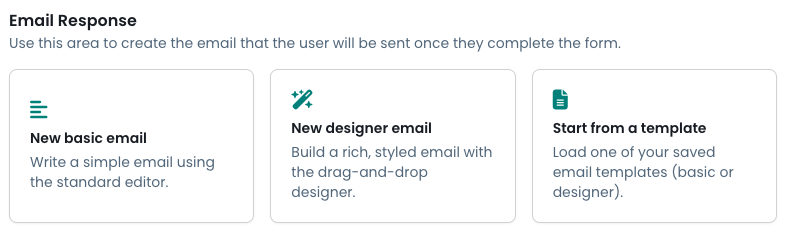
When creating a new email response you can choose from 3 starting points:
- Basic Email. This provides an email that does not include any formatting and few styling options. It's the same process as is used to send basic emails in the contact area.
- Designer Email. This provides an email that can be laid out as a fully designed email. This is the same process as the designer email used in the contact area.
- Template. Whilst each of the above 2 options allow you to choose a template, this option goes directly to choosing a template. These templates are taken from the list of email templates you have built in the email template area.
The merge tags available are limited by what's on the form. Therefore the merge tags added to email templates in the contact area will not work for an email response. Ensure you change those for the relevant ones in your form.
Fields you can merge into the email
The Available fields list on the left of the Email Response tab starts with "Form Entry id" and "Date Time of Entry" which uniquely identify the form entry the user has completed.
Any additional fields are built from your own form's field labels, so the exact wording depends on the label you gave each field. The list has at least one tag for each question on the form.
In addition to any other fields you have on the form, there are specific fields for pledge forms because they have a recurring period field, amount and a pay/donate method with options:
| Field | Shows |
|---|---|
| [your Recurring period field label] | How often the payment repeats |
| [your Recurring period field label] Start | The date of the first payment |
| [your Recurring period field label] End | The date of the final payment |
| [your Total pledge field label] | The full pledge worked out across every payment, written as a sentence |
| [your Total amount field label] | The amount of each individual payment |
| [your Pay/Donate field label] | The payment method the donor chose |
| [your Pay/Donate field label] Bank Details | The bank details for the payment method the donor chose |
The pledge_ tags from the Pledge Confirmation tab do not work in the email, and the email's field tags do not work on the confirmation screen. Build each one from its own list rather than copying text between the two.
Step 4: When the email is sent
On If there are no payment fields, then the email sis sent das soon as the form is submitted.
A Send email when setting appears at the top of the Email Response tab once the form offers a payment method that supports automatic notifications, such as Stripe. It records when you would like the email sent.
For what each option means and which one to pick, see Stripe: Configure Notifications from a Form.
If you cannot see Send email when, the form does not have a payment method that supports it. Check that the form has a Pay/Donate method field, and that the payment method it offers has automatic payment methods and automatic payment notifications both turned on. You can also click the information icon next to Send email when for a summary of the options without leaving the page.