What Group Functions are
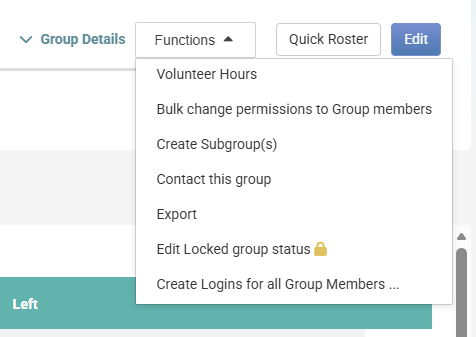
The Group Functions menu is the dropdown on the top right of a group's home page. It collects the actions you can take on the group as a whole, such as:
- exporting the member list,
- contacting everyone in the group,
- creating a subgroup,
- or changing every member's permission level in one move
Each item in the menu opens a focused dialog or takes you to the matching screen; the menu itself does not change the group on its own.
Before you start
Role Permissions
To see the Group Functions menu you need one of the following:
- An Administrator or Full member membership level in the group.
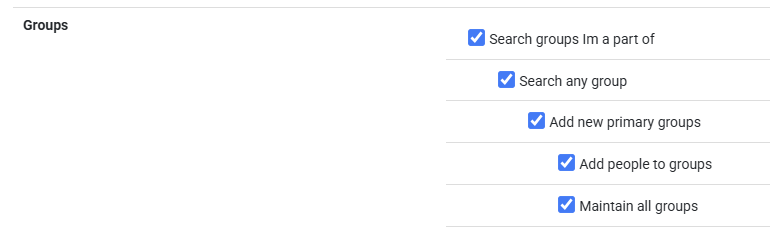
- The Maintain all groups site role permission, which gives you the same access as a group Administrator across every group on your infoodle.
Note: View only members and Past members do not see the dropdown.
Some items inside the menu need an additional role permission on top of group administrator access:
- Add new sub groups is required for Create Subgroup(s).
- Create accounts and roles is required for Create Logins for all Group Members.
- Search Events is required for the Quick Roster button that sits next to the Functions menu.
For an explanation of every role permission and how to assign them, see People Role Permissions.
What each function does
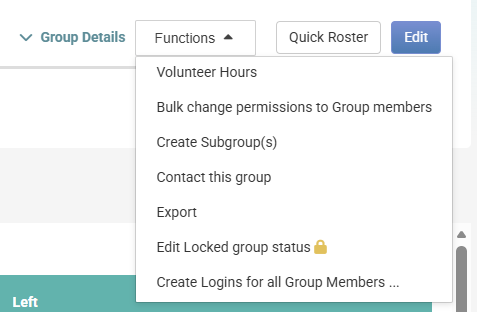
The dropdown surfaces up to seven items. What you see depends on your membership level in the group, the role permissions on your account, and how the group itself is configured.
| Function | What it does | Who can use it |
|---|---|---|
| Volunteer Hours | Opens the Volunteer Hours tab for this group so you can record and review hours members have logged. Appears for groups that have volunteer hours turned on, and also for older groups where the setting has never been changed. | Group Administrator |
| Bulk change permissions to Group members | Changes every other member's permission level in one step, to Administrator, Full member, View only, or Past member. Your own membership is not changed. Past members are included in the change. | Group Administrator |
| Create Subgroup(s) | Opens the subgroup form so you can add a new group under the current one. The new subgroup inherits the current group as its parent. | Group Administrator with the Add new sub groups role permission |
| Contact this group | Takes you to the Contact page with this group pre-selected as the recipient, so you can email, text, or send a document to everyone in the group. | Group Administrator or Full member |
| Export | Generates a member-list export in Excel or CSV. You can choose to include active and past members, exclude hibernated or expired subgroups, and include or exclude child groups. | Group Administrator or Full member |
| Edit Locked group status | Switches the group between Locked and Not Locked. A locked group can only have members added or removed by people who are themselves Administrators in the group, regardless of their site role. Locking also applies to every child group. | The site owner, or a Group Administrator with administrator-level access to this group |
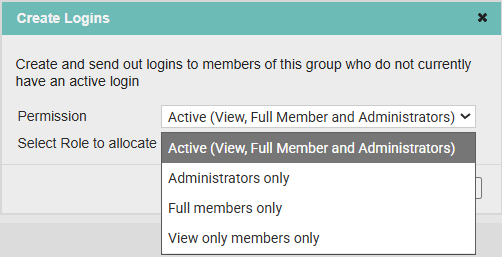
| Create Logins for all Group Members | Sends login emails to every member of the group who does not already have an active login, and allocates them a role. You can scope this to Administrators only, Full members only, View only members only, or all active members. | Group Administrator with the Create accounts and roles role permission |
Why don't I see all the functions?
A brand-new admin will often open the menu and find only three or four items instead of seven. That is normal. Each item is gated by either your membership level in the group, an extra role permission on your account, or a group-level setting:
- Create Subgroup(s) appears only if you have the Add new sub groups role permission.
- Create Logins for all Group Members appears only if you have the Create accounts and roles role permission.
- Volunteer Hours appears only when the group has volunteer hours turned on in its group type.
- Edit Locked group status is reserved for the site owner and for Group Administrators whose membership level in this group is Administrator (not Full member).
- Bulk change permissions to Group members, Create Subgroup(s), Create Logins, and Edit Locked group status require Group Administrator access, either directly or through the Maintain all groups site role permission.
If a function you expect is missing, check your membership level in the group's member list and your role permissions in Settings, Roles.
Export
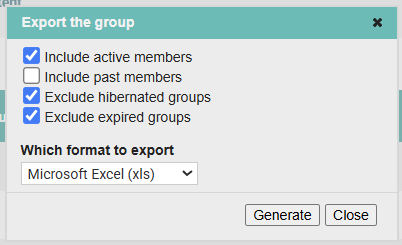
The Export the group function lets you download a snapshot of your group's membership as a spreadsheet. Access it from the Functions menu on any group page.
In the export dialog you can choose to:
- include active members
- include past members
- exclude hibernated
- exclude expired groups
The file can be downloaded in Microsoft Excel (xls) or CSV. Click Generate to download the file.
Create Logins for all Group Members
The Create Logins function lets you bulk-create infoodle logins for all group members who don't already have an active login. In the dialog, choose the Permission level (e.g. Active (View, Full Member and Administrators)) to control which existing group members are included, and select the Role to assign to each new login. Click Generate and infoodle will create login accounts and send a setup email to each eligible member. See Sending Logins for more help and information on sending out logins.
Note: Only members who do not currently have an active login will receive an account — existing logins are not affected. Members must have a valid email address on their contact record for the setup email to be delivered.