A Locked group (also called an Admin group) limits who can change its membership.
- In a normal group, anyone with the Maintain all groups permission or Administrator access in that group can add or remove members.
- In a locked group, only the group’s own Administrators can change membership — the Maintain all groups permission no longer applies. Any sub‑groups inherit this restriction.
Locking is uncommon. It’s mainly used when a group contains sensitive items — such as library files, notes, form responses, financial records, or attendance — to ensure only deliberately added members can access them.
Before you start
Role Permissions
- Search any group
For an explanation of these and other role permissions, see People role permissions.
You will also need to be an Administrator of the group you want to lock or unlock. This is the key prerequisite. The Maintain all groups role permission, by itself, does not let you lock or unlock a group: you must be added as an Administrator of that specific group first.
Group member levels (Administrator, Full member, View only, Past member) are set per group, separately from site-wide role permissions like Maintain all groups.
How a locked group differs from a normal group
The lock changes one thing: who can change the membership. Everything else about the group, including its name, description, sub-group structure, and reports, behaves the same as any other group.
| Action | Normal group | Locked group |
|---|---|---|
| Search and view the group | Anyone with Search any group, or members of the group | Anyone with Search any group, or members of the group |
| Add or remove members | Group Administrators, plus anyone with Maintain all groups or Add people to groups | Only Administrators of this group |
| Change member permission level | Group Administrators, plus anyone with Maintain all groups | Only Administrators of this group |
| Change name, description, or other group settings | Group Administrators, plus anyone with Maintain all groups | Only Administrators of this group |
| Edit Locked status | Only Administrators of this group | Only Administrators of this group |
| Sub groups | Treated independently | Inherit the parent's locked status. If a parent group is locked, every group under it is treated as locked too |
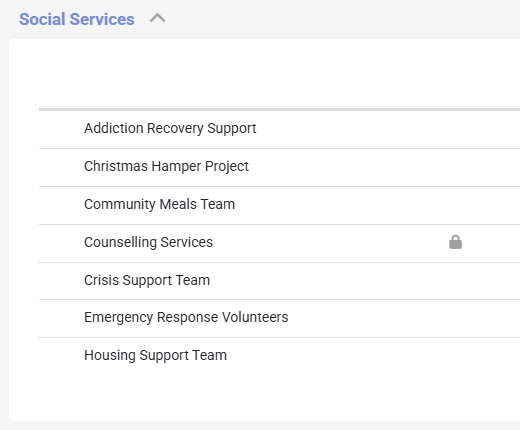
Locked groups are marked with a padlock icon next to the group name in the Groups list and on the group's own page.
Step 1: Open the group
You can find the group by clicking or hovering on Groups on the main menu bar on the left, then clicking the group name.
Step 2: Open the Functions menu
On the group home page, click Functions in the top right. The dropdown shows the actions available on this group. The lock control is the Edit Locked group status item, marked with a padlock icon.
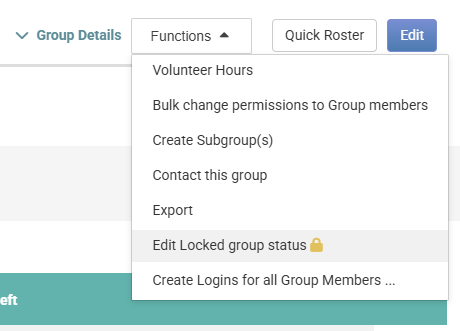
If you do not see Edit Locked group status in the menu, you are either not an Administrator of this group, or your account does not have administrator-level access to this group type.
You can see the current Administrators of the group on its member list: they are the members marked Administrator. Ask one of them to add you at that level, or to make the change for you.
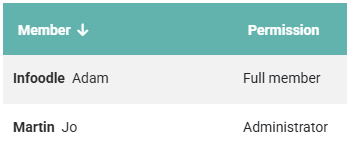
Step 3: Set the Locked status
Click Edit Locked group status. The Locked Group Status dialog opens with a short explanation of what locking does and a single Locked Status dropdown.
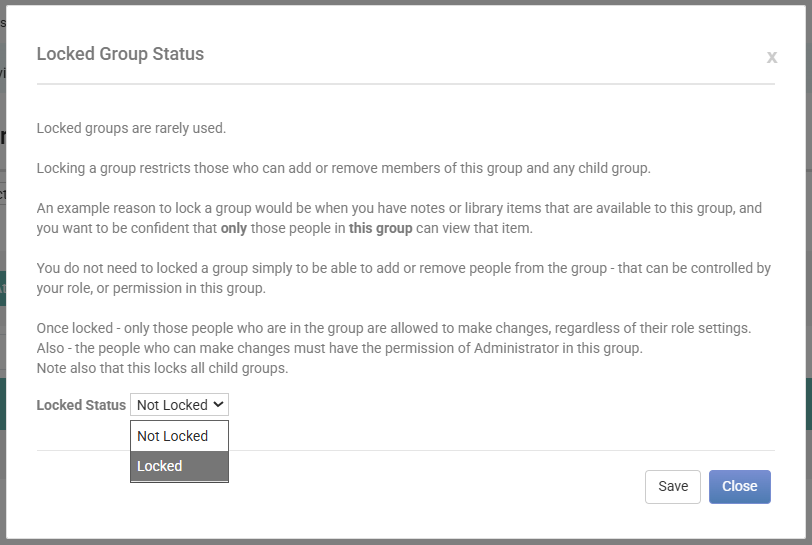
- Choose Locked to lock the group.
- Choose Not Locked to unlock a group that is already locked.
Click Save. The dialog confirms the change. The Group Details panel updates immediately to show the new state.
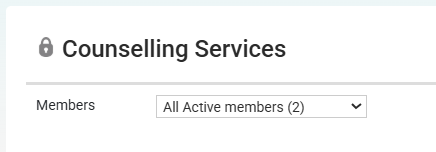
A small padlock icon also appears next to the group name in the page header and in the Groups list.
Unlock a group
Unlocking a group uses the same control. Open Functions → Edit Locked group status, set Locked Status to Not Locked, and click Save.
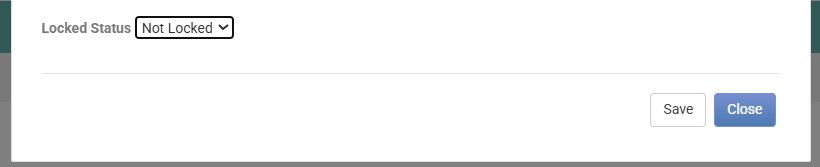
Only Administrators of the group can unlock it.
Only the infoodle support staff can override a group’s Locked status, but only when no Administrator is available. This is a high‑privilege action used strictly by infoodle staff during support recovery.
If your organisation keeps an access register for compliance (such as under the New Zealand Privacy Act, Australian Privacy Principles, or charity audits), you can record this as a vendor‑support access path.
What happens to existing memberships
Locking a group does not move people in or out of the group. The current members keep the same access they had before the lock.
infoodle will not let you remove the last Administrator from a locked group. If you try to demote or remove the only person at Administrator level, the change is refused and no part of the update is applied. Add another Administrator first, then make the change.
Common questions
Does Maintain all groups still work on a locked group?
No, not for membership and settings. Maintain all groups is the role permission that normally lets a user manage any group on the site, but a locked group overrides it. To manage a locked group you must be added to it as an Administrator.
I am a site admin with Maintain all groups. Why can I not just lock the finance group?
Locking and unlocking a group is gated on being an Administrator of that group, not on Maintain all groups. This is intentional, so that a single site admin cannot quietly lock a group they are not part of. Ask a current Administrator of the group to lock it, or to add you at Administrator level first.
Can the public still see a locked group?
The lock controls who can change the group, not who can see it. Search any group, the role permission that lets a user find any group on the site, still works on locked groups. If you also want to restrict who can see the group, use that group as the audience on the sensitive item (a note, a library file) so that only members of the group can reach it.
What if a parent group is locked?
The lock cascades to sub groups: only Administrators at the parent or sub group level can change membership of the sub group. Locking a single high-level group is the usual way to protect a whole branch of the tree.
Locking applies independently per group, however. If a parent group is locked, its sub groups inherit the parent's enforcement on membership and settings, but each sub group's own Locked status can still be changed by an Administrator of that sub group.
Why was the change rejected with a "locked group" message?
You are trying to act on a group that is locked, or whose parent is locked, and you are not an Administrator at the locking level. The full message reads "You cannot add to the group 'X'. It is, or its parent is, a locked group you are not administrator of." Ask the Administrator of that group to make the change, or to add you as Administrator first.
Can I remove myself from a locked group when I am the last Administrator?
No. infoodle refuses any change that would leave a locked group with no Administrator. Add another Administrator first, then either remove yourself or ask the new Administrator to remove you.
Can I delete a locked group?
Yes, but only if you are an Administrator of the group. The same restriction that protects membership changes also protects deletion. The last-Administrator rule above still applies, so if you are the only Administrator you will need to add another Administrator (or remove all other members first) before deleting.
Next steps
If you locked a group to protect sensitive content, check the attachments on the group itself: library files, notes, forms, and any group-restricted reports. The lock controls who can change membership, but the audience you set on each attached item is what stops people outside the group from reading it.