A membership product that is required to take its payments only on days of the month that you choose, for example the 1st and the 15th, so that membership payments are processed on the same days each month. Members don't choose a day: infoodle gives each member one of your days. To see how that day is picked, see How payment days change a member's payment dates.
Before you start
Role Permissions
- Manage finance configurations: needed to open and save a membership product.
For more about what each role permission means, see People Permissions.
- You will need a membership product with its pay periods chosen. See Adding and Editing a membership product and Membership Payment Schedule.
Choose the payment days
- Go to Finance > Membership Products.
- Click the three dots on the product's row, then click Edit.
- Open the Payment Schedule tab.
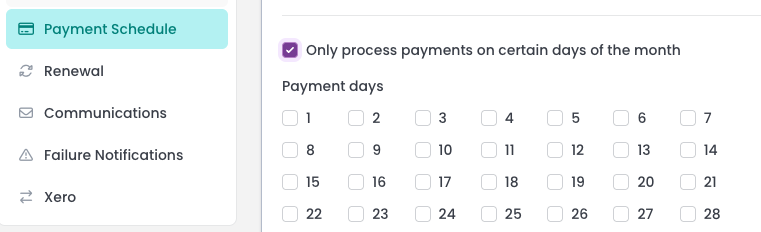
- Below Allowed pay periods, tick Only process payments on certain days of the month. A grid of days from 1 to 28 appears.
- Tick each day you want payments taken on.
- Click Save Membership.
If no day is ticked, the product is not saved and the screen shows "Choose at least one payment day, or untick "Only process payments on certain days of the month"."
Saving the product rebuilds its signup form, including a hidden question, Payment schedule (set automatically), that holds a card or direct debit payment until the payment day. If the form is edited by hand and loses it, card and direct debit joiners are told "This membership cannot be joined online at the moment. Please contact us and we will set it up for you." Save the product again to fix it.
What the setting covers
- Pay periods: Monthly, Quarterly, Half-yearly and Annual payments follow the payment days. Fortnightly payments don't, because they can't stay on one day of the month.
- Days 1 to 28: only these are offered, so that every month has the day.
- All 28 days ticked: this is still a restriction. Someone who joins on the 29th, 30th or 31st pays on the 1st of the next month.
- Short periods: if a membership ends before its first payment day, the member pays when they join and has no payment day.
Changing the days later
- Removing a day: members already on that day keep it, including when they renew.
- Adding the setting to a product with members: current payment plans stay as they are. Each member is given a payment day at their next renewal, or you can set one now on their membership.
- Unticking the setting: members keep their day until their current membership ends, then pay from the renewal's start as before. Unticking also clears your ticked days.