Special Reports are pre-built reports that cover specific areas of infoodle. Unlike People or Assets reports, they don't have multiple tabs — simply select your options and click Generate to produce the report instantly.
There are eight special reports available:
- Attendance
- Attendance Notes
- Attendance Visitors
- Printed Directory
- Text Usage
- Unsubscribes
- Volunteer Hours
- Private Data
How to Access Special Reports
- Click Reports in the main menu
- Under Special Reports in the left panel, click the report you want to run
- A form will appear with the options for that report
- Fill in the required fields
- Click Generate in whichever format that works for you
Attendance
Shows attendance records for members of a group over a selected date range. Use this to identify who has attended events, how many events they missed, or who has been consistently absent.
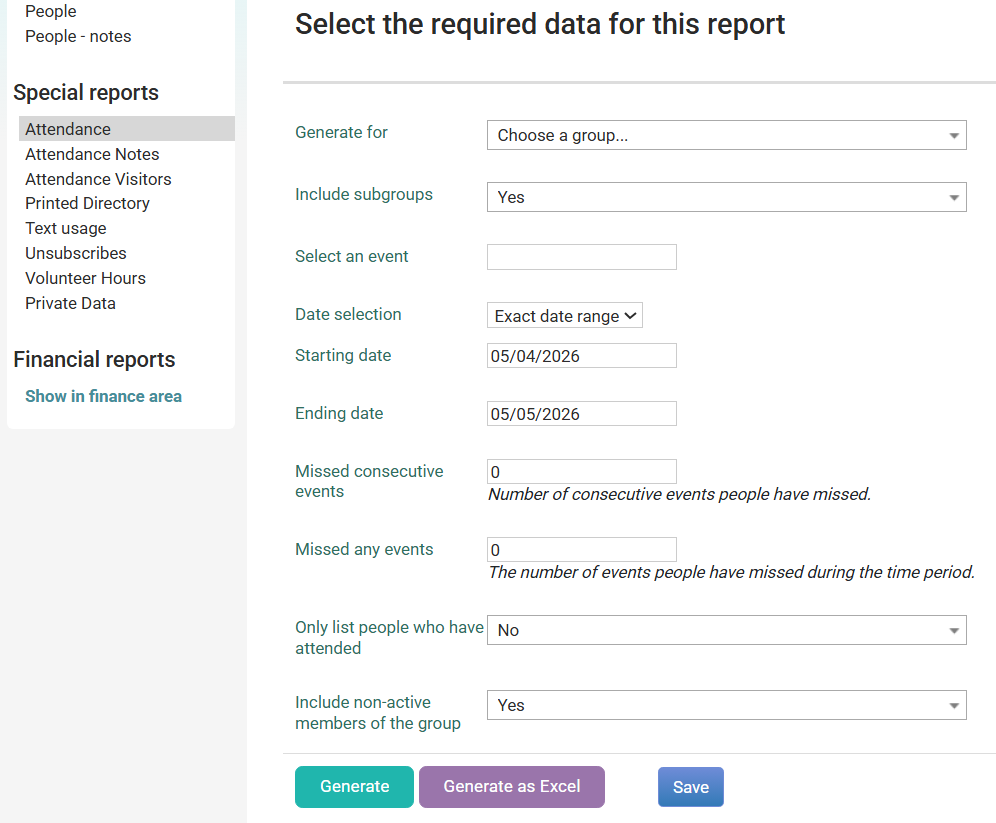
| Field | Description |
|---|---|
| Generate for | Select the group to report on (required) |
| Include subgroups | Yes/No — include members of child groups |
| Select an event | Filter to a specific event within the group (optional) |
| Date selection | Choose Exact date range, Rolling period, or other options |
| Starting date | Start of the date range |
| Ending date | End of the date range |
| Missed consecutive events | Filter to people who have missed this many events in a row (0 = show all) |
| Missed any events | Filter to people who have missed this many events in total during the period (0 = show all) |
| Only list people who have attended | Yes/No — exclude people who haven't attended at all |
| Include non-active members of the group | Yes/No — include past or inactive members |
Attendance Notes
Shows attendance records alongside any notes recorded at each event. Use this to review notes added during attendance taking for a group over a date range.
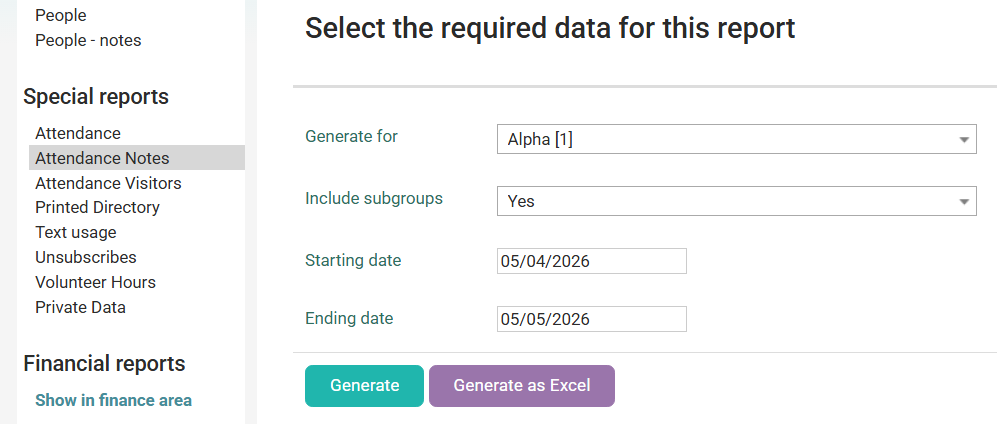
| Field | Description |
|---|---|
| Generate for | Select the group to report on (required) |
| Include subgroups | Yes/No — include members of child groups |
| Starting date | Start of the date range |
| Ending date | End of the date range |
Attendance Visitors
Shows visitor attendance records for a group over a selected date range. Use this to track people who attended events as visitors rather than registered members.
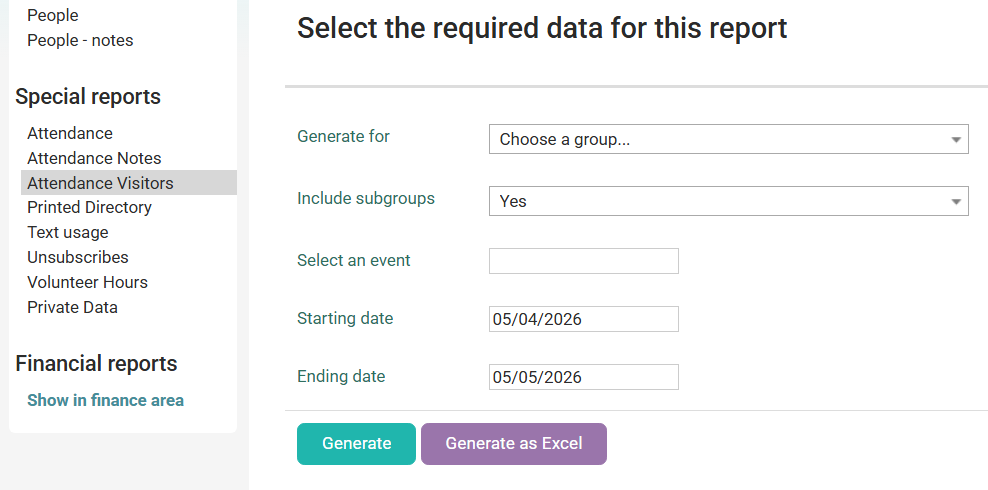
| Field | Description |
|---|---|
| Generate for | Select the group to report on (required) |
| Include subgroups | Yes/No — include subgroup visitors |
| Select an event | Filter to a specific event (optional) |
| Starting date | Start of the date range |
| Ending date | End of the date range |
Printed Directory
Generates a formatted contact directory for your organisation or a selected group. The directory uses each person's privacy settings for the "Directory" category — only information they have allowed to be shared will appear.
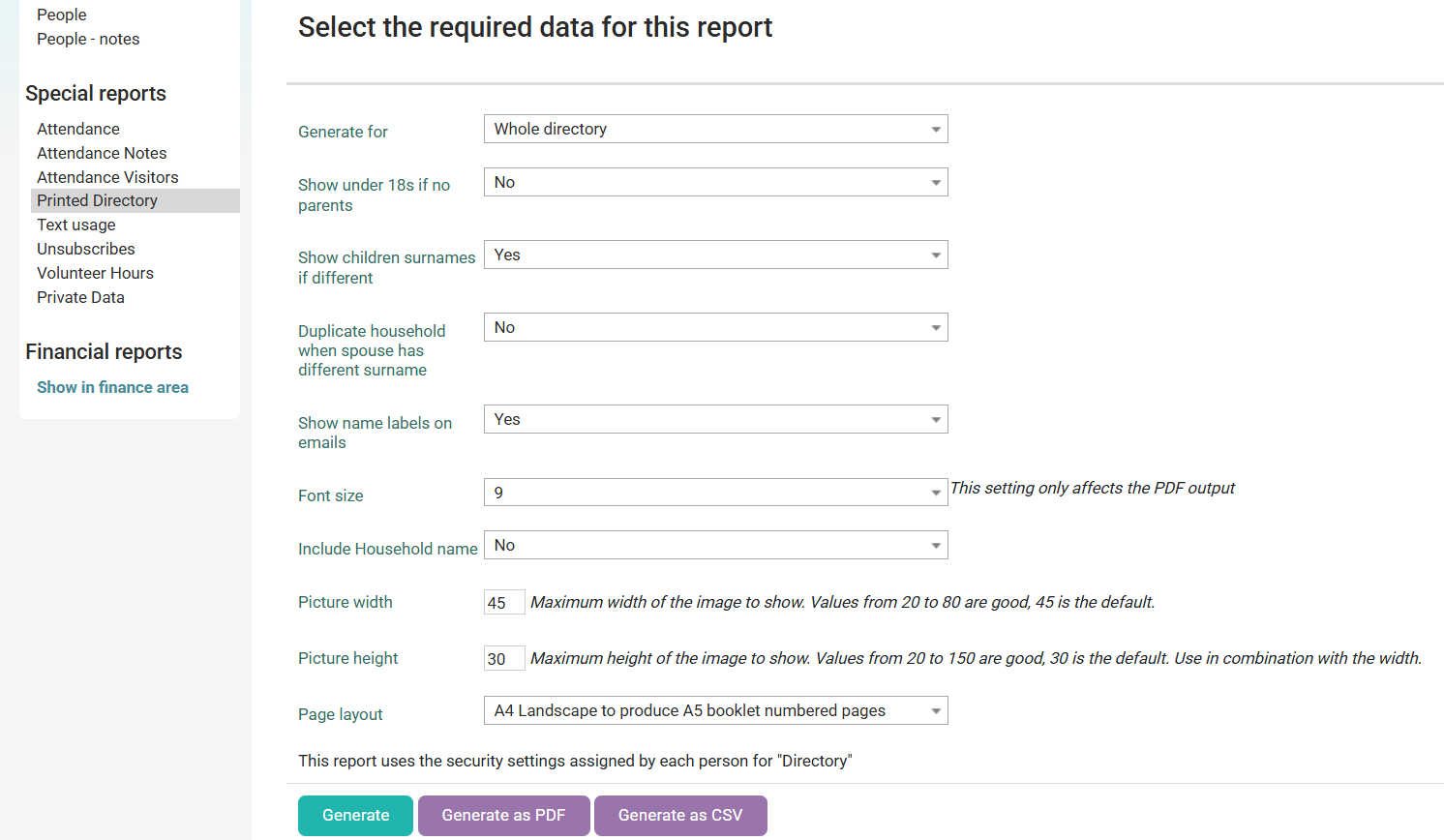
| Field | Description |
|---|---|
| Generate for | Select a group, or choose Whole directory for all contacts |
| Show under 18s if no parents | Yes/No — include children who have no parent/guardian listed |
| Show children surnames if different | Yes/No — show a child's surname if it differs from the household name |
| Duplicate household when spouse has different surname | Yes/No — list the household twice (once under each surname) for alphabetical sorting |
| Show name labels on emails | Yes/No — display a label alongside email addresses |
| Font size | Set the font size for PDF output (default is 9) |
| Include household name | Yes/No — show the household name above members |
| Picture width | Maximum image width in the directory (default 45; values 20–80 recommended) |
| Picture height | Maximum image height in the directory (default 30; values 20–150 recommended) |
| Page layout | Choose the paper layout (e.g., A4 Landscape to produce A5 booklet) |
Note: This report uses the privacy settings assigned by each person for the "Directory" category. See Privacy & Visible Settings for more information.
Text Usage
Shows a summary of text messages sent from infoodle for a group over a selected date range. Use this to monitor SMS usage and costs.
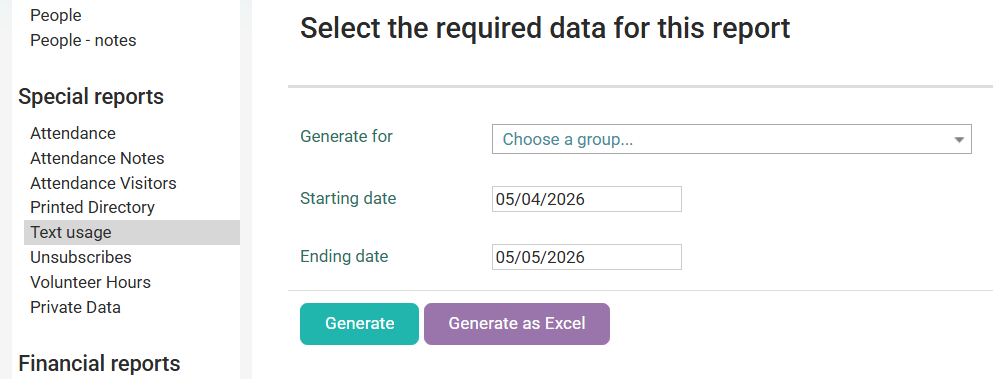
| Field | Description |
|---|---|
| Generate for | Select the group to report on (required) |
| Starting date | Start of the date range |
| Ending date | End of the date range |
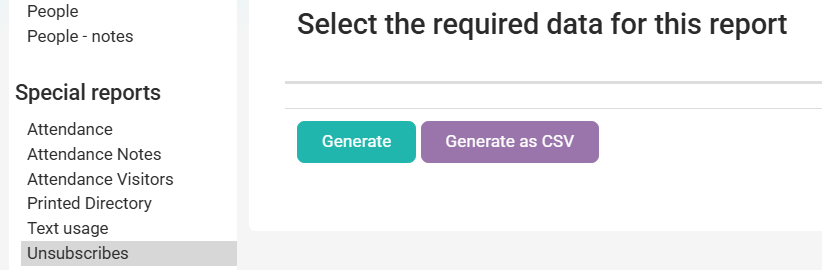
Unsubscribes
Shows a list of all contacts who have unsubscribed from emails. No options are required — simply click Generate to produce the full unsubscribe list.
Volunteer Hours
Shows a summary of volunteer hours recorded for members of a group over a selected date range.
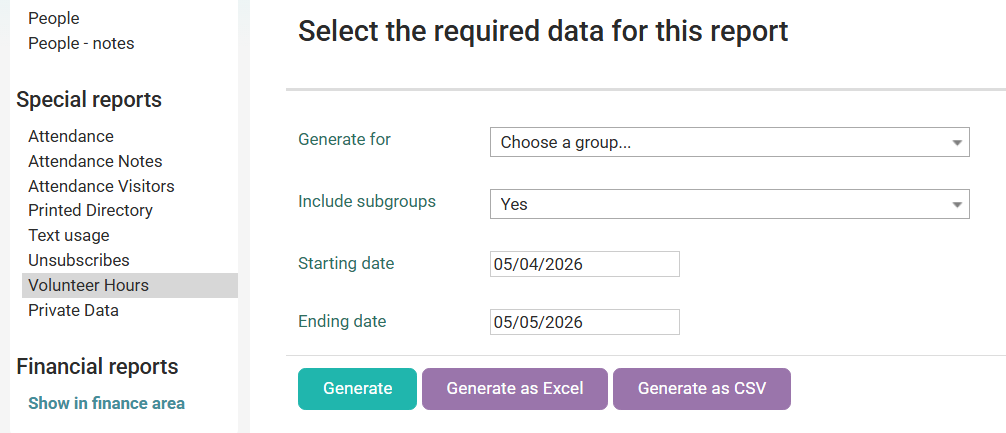
| Field | Description |
|---|---|
| Generate for | Select the group to report on (required) |
| Include subgroups | Yes/No - include members of child groups |
| Starting date | Start of the date range |
| Ending date | End of the date range |
Private Data
Shows private data fields for contacts in a selected group. Use this to review sensitive information that is not visible in standard reports.
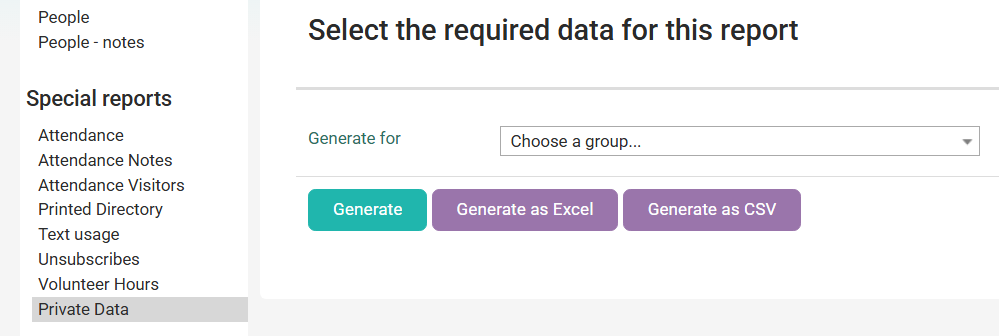
| Field | Description |
|---|---|
| Generate for | Select the group to report on (required) |
- No Save option on most Special Reports — Unlike People and Assets reports, most Special Reports don't have a Save button. You'll need to re-enter your options each time, except where a Save button is available
- Privacy settings matter — The Printed Directory respects each person's individual privacy settings. If someone's information isn't appearing, check their Directory privacy settings
- Date ranges — Use the Starting and Ending date fields carefully. A very wide date range may produce a large report that takes longer to generate
- Subgroups — Where "Include subgroups" is available, selecting Yes will include members from all child groups beneath the selected group