Criteria are the filters you use when building reports. This article explains operators, how to combine criteria, and special options like date ranges and financial filters.
See the following pages on specific report areas for step-by-step instructions on building reports:
Asset Reports
People - Notes Reports
People Reports
Operators
Operators control how criteria work. Available operators depend on the field type:
Text fields: equals, contains, starts with, ends with, does not equal, does not contain, is empty, is not empty
Date fields: equals, is before, is after, is within last, is within next, is not set
Number fields: equals, is greater than, is less than, is greater than or equal, is less than or equal
Yes/No fields: is, is not
Selection fields: includes, does not include, equals
Combining Multiple Criteria
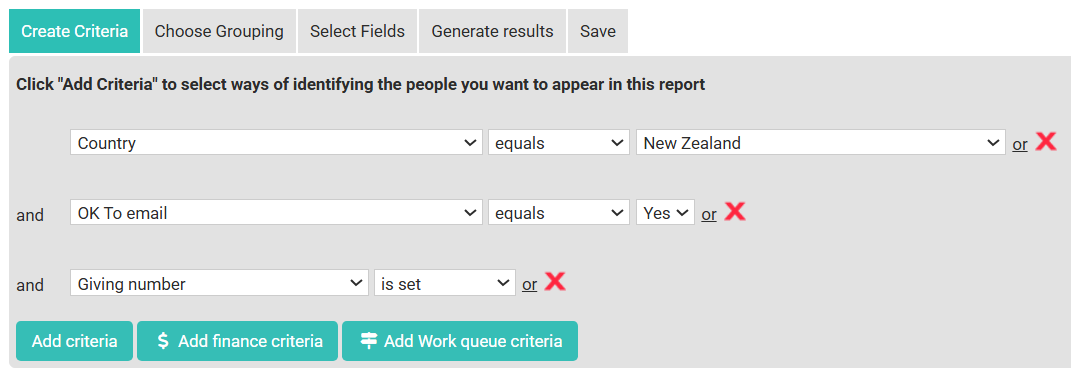
Multiple criteria work together with AND logic - a record must match ALL criteria to appear in results.
Example: Status - equals - Active, and, Joined date - is after - 2023-01-01, and, Groups - includes - Finance Team.
Test before exporting — Always view results first to confirm the right records appear
Use relative dates for saved reports — They automatically update each time you run the report
Text matching is case-insensitive — "john" matches "John"
Use "is empty" or "is not empty" to find records with blank fields