Deleting a Gift Aid claim removes the claim period itself, not the donations inside it. The donations go back into the pool of unclaimed giving and are picked up again by the next claim you build, as long as that claim's Period end falls on or after the date of the gift. If you deleted a claim by mistake, you can bring the missing period back by changing the dates on the claim you are working on now.
There is no undo button. Bringing the period back is a short piece of manual work.
Before you start
Role Permissions
- Access to Finance area
- Manage, Read and report on transactions
For an explanation of what each role permission does, see Finance Permissions.
You will also need Gift Aid switched on for your site. You can check this by clicking the administration cog in the top right hand corner, then going to Administration → Packages & Views, on the "Gift Aid for UK Charities" row. If you cannot see Administration, ask whoever looks after your infoodle to check this for you.
A person who only sees a cluster of groups can open the Gift Aid claims list, where it is labelled Cluster View, but cannot delete, reset or file a claim and cannot edit a claim's dates. They cannot carry out this recovery.
Which claims can be deleted
Go to Finance → Gift Aid → Claims to see your list of claim periods. Each row has an Action button on the right.
| Status shown on the claim | Is Delete offered? |
|---|---|
| Waiting for previous claim to be filed | No. This row has no Action button at all. |
| Started | Yes |
| Draft | Yes |
| Finalised | Yes |
| Filed to HMRC | No |
Once a claim has been filed to HMRC, Delete disappears from its Action menu and the claim cannot be removed. If you need to undo a filed claim, that is a different job: see Resetting a Claim.
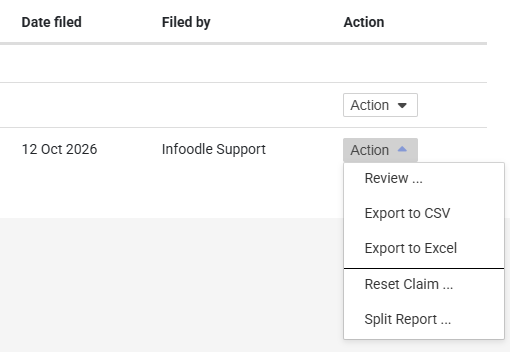
Delete acts straight away. There is no "are you sure?" question and no confirmation screen. As soon as you click Delete, the claim period is gone and you are returned to the claims list.
infoodle does not keep a record of who deleted a claim or when, so there is nothing to look up afterwards.
A claim that has ever been sent to HMRC keeps a copy of what was sent and what HMRC replied. That includes a claim you have reset, and a claim HMRC rejected. Deleting the claim deletes that copy too.
The same action appears as a Delete claim link on the claim's own review screen, and it behaves the same way.
What happens when you delete a claim
- The claim period disappears from the claims list.
- Every donation that was attached to it is detached. The donations themselves are untouched and stay on each donor's record.
- Those donations become available to claim again, because nothing is holding them.
- The period that came after the deleted one becomes the period you work on next.
Nothing is lost from your giving records. What you lose is the period itself: its dates, and the fact that you had already reviewed and drafted it.
Check first, infoodle may have put the period back
If the claim you deleted was the most recent period, infoodle recreates that period by itself as soon as you go back to the claims list. There is then nothing to recover, and the rest of this article does not apply. Check this before you change any dates.
- Go to Finance → Gift Aid → Claims.
- Look at the top row of the list.
- If the top row shows a later period than the one you deleted, the period is still missing. Work through the next section.
- If the top row shows the dates of the period you deleted, infoodle has already put it back.
- Click Action on that row.
- Click Review.
- Click Save.
- Click as Draft. infoodle gathers the period's donations again, and you are finished.
If that top row is marked Waiting for previous claim to be filed, it has no Action button. File the claim below it to HMRC first, and the row becomes Started.
Bring the deleted period back
The trick is that you do not create a new claim. You take the claim you are working on now, move its dates back to cover the missing period, and let infoodle build the later period again.
Suppose you deleted the July claim, and August is now the claim at the top of your list. You want July back.
infoodle keeps no record of the claim you deleted, so work its dates out from the claims around it. The missing period starts the day after the previous claim's Period end, and it lasts as long as your claim frequency, shown at the top of the claims list as Gift Aid claim frequency.
-
Go to Finance → Gift Aid → Claims.
-
Find the claim at the top of the list. This is the period that followed the one you deleted.
-
Click Action on that row.
-
Click Review.
-
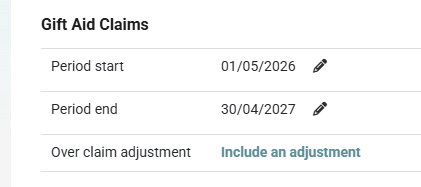
You will now see the claim's Period start and Period end at the top of the screen.
-
Click the pencil next to Period start.
-
Pick the first day of the missing period, for example 1 July.
-
The date saves the moment you pick it. A tick appears beside the box.
-
Click the pencil next to Period end.
-
Pick the last day of the missing period, for example 31 July.
-
Check that Period start and Period end now both show the missing period.
-
Read any message that appears beside either date.
-
Ignore the list of donations lower down the screen for now. It still shows the old period, and infoodle rebuilds it when you save.
-
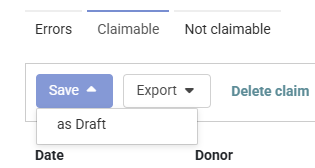
With both dates set, click Save.
-
Click as Draft.
-
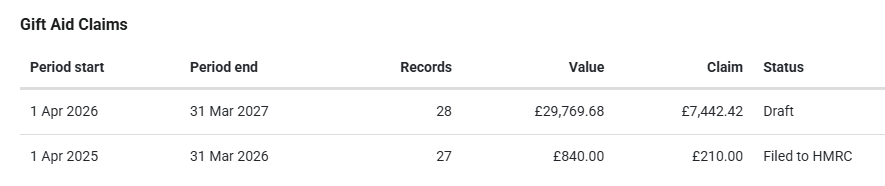
You are returned to the claims list, with the recovered period showing its donations and its value.
-
Check the top of the list. The later period is back, above the period you just recovered, marked Waiting for previous claim to be filed.
-
If the claim you re-dated had an over claim adjustment on it, check that the amount still applies to the period you have moved it to.
The messages that can appear at step 12 are listed in Messages beside the dates below.
Set both dates before you save. Change Period start first, then Period end, and click Save only when both dates show the missing period. Each date is saved on its own, as soon as you pick it. If you save after moving only the start date, you build one long claim covering both periods, and the later period does not come back as a row of its own.
Moving Period end first has a different effect: the claim briefly holds an end date that falls before its start date, and an extra period row appears in your claims list. That row is cleared the next time a date is saved.
Messages beside the dates
A short message can appear next to Period start or Period end after you pick a date. These are there to tell you what your new dates mean, and the date has already been saved by the time you read them.
- The dates overlap another period: the date you picked falls inside a claim period that already exists. Pick a date that does not.
- The date period selected overlaps another period: the range you have set swallows a whole claim period that already exists. Please review both the start and end dates appears beside Period end at the same time.
- This will create a gap of N days with no claim: your start date does not follow on the day after the previous claim ended. Sometimes this is what you want. If it is not, move the start date to the day after the previous claim's end date.
- With these dates, this claim cannot be filed yet: your period has not finished. You can carry on drafting, but you cannot file until the end date has passed.
Where the donations come from
When you click Save then as Draft, infoodle rebuilds the claim's list of donations from scratch. It gathers every donation that:
- is dated on or before the claim's Period end, and
- falls inside the four tax years you are allowed to claim back over, and
- comes from a donor with a Gift Aid declaration covering the date of the gift, and
- is a positive amount sitting on an account code marked as tax reclaimable, and is not a gift in kind, and
- is not already sitting on another claim, and has not been claimed under the Small Donation Scheme.
The claim's Period start does not limit which donations are gathered. Only the Period end does. That is why moving the end date back to the missing period is the part that matters, and why the recovered claim picks up the donations that are still claimable.
The four tax year window is counted back from today, not from the claim's dates, so a very old donation that was claimable when you built the deleted claim can sit outside the window when you rebuild it.
For a full account of what does and does not make it onto a claim, see Transactions Included in a Gift Aid Claim.
Common questions
Have I lost the donations that were in the deleted claim?
No. Deleting a claim only removes the claim period and the links between it and the donations. Every donation stays on the donor's record, ready to be claimed on another claim.
Can I get back a claim I have already filed to HMRC?
Filed claims cannot be deleted, so there is nothing to get back. Delete is not offered on a filed claim. Resetting is the filed claim equivalent: it puts the claim back to Started and releases its donations. See Resetting a Claim.
The claim I want to fix is Finalised, not Draft. Can I delete it?
Yes. Delete is offered on Started, Draft and Finalised claims. It is only withheld once a claim has been filed to HMRC. Remember that a claim which has ever been sent to HMRC keeps a copy of what was sent and what HMRC replied, and deleting the claim deletes that copy too.
Will I be asked to confirm before the claim is deleted?
No. Clicking Delete removes the claim immediately.
Why can I not edit the dates on one of my claims?
The pencils next to Period start and Period end are shown only while a claim has not been filed, and only to people with Manage, Read and report on transactions and access to the Finance area. On a filed claim the dates are fixed. A claim marked Waiting for previous claim to be filed cannot be opened at all, because it has no Action button until the claim before it has been filed.
I recovered the period, but the following period says "Waiting for previous claim to be filed".
That is correct. infoodle only lets you work on one claim at a time, so the later period waits until the recovered one has been filed to HMRC.
Do I have to redo the corrections I made on the Errors tab?
No. Those corrections were made to people's names and addresses, not to the claim, so they are still there.
Next steps
Once the recovered period looks right, work through the Errors tab, then finalise and file it. See Filing to HMRC.