Ezidebit is a payment gateway that collects direct debits and card payments made through your infoodle forms. Ezidebit groups the individual payments it collects and pays them to your bank account as one settlement. The Reconcile payment method screen lists every settled payment in that settlement, so you can record each one against the right donor and pledge before you reconcile the whole settlement. Each person's giving is then recorded against their profile and is ready to receipt.
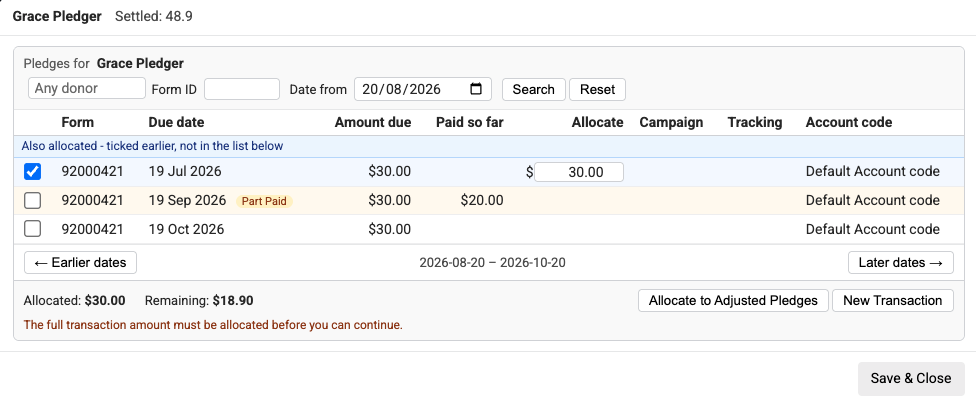
Most payments match their pledge on their own. For a payment that does not, the Allocate button lets you choose which pledge dates (instalments) it pays and how much goes to each. You can part pay an instalment, pay several instalments at once, put the payment on another donor's pledge, or record part of it as an ordinary transaction.
Payments that failed at collection are not part of the settlement. They are handled on their own screen. See Review Errors - Ezidebit.
infoodle matches a payment on its own only when it was taken through an infoodle form. A payment collected outside infoodle has no form to match, and shows as No infoodle link. You can still place it on a pledge with Allocate, or leave it out of the reconcile.
Before you start
Role Permissions
- Access to Finance area
- Manage, Read and report on transactions: needed to open the settlement screen, use the Allocate button and reconcile. Without it, you can still see the settlement on Payouts, but Payout Items opens a page saying you do not have permission.
- Manage pledges: needed to see the Allocate to Adjusted Pledges button in the Allocate popup. The person who clicks Reconcile also needs it if any payment in the settlement has a pending pledge change.
To learn what each finance role permission allows, see Finance Permissions.
You will also need:
- An Ezidebit payment method set up in infoodle. See Ezidebit.
- At least one Ezidebit settlement that has arrived and shows as Not reconciled.
Reconciling an Ezidebit settlement
Step 1: Find the Ezidebit settlement
You can find the settlement in one of two places. On the main menu on the left, click Finance, then open Transaction processing.
- From the Reconcile screen: open the Transactions tab, choose the batch that contains the imported Ezidebit deposit, then find the Ezidebit line in the list. You can still choose Match, Split, or Don't import on that line if you need to.
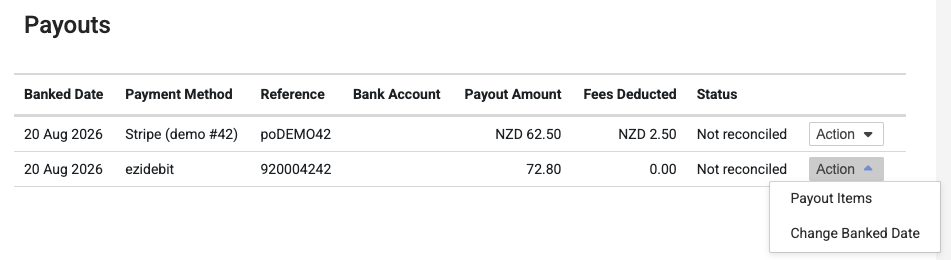
- From the Payouts screen: open Payment methods, then Payouts, and find the Ezidebit payout you want to reconcile.
Opening it from the Reconcile screen instead
If you have imported the Ezidebit deposit from your bank statement, you can also reach the same screen from the Reconcile screen: find the Ezidebit deposit and click Payment method reconcile. You can still choose Match, Split or Don't import on that line if you need to. See Reconciling Transactions.
The screen works the same way, with three differences:
- Amount: the settlement is checked against the deposit you imported, not against infoodle's own total.
- Batch: the transactions go into the batch of the imported deposit.
- When you finish: Reconcile completed takes you back to the Reconcile screen, not to Payouts.
Step 2: Open the Payment method reconcile screen
On the Ezidebit line, click Payment method reconcile. This opens the reconcile screen for that settlement, which lists every individual payment that Ezidebit combined into the payout. For each payment you will see the payer's name, the bank message, the paid out, requested, donor fee, your fee, and settled amounts, the payment reference, and whether it is linked to an infoodle form.
Step 3: Allocate
The allocate button on each line provides a mechanism for you to split payments between different donors, different pledges, multiple pledge dates for when donors need to to a catchup, add transactions not connected to a pledge. This is described in more detail in reconciling transactions against pledges.
Step 4: Check the lines and the total
Review the list before you reconcile.
- Lines with no infoodle link are flagged with a warning icon and the words No infoodle link. These are payments that could not be matched to a form. If a settlement contains lines like this, tick Ignore items with no infoodle link so they are left out of the reconcile. Ignored lines are simply left out of the reconcile total and are not recorded as giving against anyone.

- Credit card fees do not affect matching. Ezidebit supplies the paid out, requested, fee, and settled amounts, and infoodle displays them on this screen, so there is nothing for you to enter here. The gross amount is what appears on the receipt.
- The total must match. The Reconcile button only appears when the settled total equals the imported bank transaction amount. If the totals do not match, infoodle shows the message: "The totals dont match - this list is not able to be used to reconcile the transaction!" infoodle may also re-pull the settlement total from Ezidebit, so the figure can change between visits if it previously disagreed with the actual payments.
For more on how fees are handled, see How does infoodle handle credit card fees?.
Step 5: Resolve any errors
If a line has a problem, infoodle highlights it and shows a message. Correct each highlighted line before you continue. Common causes are a payment with no matching form or pledge record, or a payer who cannot be identified. A settlement reconciles as a whole, so none of it reconciles until every line is either fixed or ignored.
Ezidebit payments that failed at collection are handled on their own screen. See Review Errors - Ezidebit.
Step 6: Reconcile
When the lines are correct and the totals match, click Reconcile. infoodle processes every line in the settlement in one step and, once it finishes, the settlement is marked as reconciled.
What reconciling records
Clicking Reconcile does the following in a single action:
- Creates a finance transaction for each matched payment, recorded against the payer's profile and the account code from their form.
- Marks each matching form payment as reconciled, and updates the message on that form payment to show when and how it was reconciled.
- Marks the Ezidebit settlement, and the imported bank transaction, as reconciled.
- Records the reconcile in the audit trail, tagged as a Reconcile action.
infoodle processes the whole settlement together. If any line cannot be completed, none of the transactions are saved and infoodle shows you the lines to fix, so a settlement is never left half reconciled. If your infoodle is connected to Xero, infoodle prepares the reconciled payout to send to your Xero organisation.
If you made a mistake
You can reverse a completed reconcile from the reconcile screen. This removes the transactions that the reconcile created and returns the settlement to its unreconciled state, ready to reconcile again. The reversal is itself recorded in the audit trail before the transactions are removed, so the history stays traceable.
If a UK Gift Aid claim has already been filed against any of the transactions in the settlement, infoodle will not let you unreconcile it. A claim that has been filed with HMRC cannot be undone to free the transactions, so you cannot unreconcile them. Instead, apply an adjustment to your next Gift Aid claim. infoodle shows the message: "Unreconciling is not possible for claimed transactions - apply an adjustment to the next claim instead."
For the full steps, see Unreconcile a transaction.
If Reconcile is refused
infoodle works through every payment in one go. If any payment has a problem, infoodle shows "Unable to reconcile this transaction due to errors." The reason shows beside the payment, or in the message at the top of the screen. Nothing is saved: no transactions are created, no pledge dates change, no pending pledge change is made, and no batch or bank line is left behind. Fix the payment and click Reconcile again.
The messages you are most likely to see:
- "The amount doesnt match the requested amount ..." or "Amount from payment doesnt match the form ...": the settled amount is different from the pledge date. Use Allocate (Step 4).
- "This pledge date is part paid ...": the date already has a part payment on it. Use Allocate (Step 4).
- "The recurring record doesnt exist": there is no pledge date on the date in the payment's reference, for example because the pledge was edited. Use Allocate (Step 4).
- "This matches an existing pledge date which has already been processed!": the date in the reference is already paid. Check the donor's pledge first. If this payment is for a different date, use Allocate to place it on that date.
- "Saved allocations are no longer valid: ...": a date you allocated has been paid since you allocated it, for example by another payment in the same settlement. Click Allocate and choose a different date.
- "No form or the form has no pledge records": the payment has no infoodle link (Step 5).
- "Allocation failed: You do not have permission to change pledges": the payment has a pending pledge change and your role does not have Manage pledges. Ask someone whose role has it to reconcile the settlement.
- "Saved allocations (...) must equal the settled amount (...)": the saved allocation for a payment no longer adds up to its Settled amount, for example because a colleague changed it after you opened the screen. Reload the screen, click Allocate on that payment and place the rest.
Common questions
Why is there no Reconcile button?
The Reconcile button only appears when the settled total of the listed payments equals the amount of the imported bank transaction. If they do not match, check for missing or extra lines, or for lines with no infoodle link that need to be ignored. infoodle may also re-pull the latest settlement total from Ezidebit, which can change the figure you see.
What does "No infoodle link" mean?
That payment could not be matched to an infoodle form. It may have been collected outside infoodle. Tick Ignore items with no infoodle link to leave those lines out and reconcile the rest. Ignored lines are not recorded as giving against anyone.
Do card fees change what gets recorded?
No. Ezidebit supplies the paid out, fee, and settled amounts, and infoodle displays them on the reconcile screen, so there is nothing for you to enter. Fees do not affect how each line matches to its form, and the gross amount is what appears on the receipt.
Can I undo a reconcile?
Yes. You can unreconcile the transaction from the reconcile screen, unless a UK Gift Aid claim has already been filed against it. See Unreconcile a transaction.
Next steps
Once the settlement is reconciled, each payer's giving is recorded and ready to receipt. Continue with your usual receipting and donor statement process.