Searching for a person is how you find one contact quickly among everyone in your infoodle, whether you want to open their profile or narrow the full people list down to a group you can work with. infoodle gives you two ways to search: the quick search box in the top bar, which is on every page, and the filters on the People list. This article covers both, and explains why the people you can find depend on your role.
Before you start
Role Permissions
- Search People: lets you use the quick search box and open the People list. Without it, neither is available to you.
- Has Staff view of all people: lets you find everyone in your infoodle. Without it, you find only people who share a group with you, plus yourself and your own household.
- Can see archived people: lets you include archived contacts in your results by ticking the Archived box.
- Is a member of a cluster: limits your search to the people in your cluster, even if you have staff view.
See People Permissions for what each of these role permissions means and how an administrator turns them on under Settings, Roles.
Quick search from the top bar
The quick search box sits in the top bar on every page, so you can jump to a contact without leaving what you are doing.
- In the top bar, leave Search by set to Name, or open the dropdown and choose a different field to search on.
- Type into the search box. infoodle lists matching people as you type, showing each person's name and address so you can tell similar names apart.
- Click the person you want. infoodle opens their profile.

A Name search matches first name, middle name, last name and nickname, and it matches organisation names too. When a nickname is different from the first name, infoodle shows it in brackets after the name. You can type part of a name, and you can type more than one word, for example a first and last name together.
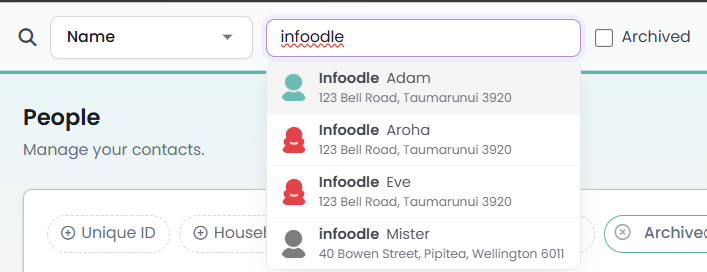
The Search by dropdown lets you look people up by other details when a name is not what you have to hand:
- Name: first name, middle name, last name, nickname, or organisation name.
- Household Name: the name of the household or organisation the person belongs to.
- Household ID: the ID number of the household or organisation the person belongs to.
- Email address: any email address held against the person.
- Address lines: any line of the person's street address, or their city.
- Postcode: the postcode on the person's address.
- Country: the country on the person's address.
- Phone number: a personal or household phone number.
An ID option is shown as standard, unless your administrator has chosen to hide the infoodle ID on your site. A Giving Number option is also available to finance users, and any custom search fields your administrator has set up appear in the same list.
The search shows up to 30 people at a time. If there are more, infoodle shows the message "More than 30 results found." Narrow your search with more of the name, or another detail.
Tick the Archived box next to the search before you search to include archived contacts in the results. This box appears only if your role can see archived people.
Search from the People list
The People list shows all of your contacts in one table and lets you filter it down to the people you want. Use this when you want to work with a set of people rather than open one profile.
- Open People & Households from the main menu on the left. The list opens on the Show all people view.
- Click one of the filter buttons above the table, such as First Name or Last Name, or click More filters to choose another field.
- In the small panel that opens, choose whether to match values that contain your text or exactly equal it, type your value, then click Apply.
- infoodle updates the table and the result count to show only the matching people. Add more filters to narrow further, or click a filter to change or remove it.
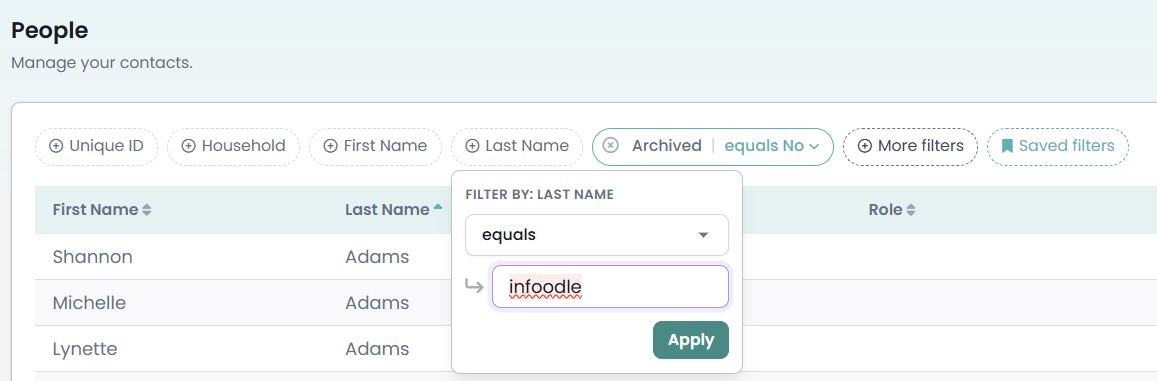
Other things you can do on this list:
- Sort: click a column heading to sort by that column, and click it again to reverse the order.
- Edit columns: choose which columns the table shows.
- Saved filters: save a set of filters you use often and reload it later.
The list hides archived contacts by default, shown by an Archived filter set to No above the table. Change or remove that filter to include archived people.
Why can't I find someone?
If a search returns nobody, or leaves out a person you expected, one of these is usually the reason:
- They are outside your groups. Without the Has Staff view of all people permission, you can only find people who share a group with you, along with yourself and your own household. If your role has the Online Directory permission instead, you search the visible directory rather than being limited to your groups. Ask an administrator to add the person to a group you are in, or to give your role staff view.
- They are outside your cluster. If your role is a member of a cluster, your search is limited to the people in that cluster.
- They are archived. Archived contacts are left out unless your role can see archived people and you tick the Archived box before searching.
- They do not have the detail you searched by. Searching by email finds only people who have an email address on file, so switch Search by to Name if you are not sure.
Common questions
Why does a name show in brackets in the results?
That is the person's nickname. When someone's nickname is different from their first name, infoodle shows it in brackets so you can recognise the person you know.
My search says "More than 30 results found." How do I see the rest?
The quick search shows the first 30 matches. Type more of the name, or add another detail, to narrow the list. To work with a larger set, use the People list and its filters instead.
Can I search by something other than a name?
Yes. Open the Search by dropdown in the top bar and choose a field such as email address, phone number, address, postcode or country. On the People list, use the filter buttons and More filters to search on any available column.
Why can I find fewer people than a colleague?
What each person can find depends on their role. A colleague with staff view, or who is in more groups, sees more contacts than someone whose role limits them to their own groups or cluster.
Next steps
Once you have found and opened a person, you can update their details or manage their record. To work with a whole set of people at once, build the list with filters and then contact or report on them.