When you save a report in infoodle, it stores your criteria, output columns, and sort order so you can run it again at any time. Each time you run a saved report, it fetches the most up-to-date data from your site — the results are always live.
Where to find your saved reports
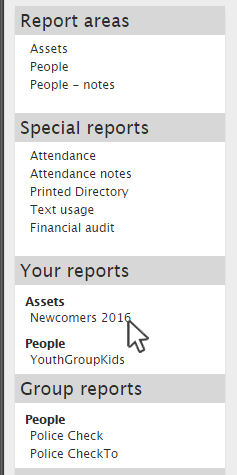
Go to Reports from the main menu. The Reports landing page organises saved reports into three sections:
- Your Reports — reports you have saved for your own use. Only you can see these.
- Group Reports — reports saved against a specific group. Everyone who is a member of that group can see and run these reports.
- Global Reports — reports shared with everyone on your site. Editing or saving Global Reports requires the Reports Maintenance role. Contact your administrator if you need access.
Each section lists the report names grouped by their Report Area (People, Assets, People Notes, Attendance, etc.). Click the report name you want to open.
Note: If you don't see a report you expect, check whether it was saved under a different scope (e.g. someone saved it as a Group Report but you are viewing a different group context), or ask the person who created it to check their Your Reports section.
Running a saved report
- Go to Reports from the main menu.
- Find your report under Your Reports, Group Reports, or Global Reports.
- Click the report name to open it.
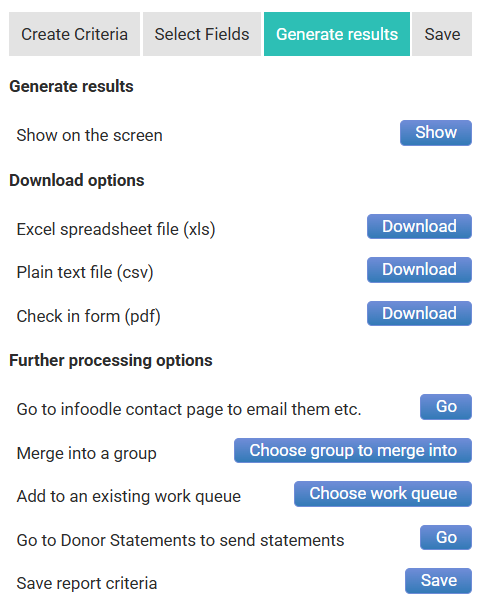
- Review the criteria and fields, then click Generate Results.
- Choose where to send the results: view on screen, download as CSV or Excel, send as an email attachment, or add the results to a group.
The results always reflect the current data in your site, not the data at the time you last ran the report.
Editing a saved report's criteria
If you want to change the filters or output columns of a saved report:
- Open the report from the Special Reports landing page (as above).
- Make your changes to the criteria or fields.
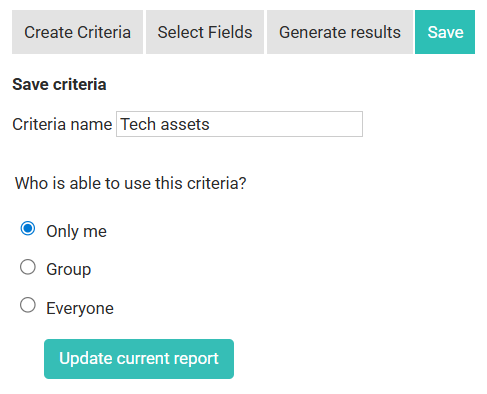
- Click the Save tab then update current report
Tip: If you use date-based criteria (e.g. "joined this year"), use the Preset date range option rather than a fixed date. This way the report stays accurate when you run it again in the future.