A batch report is a financial summary of everything in a transaction batch. It totals the batch by payment method, by transaction type and by account code, gives you a banking view you can use as a deposit slip, and lists any cheques recorded in the batch. You can generate a batch report at any time, for any batch you have permission to see, whether the batch is Open, Closed, or has been Imported from Xero.
Role Permissions
- Manage, Read and report on transactions: full access to the Batches area, including generating batch reports.
- Read and Report on Transactions: read-only access, enough to open a batch and generate its report.
If your account also has Limit finance admin to just users own groups, you will only see batches belonging to your own groups.
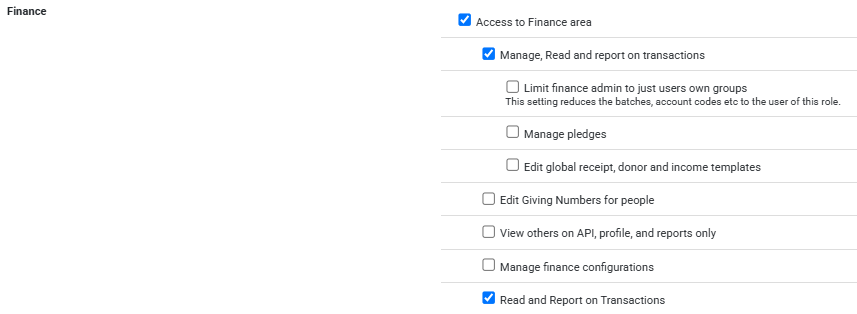
For an explanation of these and other role permissions, see People Permissions.
Step 1: Find the batch
Open the batch report from the Batches list. Click Finance on the main menu on the left, then Transaction processing, then open the Transactions tab, then click Batches.
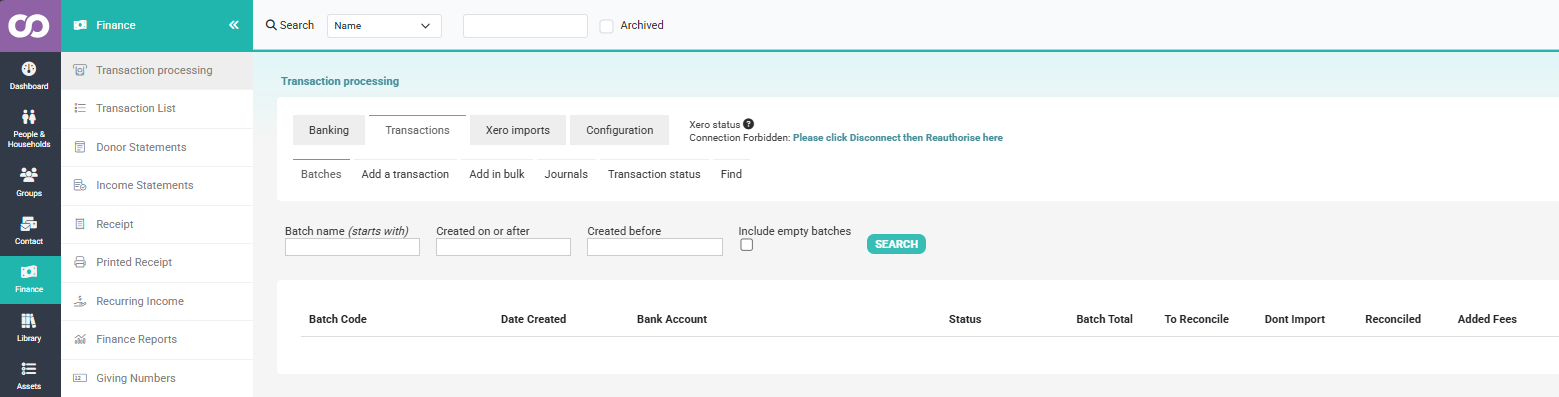
Use the search fields at the top of the list to narrow the results by batch code, bank account or date. Leaving the fields blank shows every batch you have permission to see. For more on searching and reading the batch list, see Viewing Batches.
Step 2: Open the report
Find the row for the batch you want. At the right of the row, open the Choose a function dropdown and select View report.
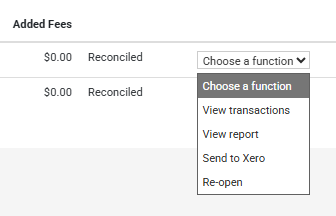
The report opens in a panel over the current screen. If you are already working inside a batch, adding or viewing its transactions, you can open the same report with the Report button at the top of the batch working area.
What is in the report
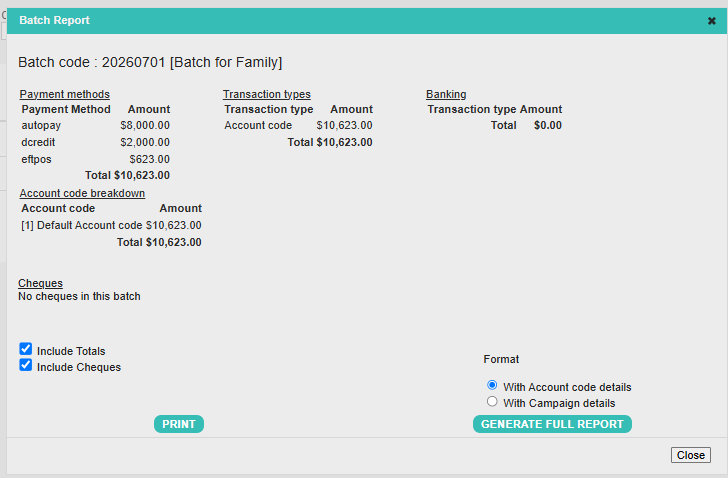
- Payment methods: the total amount for each payment method used in the batch (cash, cheque, credit card and so on), with an overall total.
- Transaction types: the total amount for each transaction type in the batch, for example donation, fee or sale, with an overall total.
- Banking: the amounts by payment method that make up what you take to the bank. This is the table to use as a deposit slip.
- Account code breakdown: the total amount recorded against each account code used in the batch, shown as the code and its description. This table only appears if the batch has account codes recorded against it.
- Cheques: every cheque in the batch, with the name on the cheque, the branch, the branch name, the cheque number and the amount. If there are no cheques in the batch, this section says so.
Every table is generated from what is currently in the batch, so the figures update each time you open the report, including after you add, edit or remove a transaction.
Printing and generating a full report
Below the report tables is a set of print options.

- Include Totals: when ticked, the account code breakdown is included when you print. Untick it if you only want the banking and cheque tables, for example for a bank deposit slip.
- Include Cheques: when ticked, the cheque table is included when you print.
- Format: choose With Account code details to break totals down by account code, or With Campaign details to break them down by campaign instead.
- PRINT opens your browser's print dialog with the tables currently shown on screen.
- GENERATE FULL REPORT creates a printable report in a new window, using the format and the totals or cheques you have selected.
For a bank deposit slip, untick Include Totals, leave Include Cheques ticked, and click PRINT. You get the banking table and the cheque list, without the account code breakdown.
Reports on Open, Closed and Imported batches
The Status column on the Batches list shows whether a batch is Open, Closed, or Imported from Xero, and a [Xero] or [Sent] flag if the batch came from, or has been sent to, Xero. You can generate a report for a batch in any of these states.
Closing a batch removes the options to add or edit transactions from its function dropdown, so the batch stops changing, but the batch and its report both stay available to view. Reopening the batch from the function dropdown brings the editing options back. For the full close and reopen steps, see Closed Batches.
Because the report reflects whatever is currently in the batch, infoodle does not keep a separate copy of the report as it looked at the moment a batch was closed. If you need a record of the batch for your own files, generate the full report and save it before reopening or editing that batch again.
Can I run one report that covers several batches at once?
No. A batch report always covers a single batch. If you need combined totals across more than one batch, generate each batch's report separately and add the totals together yourself.
Does the batch report show GST?
No. The tables show gross amounts. GST is recorded against each transaction and account code and carries through when you send the batch to Xero. To see GST detail, open the transaction list inside the batch, or run your GST return from Xero.
How is the batch report different from a receipt?
The batch report is an internal summary you use for banking and reconciliation. A receipt is the document infoodle sends to a donor for their giving. They serve different purposes and show different information.
Why does the batch I'm looking at show a warning icon?
A warning icon on a batch row means the reconciled total plus any added fees does not match what infoodle expects the batch total to be. Open the batch and check its transactions before relying on the report for banking. See Reconciling Transactions.
Next steps
Once you are happy with a batch's report, the usual next step is to reconcile any remaining transactions in the batch, and, if you use the Xero integration, send the batch to Xero.