When you open a contact's profile, infoodle checks whether any other contact looks like the same person and shows an alert near the top of the profile when it finds one. The check uses the same matching settings as the duplicate scan, so a possible duplicate reaches you while you are working on the record rather than waiting for the next scan. The alert reports what it found and offers a link straight to the merge screen. It changes nothing on its own.
Before you start
Role Permissions
- Edit any person and household contact details: lets you see the duplicate alert and open the merge screen from it.
For an explanation of each people role permission, see People Permissions.
You will also need at least one field ticked in the matching settings. The alert uses the same matching settings as a scan: it scores pairs on the same fields, against the same minimum confidence, and follows the same archived setting. See Duplicate Matching Settings.
Where the alert appears
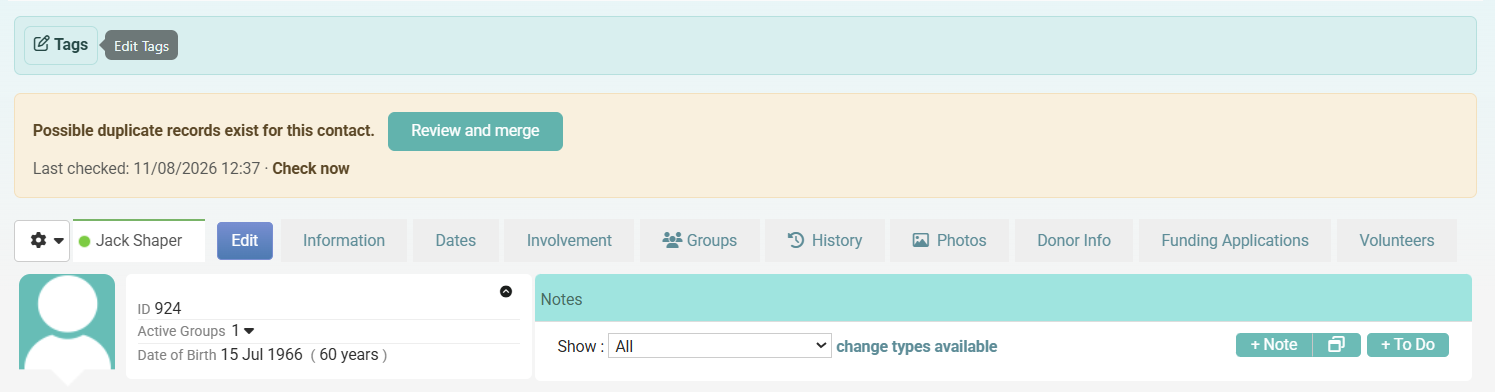
The alert sits near the top of the profile, under the contact's tags and above the profile tabs. It appears only when infoodle has something to report, so a contact with no possible duplicates shows no alert.
What the alert tells you
One possible duplicate
The alert reads Possible duplicate records exist for this contact. with a Review and merge button beside it.
More than one possible duplicate
The alert counts them, for example 2 possible duplicate records exist for this contact., and lists each one underneath by name with its match percentage and its own Review and merge button. Every candidate is listed, so none of them is hidden behind a single link.
The name shown is the contact's full display name including any salutation, so two records for the same person can read Mrs Wendy Booth and Mrs Wendy Booth. Open each one to tell them apart.

The match percentage
The percentage is the same confidence score the duplicate scan uses, rounded to a whole number. It says how much of the information you are matching on agrees between the two records. It does not say they are the same contact.
Members of one household are the clearest example. Two people who share an address and a family email address can score above the minimum confidence because only their first names differ. Open both records and confirm they are the same contact before you merge.
Reviewing a possible duplicate
- Open the other record first and check the two are really the same contact.
- Click Review and merge beside the record you want to deal with.
- The merge screen opens with the profile you came from as the surviving record and the other one as the record to be merged into it. Choose which values the surviving record keeps, then confirm.
Cancelling on the merge screen, or marking the pair as not a duplicate there, brings you back to the profile you started from rather than to the scan results.
Merging cannot be undone. The record you archive during a merge keeps its own history, but its transactions, notes and group memberships move to the surviving record and un-archiving it does not bring them back.
See Merging Two Contacts for the merge screen itself.
Last checked and Check now
At the foot of the alert is a line such as Last checked: 12/03/2026 09:15 followed by Check now.
infoodle keeps the result of a contact's check for 24 hours, so opening the same profile again reuses the stored result instead of running the check a second time. Click Check now to run it again straight away; the alert redraws and the Last checked time updates.
The stored result is also cleared for you:
- Merging a pair, marking a pair as not a duplicate, or reverting a dismissal clears the stored result for the contacts involved.
- Saving the matching settings clears every stored result, because the rules the results were worked out under have changed.
Those clearances cover the contacts you acted on. If you have merged records elsewhere and you are looking at a third contact whose alert was worked out before that merge, click Check now to bring it up to date.
If you are a member of a cluster, the check runs each time you open a profile rather than being stored, because your results depend on the contacts in your cluster.
Pairs that have been marked as not a duplicate
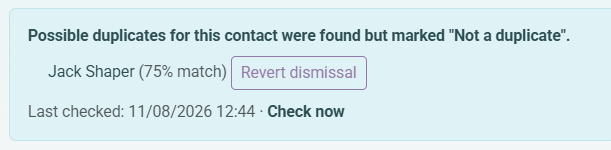
A pair you have marked as not a duplicate is not thrown away. It moves to a Previously dismissed: list at the foot of the alert, where each record is shown with its match percentage and a Revert dismissal button.
Where every possible duplicate for a contact has been dismissed, the alert reports it instead of listing anything to merge: Possible duplicates for this contact were found but marked "Not a duplicate". followed by the same list.
Click Revert dismissal to treat the pair as a possible duplicate again. infoodle runs the check again immediately and the record reappears in the main list with its Review and merge button.
Marking a pair as not a duplicate stops it being reported by future scans. It does not take the pair off the profile alert, which keeps showing it under Previously dismissed: so you can revert it.
Common questions
Does the alert change anything?
No. It reads your contacts and reports what it finds. Records change only when you merge them on the merge screen, or mark a pair as not a duplicate.
Why is there no alert on a contact I know has a duplicate?
The most common reasons are that the two records do not share an exact value in any of the fields that bring a pair up for comparison, that they scored below your minimum confidence, or that the two records have already been merged. Archived records are left out unless Include archived contacts in the scan is turned on. See Duplicate Matching Settings.
Having marked the pair as not a duplicate is not one of the reasons. That pair stays on the alert, under Previously dismissed:.
Is the alert the same as the duplicate scan?
They use the same matching settings and the same scoring. Scope is the main difference: the alert looks at one contact as you open it, and a scan compares the contacts you have access to in one pass and gives you a list to work through.
Two other differences are worth knowing. A pair you have marked as not a duplicate is dropped from future scans, but stays on the profile alert under Previously dismissed:. And the alert does not use custom fields to bring a pair up for comparison, so a pair that matches only on a custom field is reported by a scan but not on the profile. See Finding Duplicate Contacts.
Do I need to run a scan for the alert to work?
No. The check runs on the profile itself and does not depend on a scan having been run.
Who can see the alert?
Anyone with Edit any person and household contact details who can edit that particular contact.
Next steps
To work through your whole database rather than one contact at a time, run a duplicate scan: see Finding Duplicate Contacts.