A duplicate scan compares your contacts with each other and lists the pairs that look like the same person or organisation entered twice. It runs over the whole database in the background, groups what it finds so you can see every record involved, and gives each pair a confidence score. Nothing is changed by a scan: it produces a review list, and you decide record by record whether to merge a pair, leave it alone, or mark it as not a duplicate so it stops being reported.
Before you start
Role Permissions
- Edit any person and household contact details: lets you open the duplicate scan page, run scans and act on the results.
- Update System information: to see the Duplicate check entry on the Administration page and the Matching settings button on the scan page. See Administrator Permissions.
For an explanation of each people role permission, see People Permissions.
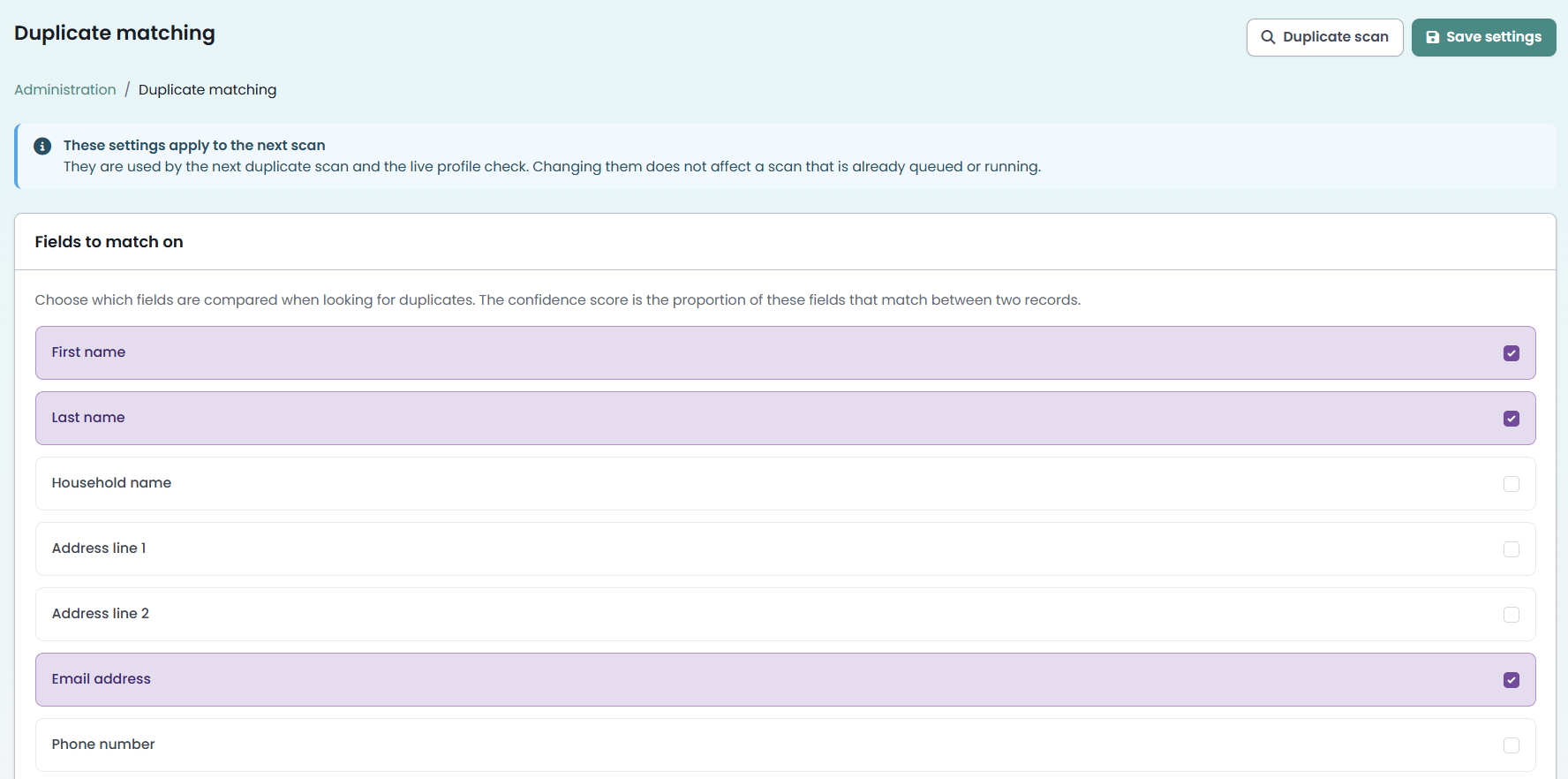
You will need at least one field chosen in the matching settings before a scan can find anything. infoodle ships with First name, Last name, Address line 1 and Email address selected and a minimum confidence of 85%, so most sites can scan straight away. See Duplicate Matching Settings.
What a duplicate scan compares
The fields chosen in the matching settings do two separate jobs, and the difference explains most of what a scan does and does not find.
Finding candidates
First infoodle draws up a shortlist of pairs worth comparing. A pair reaches that shortlist when the two records share an exact value in one of these fields, and that field is one of the fields you are matching on:
| Field | Puts a pair on the shortlist when |
|---|---|
| Email address | Both records hold the same email address. |
| Phone number | Both records hold the same phone number. |
| Giving number | Both records hold the same giving number. |
| Organisation name | Both records sit in a household with the same name. |
| A custom field | Both records hold the same value in that custom field. |
| First name and Last name | Both names match, and both fields are selected. |
Organisation name is shown as Household name on sites where organisations are not enabled.
Matching here ignores capitals and any spaces around the value, so john.smith@example.org and John.Smith@example.org are treated as the same value.
Address line 1 and Address line 2 never put a pair on the shortlist. They refine the score of a pair that something else has already found. Two records that share only an address are never compared, which is why the matching settings refuse a selection made up only of address lines or a single name field.
Scoring the pair
Each shortlisted pair is then scored against every field you are matching on. The score is the proportion of those fields that agree, so with four fields selected, three agreeing gives 75%. An exact value counts in full, a close value counts in proportion to how much of it matches, and a field that is blank on either record scores zero and still counts. Sparse records therefore score lower, not higher.
Only pairs scoring at or above the minimum confidence reach the results list.
What is left out
- infoodle's own system and support records, and check-in and kiosk logins, are never offered as duplicates.
- Archived contacts are left out unless Include archived contacts in the scan is turned on in the matching settings.
- A scan covers the whole database. If you are a member of a cluster, your scan covers the contacts in your cluster.
Running a scan
Step 1: Open the duplicate scan page
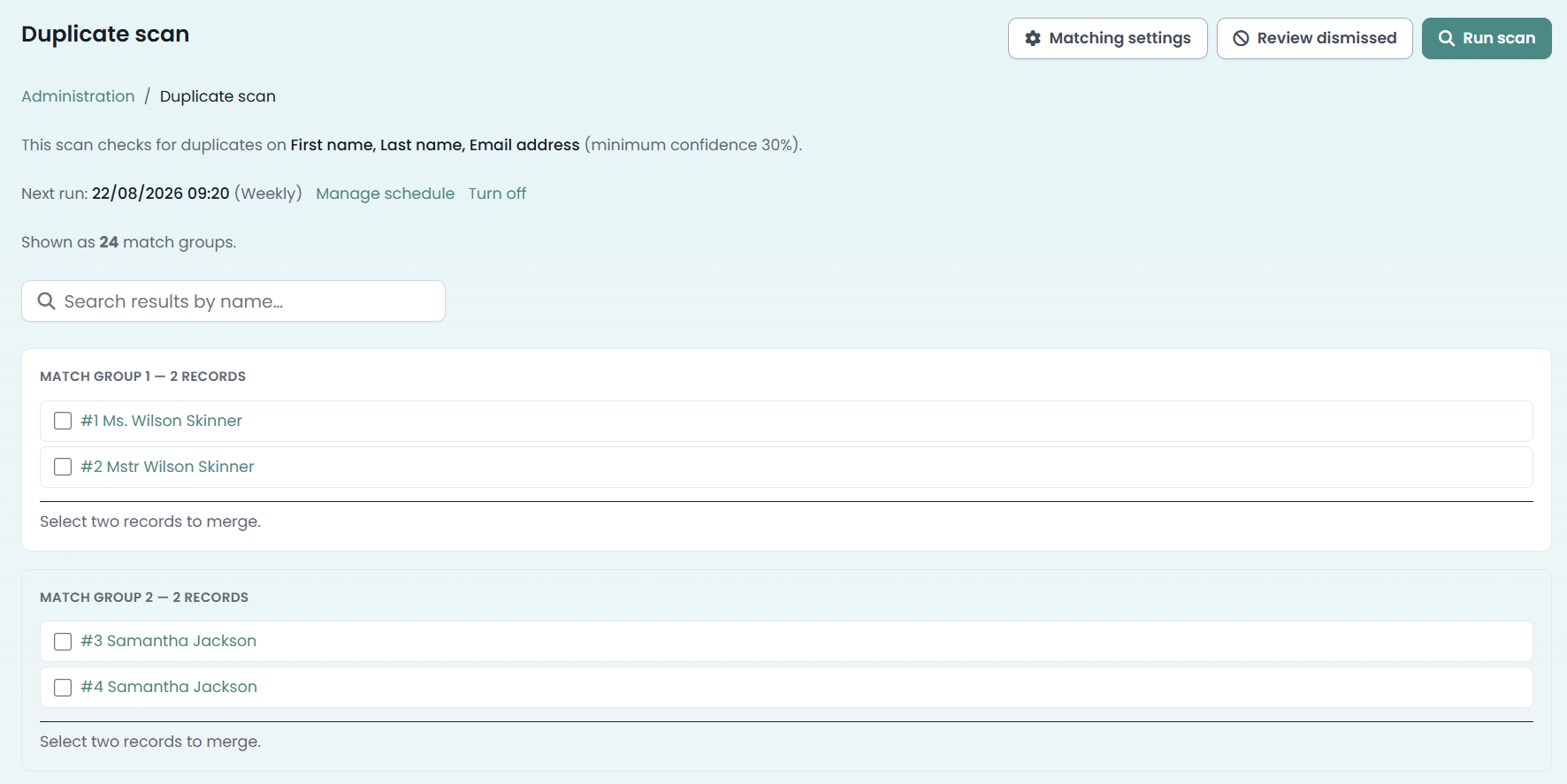
Click the administration cog in the top right hand corner, then open Duplicate check. The page is headed Duplicate scan.
Step 2: Check what this scan will compare
The line under the navigation tells you exactly what the next scan will do, for example: "This scan checks for duplicates on First name, Last name, Address line 1, Email address (minimum confidence 85%)."
Change any of it with Matching settings, which opens the Duplicate matching screen. New settings apply to the next scan you start.
Step 3: Run the scan
Click Run scan.
Run scan is greyed out in two situations, and in both of them a warning on the page says why:
- No matching fields configured: nothing is selected, so the scan would have nothing to compare.
- These fields cannot find duplicates on their own: the selection is made up only of fields that refine a score, such as address lines or one name field on its own. The warning lists what you have selected and what to add.
If you have Update System information, open Matching settings to change the selection. Otherwise ask an administrator to change the matching settings for you.
Run scan is also greyed out while a scan you have started is still running, and becomes available again when it finishes.

Step 4: Wait for the results
Scans are heavy, so infoodle runs them on a background queue that handles one job at a time. The status line under the page header follows the run:
- Queuing scan… while the job is being handed to the queue.
- Waiting for the background queue… while the job is queued behind other work. It is not scanning yet.
- Scanning 240 of 1150… · started 09:15 once it starts, counting through the pairs it has to score.
The results appear in place of the status line as soon as the scan finishes. infoodle also emails you when your scan completes, with the number of pairs found and a link straight back to that scan's results, so you can leave the page and come back later.
If the queue has not reached your scan after about ten minutes, the page stops watching and leaves this message: "The scan is still waiting on the background queue. You'll be emailed when it finishes — reload this page later to see the results." Reload the page later to pick the results up. If the queue never reaches the scan at all, the page reports that the last scan failed and Run scan is available again.
Reading the results
The caption above the list describes the scan you are looking at, for example: "Last scan: 12/03/2026 09:15 (Manual) — 7 potential pairs." followed by "Shown as 5 match groups." Manual means somebody clicked Run scan; Scheduled means an automatic scan produced it.
By default the page shows the most recent scan. There is no list of earlier scans, and running a new one replaces what you are looking at. The link in a scan completion email opens that particular scan instead. If you are a member of a cluster, the most recent scan means the most recent one you started, and you cannot open a scan somebody else started.
Why the two counts differ
A pair is two records that scored above the threshold. A group is every record connected by those pairs. Three records that all match each other are three pairs but one group, which is why the caption prints both numbers and the list is shorter than the pair count.
In the example above, the seven pairs form five groups because one of them, Match group 2 — 3 records, holds three Wendy Booth records: #3 and #4, #3 and #5, and #4 and #5.
The record numbers
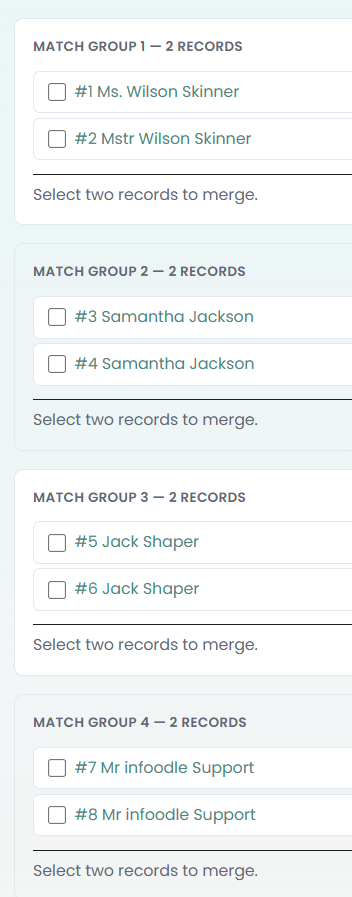
Each record carries a number such as #3, and the name shown is the contact's full display name including any salutation, so Mr John Brown and John Brown can appear as two records in the same group. Click a name to open that contact's profile in the normal way.
The numbers are labels for what is currently on screen, not record IDs. They start again at #1 when you search or move to another page of results, so use them to keep track within a group rather than to refer to a record later.
Records that are already dealt with
Work you have already done stays visible under the group it belongs to, without ticking anything:
- #1 and #2 — merged for a pair you have merged. The record that was archived by the merge is greyed out and its name carries (Archived).
- #10 and #11 — marked not a duplicate for a pair you have dismissed.
Ticking two records that have already been merged shows #1 and #2 are already merged. and offers no further action.
Choosing two records to merge
Merging is always between two records, so a group asks you to pick the two you want.
- Tick the two records you want to merge. The hint at the foot of the group changes from Select two records to merge. to the pairwise score, for example Match confidence: 96.88%.
- Check the two records first. Open each name in a new tab if you are not certain they are the same contact.
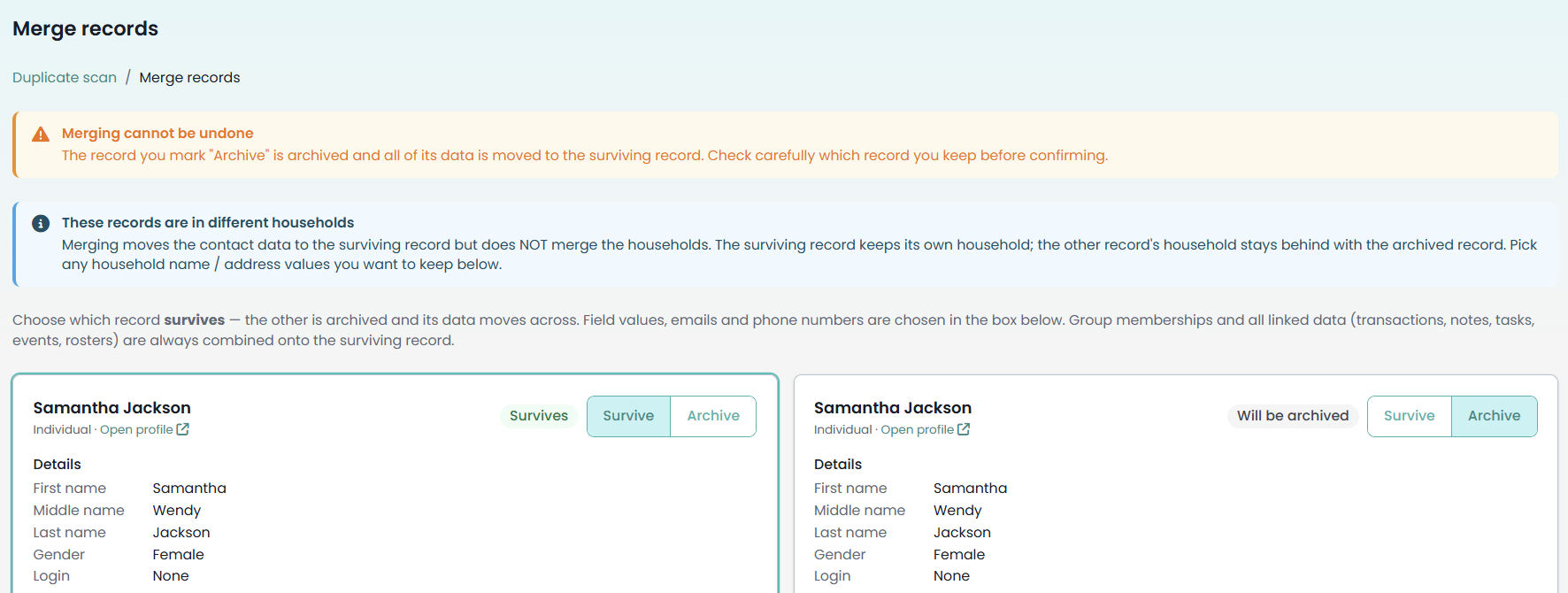
- Click Review & merge to open the merge screen, where you choose which record survives and which values it keeps. Nothing is merged until you confirm it there.
The record you tick first is carried through as the proposed surviving record, and the second as the one to be merged into it. You confirm or change that on the merge screen. See Merging Two Contacts.

A group holds two ticks at a time. Ticking a third record clears the first one you ticked, and the confidence updates to the score of the two that are now selected.
Any two records in a group can be merged, including a combination the scan never scored. Where that happens the hint reads "These two were not directly matched by the scan — merge only if you're sure." instead of a confidence figure.
Marking a pair as not a duplicate
Two records that keep turning up together but are genuinely different people, such as a father and son at one address, can be dismissed so they stop being reported.
- Tick the two records.
- Click Not a duplicate.
- infoodle asks to confirm, naming the two records: "Mark #10 and #11 as NOT a duplicate? They will be suppressed from future scans." Click Yes, not a duplicate.

The pair is suppressed from future scans. It stays in the results of the scan you are looking at, annotated as marked not a duplicate, so you can see it has been dealt with.
What a dismissal does to the profile alert
Dismissing a pair does not clear the duplicate alert on either contact's profile. The pair moves out of the active part of that alert and is listed underneath it under Previously dismissed:, with a Revert dismissal button beside it.
If every possible duplicate found for a contact has been dismissed, the alert stays on the profile and reads Possible duplicates for this contact were found but marked "Not a duplicate". See Duplicate Alerts on a Person's Profile.
Reviewing and reverting dismissals
You can revert a dismissal straight from the results list. Tick the two records and the hint reads #10 and #11 are marked “not a duplicate”. with a Revert button beside it.
For the full list, click Review dismissed at the top of the page. A line above the rows reads, for example, "Showing 1 dismissed pair — revert any to treat them as duplicates again." Each row shows the two records, a confidence badge, a Not a duplicate badge and a Revert button.
The confidence on this list is worked out fresh against your current matching settings rather than the settings in force when the pair was dismissed, so a pair can show a figure below your minimum confidence. The badge is green at 95% and above, blue from 85%, and grey below that.
Click Revert to remove the dismissal. The pair is treated as a candidate again from the next scan, and the row returns to offering Review & merge and Not a duplicate.
Reload the page to go back to the scan results.
If nothing has been dismissed, the list reads No dismissed pairs.
Finding a contact in a long results list
A whole-database scan on a large site can produce hundreds of groups, so the results are searchable and paged.
- Search: type a name into Search results by name…. The list narrows to the groups holding a matching record and the caption tells you how many, for example "1 group matches “booth”." A search with no hits shows "No match groups found for “booth”."
- Paging: results are shown 25 groups to a page, with page links below the list. Group numbering carries on across pages, so page 2 starts at Match group 26.
Your position is kept in the page address, so returning from the merge screen brings you back to the same page and search rather than to the top of the list.
Automatic scans
The line under the scan description tells you whether scans run on their own. It reads either No automatic scan is scheduled. or Next run: with the date, time and frequency. The results of an automatic scan appear on this page exactly like a manual one, captioned Scheduled.
To set one up, change one or turn one off, see Scheduling Automatic Duplicate Scans.
What the confidence score means
The confidence score says how much of the information you are matching on agrees between two records. It does not say the records are the same contact, and a high score on its own is not a reason to merge.
Members of one household are the clearest example. With the shipped settings, two people who share an address and a family email address differ only in their first name, and first names of a similar length still earn part of that field's weight. Scored against the shipped settings, Ann and Anna reach 93.75%, Michael and Michelle reach 93.75%, and Dave and David reach 90.00%. All three sit well above the default minimum of 85%, and none of them is a duplicate.
Read the score as a ranking that puts the most similar pairs in front of you first. Open both records and confirm they are the same contact before you merge, however high the figure.
Merging cannot be undone. The record you archive during a merge keeps its own history, but its transactions, notes and group memberships move to the surviving record and un-archiving it does not bring them back. Confirm the two records are the same contact before you merge them.
Duplicate organisations
The shipped settings do not find duplicate organisations. Organisation records have no first or last name, so two of the four fields being matched on are blank on both sides and score zero, which holds the pair below the minimum confidence even when the organisation names and email addresses are identical.
Finding duplicate organisations takes its own field selection, run as a separate scan. See Duplicate Matching Settings.
Common questions
Does running a scan change any of my data?
No. A scan reads your contacts and writes a list of pairs to review. Records change only when you merge them on the merge screen, or mark a pair as not a duplicate.
Can I look at an earlier scan?
The page opens on the most recent scan. The link in a scan completion email opens that scan's results, so keep the email if you want to come back to a particular run.
Why is a pair I expected missing from the results?
The most common reasons are that the two records do not share an exact value in any of the fields that build the shortlist, that they scored below your minimum confidence, or that the pair has been dismissed. Records that are archived are also left out unless Include archived contacts in the scan is turned on.
Two records look identical but scored less than 100%. Why?
A field that is blank on either record scores zero and still counts towards the total. A record missing an email address you are matching on scores lower than one that has it, even when everything else agrees.
Can I merge two records the scan did not match?
Yes, as long as they are both in the same group. The hint tells you the scan did not score that combination directly, and asks you to be sure before you merge.
I dismissed the wrong pair. Can I put it back?
Yes. Tick the two records in the results list and click Revert, or open Review dismissed, find the pair and click Revert there.
Does marking a pair as not a duplicate remove the duplicate alert from their profiles?
No. The alert stays on the profile with the pair listed under Previously dismissed:. Dismissing stops the pair being reported by future scans.
Do I have to deal with the whole list in one sitting?
No. Merged pairs and dismissed pairs are marked in the results, so you can work through a long list over several sessions and see what is left.
Next steps
Pick a pair, check both records, then work through the merge screen: see Merging Two Contacts.