The matching settings hold one set of rules for your whole site: which fields infoodle compares when it looks for duplicate contacts, how closely those fields have to agree, and whether archived contacts are included. The duplicate scan and the duplicate alert on a person's profile both use these rules, so a change here changes what each of them finds.
Before you start
Role Permissions
- Update System information: lets you open the matching settings and save changes to them.
- Edit any person and household contact details: the matching settings are reached through the duplicate scan page, so you need this one as well to get to them, and to act on what a scan finds.
For an explanation of each administrator role permission, see Administrator Permissions. For the people role permissions, see People Permissions.
Both permissions are needed together. The duplicate scan page is the only screen that links to the matching settings, and that page is open to holders of Edit any person and household contact details. See Finding Duplicate Contacts.
Opening the matching settings
- Click the admin cog (top right), then click administration.
- Click Duplicate Check.
- On the scan page, click Matching settings at the top.
- Then you’ll be on the Duplicate matching screen.
- Click Duplicate scan to go back.
 {height="" width=""}
 {height="" width=""}
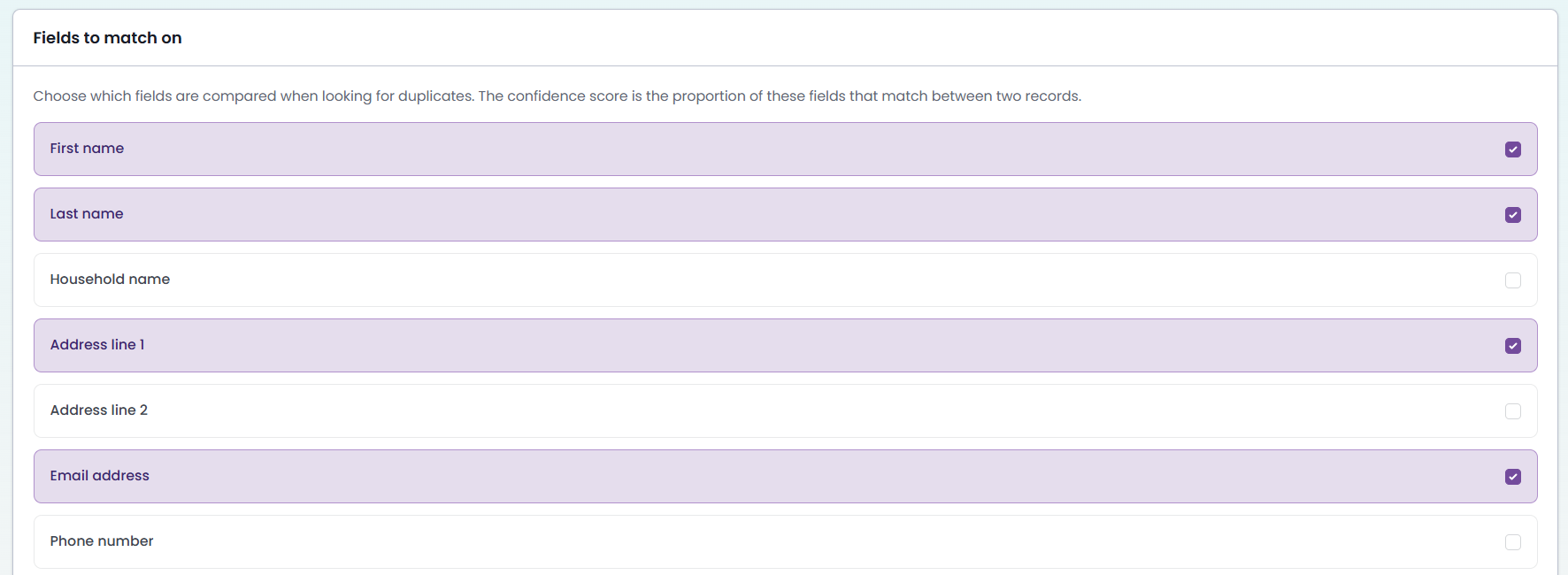
Fields to match on
Tick the fields you want compared. The card explains it this way: "Choose which fields are compared when looking for duplicates. The confidence score is the proportion of these fields that match between two records."
infoodle ships with First name, Last name, Address line 1 and Email address ticked.
| Field | What it compares |
|---|---|
| First name | The contact's first name. |
| Last name | The contact's last name. |
| Household name | The name of the household or organisation the contact belongs to. |
| Address line 1 | The street address of the contact's household. |
| Address line 2 | The second address line of the contact's household. |
| Email address | Any email address held on the contact. |
| Phone number | Any personal phone number held on the contact. Household phone numbers are not compared. |
| Giving number | The contact's giving number. |
Your people custom fields are listed below the built-in fields, each with its type underneath the name, such as Date of Birth (Date) or Nick name (Text). Tick one to compare it like any other field.
The third field in the list follows the wording your site uses for a group of contacts at one address. Sites that use organisation wording see Organisation name; everyone else sees Household name. It is the same field either way.
The fields do two different jobs
Some of these fields put a pair of records in front of the scan in the first place, and all of them contribute to the score once a pair is being compared. Email address, phone number, giving number, the household or organisation name, a custom field, and first name and last name together bring a pair up for comparison. Address lines only refine the score of a pair that one of the others has already found.
That difference is why some selections are refused when you save, and it decides which duplicates a scan can find at all. See Finding Duplicate Contacts for the full explanation.
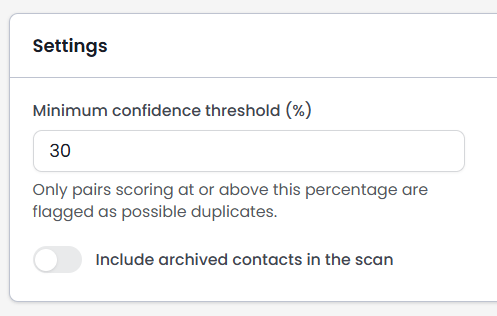
Minimum confidence threshold (%)
The threshold is a whole number from 1 to 100 and starts at 85. The field's own description reads "Only pairs scoring at or above this percentage are flagged as possible duplicates."
Lower the threshold to see more possible duplicates, including weaker matches. Raise it to see fewer, and only the closest matches.
A high confidence score says how much of the information you are matching on agrees, not that two records are the same contact. Two people in one household who share an address and a family email address can score above the default threshold on the shipped settings, because only their first names differ. Always open both records before you merge them.
Include archived contacts in the scan
Archived contacts start as being left out. Turn it on to compare archived contacts as well, in both the scan and the duplicate alert on a person's profile. This is found under settings, at the bottom of the page.
Saving your changes
Click Save settings. The button is at the top of the screen and also at the bottom of it, and either one saves everything on the page. Duplicate matching settings saved confirms the save.
These settings apply to the next scan. They are used by the next duplicate scan and the live profile check. Changing them does not affect a scan that is already queued or running.
Saving also clears the stored results of the profile duplicate check, so the next profile you open is checked against your new rules rather than the old ones. See Duplicate Alerts on a Person's Profile.
Selections infoodle will not save
A selection that cannot bring any pair up for comparison is refused, and a red panel stays at the top of the screen until you change the selection:
These fields cannot find duplicates on their own
"The selected fields cannot identify duplicates on their own: First name and Last name only match as a pair, and address lines only refine other matches. Also select the other name field, or an email address, phone number, organisation/household name, giving number or custom field."
It shows that field as either the household name or organisation name, depending on what your site calls it. Just look on the screen for the field labelled Household name or Organisation name.
A selection is accepted when it includes at least one of these:
- First name and Last name together.
- Email address.
- Phone number.
- The household or organisation name.
- Giving number.
- Any people custom field.
Untick everything and the save is accepted, because a site that has not set its rules up yet is a normal state. A scan cannot run until you tick some fields.
Setting the rules up for the first time
Until fields are chosen, opening Duplicate check as an administrator brings you straight to this screen with The duplicate scan needs matching fields first at the top. Tick the fields you want and click Save settings, and infoodle carries you on to the scan page ready to run a scan.
Finding duplicate organisations
The shipped selection does not find duplicate organisations. An organisation record holds no first or last name, so two of the four shipped fields are blank on both records. A blank field scores zero and still counts towards the total, which holds even an obvious pair below the minimum confidence.
Adding the organisation or household name to the shipped four is not enough on its own. Scored against a pair of near-identical organisation records that share an address and an email address:
| Fields selected | Score | Reaches the default 85% |
|---|---|---|
| First name, Last name, Address line 1, Email address (shipped) | 50.00% | No |
| The shipped four plus the organisation or household name | 57.39% | No |
| Organisation or household name, Address line 1, Email address | 95.65% | Yes |
The two empty name fields have to come out of the selection before the pair scores highly enough.
A selection without them still finds many duplicate people, so the two jobs are not a straight choice between one and the other. A shared email address or a shared household name brings a pair of people up for comparison just as a shared first and last name does, and those pairs go on scoring on the three fields that are left. What such a selection misses are the people whose records were only ever going to be brought up by a first and last name match, and the pairs whose records disagree on the household name enough to pull the score below your minimum confidence.
So treat finding duplicate organisations as a separate piece of work: change the selection to the name, address and email fields, run a scan, review the organisations it finds, then set the selection back and run your people scans under your usual rules.
The scan page shows the most recent scan only. Running an organisation scan replaces the results you are currently looking at, so finish reviewing a people scan before you change the selection and scan again.
Common questions
Does changing these settings change any of my contacts?
No. The settings decide what a scan and the profile alert look for. Records change only when you merge them, or mark a pair as not a duplicate.
Does saving start a scan?
No. Save the settings, then click Run scan on the duplicate scan page when you are ready.
A scan is running. Will it pick up my change?
No. A scan keeps the settings it started with. Your change applies to the next scan you start.
Why can I not save First name on its own?
One name field on its own never brings a pair up for comparison, so the scan would find nothing. Tick Last name as well, or add an email address, phone number, household or organisation name, giving number or custom field.
Which custom fields can I match on?
The people custom fields on your site. Each is listed with its type.
Do these settings affect the alert on a person's profile?
Yes. The profile alert scores pairs on the same fields, against the same minimum confidence and the same archived setting as the scan. There is one difference: the profile alert does not use custom fields to bring a pair up for comparison, so a pair that matches only on a custom field is reported by a scan but not on the profile. See Duplicate Alerts on a Person's Profile.
Next steps
With your rules set, run a scan and work through what it finds: see Finding Duplicate Contacts.