An automatic duplicate scan runs the duplicate scan on a schedule, so keeping on top of duplicate contacts does not depend on somebody remembering to start one. You choose how often it runs and when the first run happens, and infoodle emails you each time a run finishes. The results appear on the duplicate scan page exactly like those of a scan you started by hand.
Before you start
Role Permissions
- Update System information: lets you set up an automatic scan, change it and turn it off.
- Edit any person and household contact details: lets you open the duplicate scan page and review what a scan finds.
For an explanation of each role permission, see People Permissions and Administrator Permissions.
Everyone who can open the duplicate scan page sees whether an automatic scan is set up. The links that set one up, change it or turn it off are shown to administrators only.
You will also need fields ticked in the matching settings, because an automatic scan uses the same rules as any other scan. See Duplicate Matching Settings.
Step 1: Open the duplicate scan page
Click the administration cog in the top right hand corner, then open Duplicate check.
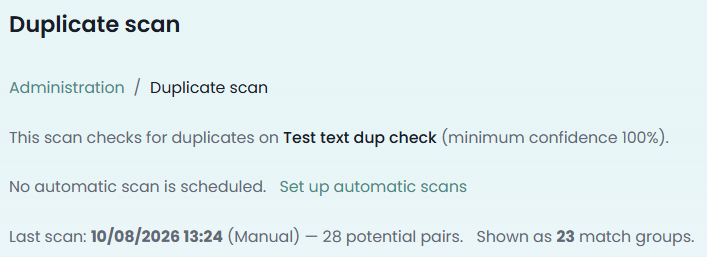
Under the line describing what the scan checks is the automatic scan status line. It reads either No automatic scan is scheduled., followed by Set up automatic scans, or Next run: with the date, time and frequency, followed by Manage schedule and Turn off.
Step 2: Open the schedule
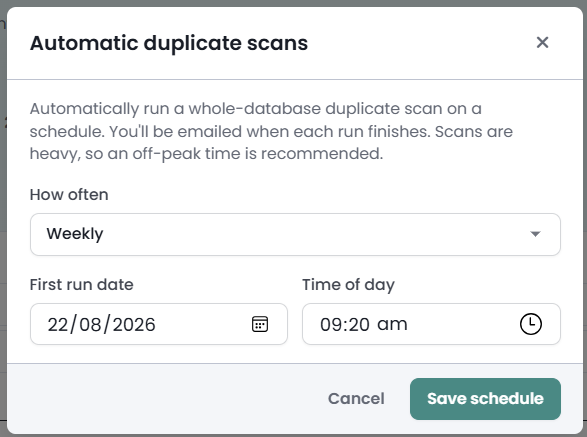
Click Set up automatic scans. The Automatic duplicate scans window opens and explains what a schedule does: "Automatically run a whole-database duplicate scan on a schedule. You'll be emailed when each run finishes. Scans are heavy, so an off-peak time is recommended."
Step 3: Choose how often
Open How often and pick one of five frequencies:
| How often | The scan runs |
|---|---|
| Weekly | Every week. |
| Monthly | Every month. |
| Quarterly | Every three months. |
| Every 6 months | Every six months. |
| Annually | Every year. |
Each run is worked out from the previous scheduled time rather than from the moment the last run finished, so the scan keeps running at the time of day you picked.
Step 4: Choose when the first run happens
First run date starts on tomorrow's date and Time of day is filled with a suggested time between 01:00 and 05:59, picked for your site so that scans on different sites do not all start at the same moment. Change either to suit you.
- Times are your site's local time.
- The first run must be in the future.
- A scan is heavy work, so an early morning time is a good choice.
Step 5: Save the schedule
Click Save schedule. Automatic scan scheduled confirms it, the window closes and the status line changes to Next run: with the date, time and frequency you chose, for example Next run: 12/03/2026 03:15 (Monthly).
Changing the schedule
Click Manage schedule. The window opens with the current frequency selected, the First run date field showing the date of the next run and Time of day showing its time. On a schedule that has already run, First run date shows that next run rather than the original first one. Change what you need and click Save schedule.
One automatic scan schedule exists at a time. Saving replaces the one already set up rather than adding a second.
Turning automatic scans off
- Click Turn off on the status line.
- infoodle asks Turn off automatic duplicate scans? in a window titled Turn off automatic scans.
- Click Turn off to confirm, or No to keep the schedule.
Automatic scans turned off confirms it and the status line goes back to No automatic scan is scheduled.. The results of scans that have already run are not affected, and you can still run a scan yourself with Run scan.
What happens when a scheduled scan runs
A scheduled scan covers the whole database and uses the matching settings in force when it starts.
When it finishes, the person who set the schedule up is emailed. The subject is Duplicate scan complete with your site's name, and the message reads either "Your duplicate scan finished and found no potential duplicates." or, for example, "Your duplicate scan finished and found 7 potential duplicate pairs to review." A Click here to see the results button opens that scan's results.
The results also appear on the duplicate scan page, captioned Scheduled rather than Manual, and are reviewed in exactly the same way. See Finding Duplicate Contacts.
The scan page shows the most recent scan only, so a scheduled run replaces the results you last looked at. The link in the completion email opens the results of that particular run, so keep the email if you want to come back to it.
Common questions
Can I have more than one automatic scan?
No. One schedule runs at a time. Saving a new one replaces the existing one.
Who receives the completion email?
The person who set the schedule up. Changing the schedule makes whoever saved it the person who is emailed.
I did not get an email for a scheduled run
A run that finishes sends an email either way, including when it found no potential duplicates. If none arrived, open the duplicate scan page. It shows where the last scan got to, including if that run did not complete, and you can start a scan yourself with Run scan.
Can I still run a scan myself?
Yes. Run scan works as usual whether or not a schedule is set up, and infoodle emails you when your own scan finishes too.
Does turning automatic scans off delete anything?
No. It stops future runs. Existing scan results, merges and dismissals are untouched.
Will a scheduled scan use matching settings I change tomorrow?
Yes. Each run picks up the settings in force at the moment it starts. See Duplicate Matching Settings.
Why is an off-peak time recommended?
A scan compares your whole database, which is heavy work, so running it outside your busiest hours keeps the rest of infoodle responsive.
Next steps
When a scheduled scan has run, work through what it found: see Finding Duplicate Contacts.