Merging combines two contact records that are the same person or organisation into one. You choose which of the two records survives and, where the two disagree, which values it keeps. The other record is archived, and its transactions, notes, group memberships and everything else linked to it is combined onto the surviving record. The merge screen shows both records side by side so you can compare them before anything changes.
Merging cannot be undone. There is no unmerge. Once you confirm, the archived record's transactions, notes and memberships belong to the surviving record, and un-archiving the record they came from does not bring them back. Open both records and confirm they are the same contact before you merge them.
Before you start
Role Permissions
- Edit any person and household contact details: lets you open the merge screen and merge two records.
For an explanation of each people role permission, see People Permissions.
You will need to be sure the two records really are the same contact. A high confidence score says how much of the information you are matching on agrees, not that the two records are the same person. Two people in one household who share an address and a family email address score well above the default minimum. Open both profiles and check them before you merge.
Opening the merge screen
There are two ways in, and both land on the same screen, headed Merge records.
From a duplicate scan: click the administration cog in the top right hand corner, open Duplicate check, tick the two records you want in a match group and click Review & merge. The record you ticked first arrives as the proposed surviving record. The Duplicate check entry itself needs Update System information; without it, use the duplicate alert on a contact's profile instead. See Finding Duplicate Contacts.
From a contact's profile: click Review and merge on the duplicate alert. The profile you came from arrives as the proposed surviving record. See Duplicate Alerts on a Person's Profile.
Either way the proposal is only a starting point. You choose the survivor on the screen itself, and nothing is changed until you confirm.

Step 1: Choose which record survives
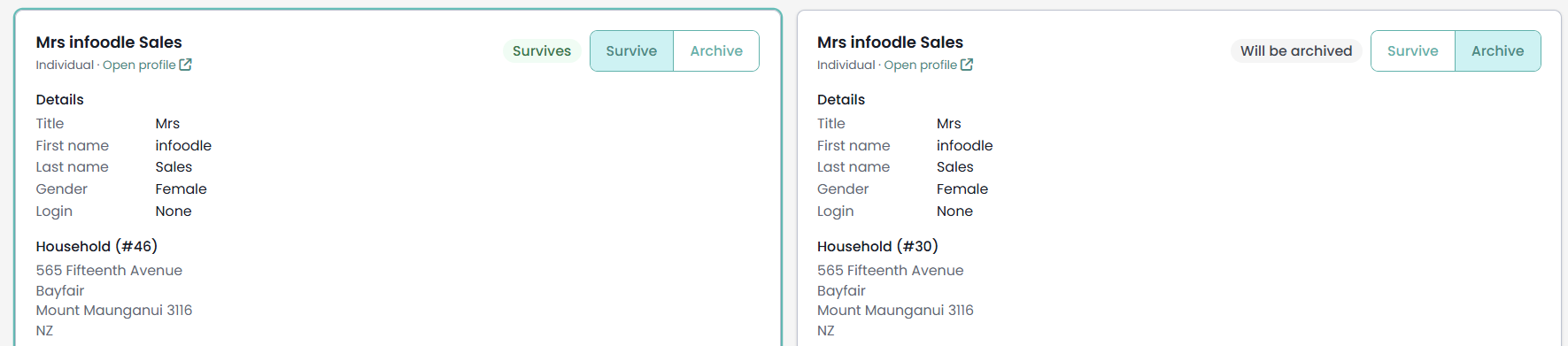
Each record has its own card, with Survive and Archive beside its name. Click Survive on the record you want to keep, and the other card flips to Archive automatically. The surviving card is outlined and badged Survives; the other is badged Will be archived.
Each card lists what that record holds, so you can compare them without leaving the screen:
- Details: title, first, middle and last name, suffix, gender, giving number, whether the record has a login, and its security role if it has one.
- Household: the household or organisation name and address.
- Emails and Phone numbers: every value on the record, with its description and any email purposes such as Primary for this Contact.
- Group memberships: the groups the record currently belongs to.
- Linked data (moved automatically): a count per area, for example Transactions: 23 or Notes: 1.
Open profile opens that record in a new tab if you want the full picture.
Three things follow the surviving record and cannot be picked, so they decide which record to keep:
- The household. The surviving record stays in its own household. See Households are not merged below.
- The login and security role. A login is not moved by a merge. If one record signs in to infoodle and the other does not, keep the record with the login.
- The contact type. See Merging two different contact types below.
Changing the survivor resets the value choices below to that record's values, so choose the survivor first and pick values afterwards.
Step 2: Choose values to keep
The Choose values to keep box lists only the fields where the two records disagree. Anything the two records already hold in the same way is carried over without asking you. The box explains it this way: "These fields differ between the two records — choose which value the surviving record keeps. Fields that are the same on both are carried over automatically. Emails and phone numbers from both records are kept unless you untick them."
Every option is labelled with the name of the record it came from, so you can tell which value is which. The surviving record's value is chosen to begin with.

Names and other single-value fields
Title, first, middle and last name, suffix, gender and your people custom fields appear as a pair of options each. Pick one value per field. Where a field is filled on one record and blank on the other, the blank side reads (empty), so you can deliberately clear a value if you want to.
Household name and address
The household or organisation name is picked on its own. The postal address is picked as a whole, labelled Household address (kept as one address), because a household has one address and you cannot mix lines from two. Both rows appear only when the two records disagree.
Picking the other record's name or address copies it onto the surviving record's household. It does not move the surviving record into the other household. A household record is shared by everyone in it, so a name or address you pick here becomes the name or address of every other person in the surviving record's household as well.
Emails and phone numbers
These are tick boxes rather than either/or choices, headed Emails and Phone numbers with the note (tick to keep on the surviving record). Everything ticked ends up on the surviving record, so the merged contact can hold values from both.
- Values held by only one of the records are ticked to begin with.
- Where both records hold the same address or number, only the surviving record's copy is ticked, so the merged record does not end up with it twice.
- Unticking one of the surviving record's own values deletes that value from the surviving record. It is not moved anywhere and it is not left on the other record.
- A value you leave unticked on the record being archived is different: it stays on that record.
Unticking one of the surviving record's own emails or phone numbers is the one part of a merge that removes a value outright. The value is deleted, nothing carries a copy of it afterwards, and there is nothing to restore it from. Untick only a value you want gone.
Email purposes such as Receipts or Primary for this Contact travel with the address they belong to. Where you keep one copy of an address that is on both records, the purposes from the copy you did not keep are carried onto the one you did.

Multi-select custom fields
A custom field that holds several options at once is labelled (multi-select) and offers three choices instead of two:
- Keep both lists combined: the surviving record ends up with every option either record had selected, with no repeats. This is the default.
- The other two options are labelled with each record's own name and list the options that record holds. Pick one and the surviving record ends up with that record's list.
For example, where one record has Music Team and Welcome Team selected and the other has Welcome Team and Prayer Team, keeping both lists combined gives all three.

Giving number
A contact has one giving number, so where the two records' numbers differ you are asked which to keep. That includes the case where only one of the two records has a number at all, so the surviving record can take it. The surviving record's number is kept to begin with, and the number you do not keep is dropped, whichever way you choose. A dropped giving number stops matching future bank imports, so check with whoever handles your banking before you confirm, including when you leave the choice as it is.
Step 3: Merge the records
- Check the badges on the two cards one last time. The record badged Will be archived is the one that goes.
- Click Merge records.
- infoodle asks to confirm, in a window titled Confirm merge: "Merge these records? This archives the record marked “Archive” and cannot be undone."
- Click Merge.
Records merged confirms it. If you came from a scan, you are returned to the results list at the page and search you left, and the pair is marked merged in its group. If you came from a profile, you are taken to the surviving record's profile.
What a merge changes
Everything below happens in one step, and none of it is optional.
The surviving record gains:
- The values you chose, and any field the two records already agreed on.
- The emails and phone numbers you ticked.
- Every group the other record belonged to. Where both records were in the same group, the surviving record keeps the higher of the two levels of membership, so a merge never reduces someone's access to a group.
- All linked data from the other record: transactions, recurring giving, gift aid declarations, notes, tasks, emails sent and received, event attendance, rosters, form submissions, library files, library bookings, campaign responses and volunteer hours.
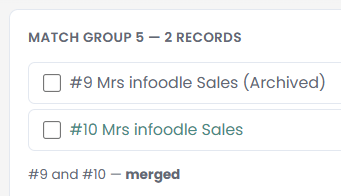
The other record is archived. It is not deleted. It keeps its own household, its own login if it had one, and its own history. Its name now shows with (Archived) after it, and it stays in the scan results, greyed out. It does drop out of ordinary people search, so searching for that name afterwards finds the surviving record only. Seeing archived contacts elsewhere in infoodle needs the Can see archived people role permission.
After a merge, work from the surviving record. The archived record's profile may still show a duplicate alert; do not start a merge from it.
Households are not merged
Merging joins two contact records. It does not join their households. Where the two records sit in different households, the merge screen says so before you start: "Merging moves the contact data to the surviving record but does NOT merge the households. The surviving record keeps its own household; the other record's household stays behind with the archived record. Pick any household name / address values you want to keep below."
So the surviving record stays where it is, with the people who are already in its household. The other household keeps its own members and its own address, now with an archived record in it. If you also want to bring the households together, move the surviving record with Move to another household on the profile after the merge.

Merging two different contact types
An individual and an organisation or household record can be merged. When the two records are different types, a warning names both records and their types, and states the consequence: "The merged record keeps the SURVIVING record's type — the contact type cannot be changed during a merge."
A line underneath reads Merged record type: with the type the merged record will have. It follows the Survive and Archive buttons, so switching the survivor switches the type as well. Choosing the type you want therefore means choosing the right survivor.
Because the type is fixed by that choice, gender is not offered as a value to pick on a cross-type merge. The name fields still are, so an organisation record surviving a merge with an individual record can take the individual's first and last name if you want it to.
Sites that use organisation wording see Organisation as the type; sites that do not see Household. It is the same type either way.
Sections marked restricted
Your role decides how much of each record you can see, and some of the merge screen is shown to you as a summary rather than in full:
- Where your role does not include Read and Report on Transactions, the finance counts read something like Transactions: 2 — restricted, will be merged automatically, and the same for recurring giving and gift aid declarations.
- Where it does not include Can see general people notes, the notes count is marked the same way.
- Where it does not include Edit Giving Numbers for people, the giving number is not offered as a choice. In its place is the line Restricted — the surviving record's giving number is kept automatically.
These are not extra permissions you need in order to merge. Anyone with Edit any person and household contact details can merge two records, and the restricted data is moved to the surviving record either way. The indicators are there so you know the data exists even though you cannot read it.
What the merge records
Both records keep a permanent, visible entry. Open a contact, click the More profile functions cog in the top left of the profile and choose Audit trail:
- The surviving record shows Merged from with the name of the record that was archived.
- The archived record shows Merged into with the name of the record that survived.
Each entry carries the date, the time and the name of the person who ran the merge.
Neither record's history is moved by the merge, so the archived record keeps the full trail of everything that ever happened to it, and the surviving record's own history is not padded with entries from a record it absorbed.

Merging cannot be undone
This is worth being plain about, because archiving a contact normally is reversible and merging is not.
The record you archived during a merge can be un-archived like any other archived contact, but that only brings back an empty record. Its transactions, notes, group memberships and everything else now belong to the surviving record, and nothing moves them back. There is no unmerge anywhere in infoodle.
The Revert button in the duplicate scan results reverts a pair that was marked as Not a duplicate. It does not revert a merge. Nothing in infoodle reverts a merge.
In the scan results, a pair you have already merged stays listed and cannot be merged again from there. Ticking both records reads a line such as #8 and #9 are already merged. and offers nothing further.
Not a duplicate, and Cancel
Two more buttons sit beside Merge records, for when the merge screen tells you these are not the same contact after all:
- Not a duplicate marks the pair so that future scans stop reporting it. infoodle asks to confirm: "Mark these two records as NOT a duplicate? They will be suppressed from future scans." Click Yes, not a duplicate. Neither record is changed. You are returned to wherever you came from.
- Cancel leaves without doing anything at all, and returns you to the results list or the profile you came from.
Marking a pair as not a duplicate does not clear the duplicate alert on either contact's profile. The pair moves into a Previously dismissed: list on the alert, with a Revert dismissal button beside it. See Duplicate Alerts on a Person's Profile.
Common questions
Which record should I keep?
The one that carries what cannot be moved: the household you want the contact to be in, the login and security role, and, on a cross-type merge, the contact type. Everything else can be picked from either record.
The two records hold the same email address. Will the merged contact have it twice?
No. Where both records hold the same address or phone number, only the surviving record's copy is ticked, and that is the one that is kept.
I unticked an email on the surviving record. Where did it go?
Nowhere. It is deleted from the surviving record. Unticking one of the surviving record's own emails or phone numbers is the one part of a merge that removes a value outright, so untick only a value you want gone. A value you leave unticked on the record being archived is different: it stays on that record.
Why is a field I expected to choose from not listed?
Only fields the two records disagree on are listed. A field they already hold in the same way is carried over without asking.
What happens to a group both records are in?
The surviving record stays in the group, at the higher of the two levels of membership. The duplicate membership is dropped rather than added twice.
Can I merge my own contact record?
Yes, as the surviving record. infoodle does not let you archive your own record in a merge.
Does merging delete anything?
No record is deleted. The record you merge is archived, and it keeps its own household and its own history. The one thing a merge removes outright is a value you untick on the surviving record's own emails or phone numbers.
After the merge I cannot find the record that was archived. Where did it go?
It is archived rather than deleted, and archived contacts are left out of ordinary people search, so searching for the name finds the surviving record only. It is still listed in the duplicate scan results, greyed out with (Archived) after its name, and the surviving record's audit trail names it under Merged from. Seeing archived contacts elsewhere in infoodle needs the Can see archived people role permission.
I merged the wrong pair. What now?
There is no unmerge, and un-archiving the record you merged does not bring its data back. Where the two records were genuinely different contacts, add a new record for the second contact and move their information onto it by hand. The archived record's own audit trail names the record it was merged into, so you can see what happened and when.
Can I merge three records at once?
No. A merge always joins two records. Where a match group holds three records, merge two of them, then merge the result with the third.
Next steps
Work through the rest of the pairs a scan found: see Finding Duplicate Contacts.