Here's how to add a Recurring Payment option to a form:
- Create Payment Method options so your donor or supporter can use to pay. Examples of payment methods include: automatic or direct payment from the user's bank, credit card or direct credit, or the user could enter text specifying their preference
See Payment Methods and Set Up for more information
- Ensure that the Payments > Pay/Donate method field has been added to the form and that all payment options are available for selection.
See Payment Fields for more information
-
From the Payments section, drag across the Recurring period field onto your form. This field will allow the user to select how often they want to set the regular payment and is the field that will automatically create a pledge in infoodle.
This field is necessary to add to the form whether they pay by regular card payments (gocardless, eWay, Stripe or Ezidebit) or when they set up their own automatic payment.
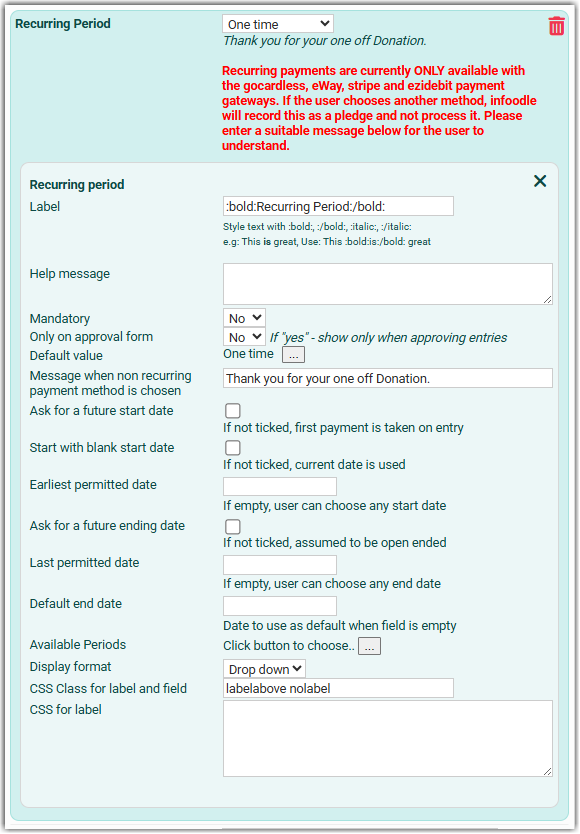
If the recurring period of One time is selected, and the option First payment date selected, the first payment date is shown (with the label changed to Payment date) so the user can choose when the one-off payment is taken.
For those who are running a specific campaign for pledges over a specific period, it's necessary to have an end date for when all pledge transactions must be completed by.
You can add a Last permitted date and Default end date when building the form. This stops the user from entering an end date after the one specified - the Default end date is your end date when users don't enter a Last permitted date.
Remember, a pledge is not actual giving but a promise to give. To keep track of their promise verses their actual giving, you can look at the Recurring Donor Analysis report to see how they are keeping up.
Field Configuration Options
Default value
Sets which recurring period option is pre-selected when the form first loads. For example, selecting "One time" makes that the default choice for users. This is useful if most of your users make one-time payments rather than recurring ones.
Message when non recurring payment method is chosen
Custom text to display to users when they select a non-recurring payment method (e.g., one-time payment). For example: "Thank you for your one off donation."
Ask for a future start date
If enabled, users can set a future date for their recurring payment to begin. Useful if you want to give donors the option to defer when their donation starts.
Start with blank start date
If enabled, the start date field appears empty initially. Users must manually enter a date. If disabled, the current date is used by default.
Earliest permitted date
Sets the earliest date a user can select as their payment start date. Dates before this cannot be chosen.
Ask for a future ending date
If enabled, users can specify when they want their recurring payment to stop. Useful for finite campaigns or limited-term commitments.
Last permitted date
Sets the latest date a user can select as their payment end date. Dates after this cannot be chosen.
Default end date
The end date to pre-fill in the form when the field is empty. Users can override this if needed.
Available Periods
Click the button to select which recurring payment frequencies are offered to users (e.g., monthly, quarterly, annual). Only selected periods will appear in the dropdown.
Display format
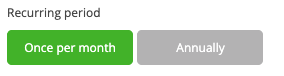
Choose how the recurring period options are presented to users. "Drop down" displays them as a dropdown menu; buttons displays as a list of buttons.
Example of a drop down menu:

Example of a button list:
Example Use Case
If you're collecting donations where most are one-time:
Set Default value to "One time"
Enable Ask for a future start date if donors sometimes want to schedule donations
Leave Start with blank start date unchecked so the current date is assumed
Set Available Periods to include "One time" and any recurring options you want to offer
Pledge Confirmation
In conjunction with the Recurring Period details there's also the Pledge Confirmation feature which provides that ability to display a message back to the user showing them the outcome of the recurring period choices - pledge frequency, total number of payments, total value, etc.
For details on this feature , see: Pledge Confirmation
A few important notes about pledges and forms:
- Pledge records are created when the user submits the form (that is, not at approval time).
- After the form is completed, but before it is approved, the request for payment no longer requires a form to be approved in order to request payment.
- Recurring Stripe payments now record the charge succeed or fail against the form, each time.