The Pay/Donate method field is what you add to an infoodle form to let the person filling it out choose how they want to pay. Use it on donation forms, registration forms with a fee, event-signup forms, and any other form that collects money. The methods someone sees on the form are drawn from the payment methods already configured for your site.
When a donor pays by card on a form, their card number, CVV and expiry are entered into gateway-hosted fields (Stripe, GoCardless, Ezidebit, and similar) and submitted directly to the gateway. infoodle never sees, stores or logs the card data. infoodle only records what the gateway returns, typically the last four digits, the card brand, and the transaction reference. This keeps your forms out of PCI-DSS scope, so long as nobody pastes card numbers into other infoodle fields (notes, file uploads, free-text answers).
Before you start
Role Permissions
Create and manage forms and entries (subject to cluster and form restrictions)
For an explanation of each role permission, see People Permissions.
Payment methods configured
The payment methods you want people to choose from must already be set up. You can find this by going to Administration (click the administration cog in the top right hand corner), then Payment Methods. If no payment methods are set up, the Pay/Donate method field has nothing to offer. Common gateways include Stripe, GoCardless, Ezidebit, PayPal/Braintree, Givealittle and Direct Credit (manual bank payment).
See Adding Payment Gateways for the supported gateways and how to set each one up.
Amount field paired
A form normally collects an amount too. Pair the Pay/Donate method field with the Amount, Pay processing fee, and Total amount fields from the Payments section of the form builder.
Live vs test gateway keys
Before exposing a form that uses a card gateway, confirm the gateway is set up with live keys on your live site, and test keys only on a sandbox or staging site. See the gateway-specific articles (for example, Setting up Stripe) for the test/live toggle.
The fields you put next to Pay/Donate method, including name, email, phone and address, are personal data subject to the privacy regime your site operates under (NZ Privacy Act, GDPR, AU Privacy Act). The address on a donation form is being collected for receipting, not for marketing. Capture marketing consent separately via the Subscribe or permission-to-contact fields on the same form. Permission to pay is not permission to be emailed. For recurring donations the donor is granting an ongoing authority to charge, which in some jurisdictions has explicit disclosure requirements. See the recurring-payments article.
How payment methods reach the form
infoodle keeps a site-wide list of payment methods. You can see this by going to Administration (click the administration cog in the top right hand corner), then Payment Methods. Each row in that list is one gateway or one manual payment option.
- Visible Name: what the person filling out the form sees as the option label.
- Type: controls how that method behaves when they pick it (card gateway, direct credit, and similar).
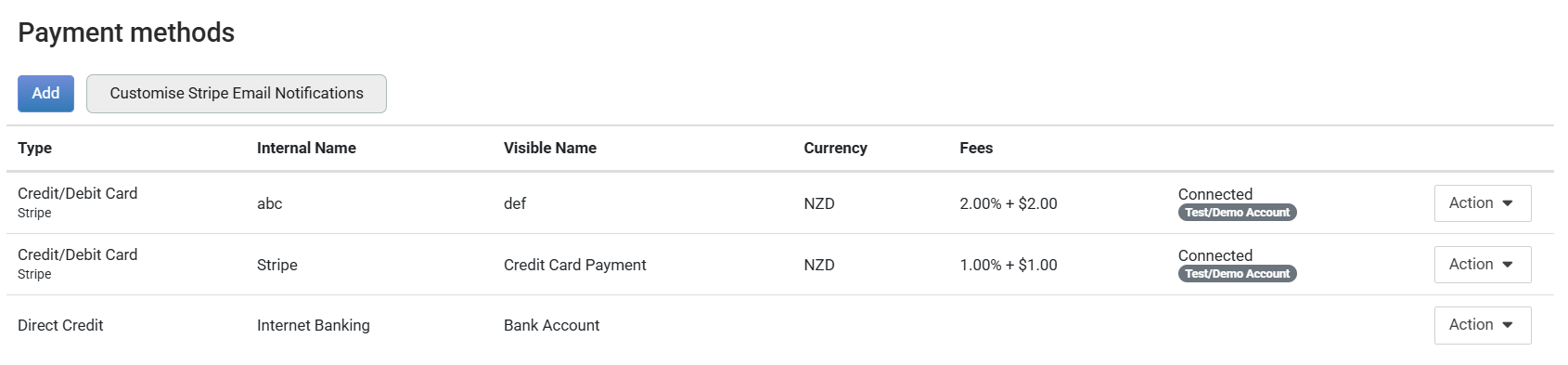
When you add a Pay/Donate method field to a form, infoodle offers a tick-box for each method on this list. The methods you tick become the choices the form user sees.
Adding the Pay/Donate method field
Step 1: Open the form builder
Open Forms in the main menu, then click Add Form to start a new form, or click Edit on an existing form to add the field to it.
Step 2: Open the Payments section
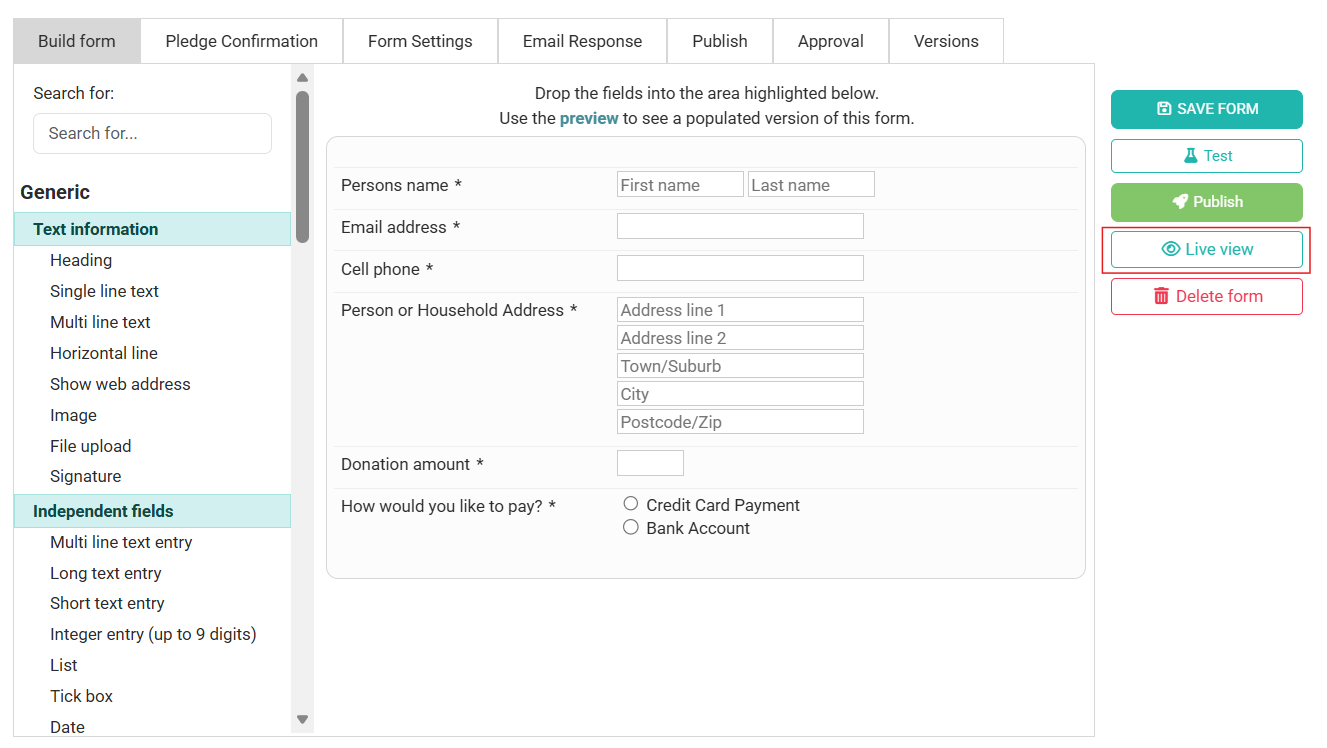
On the Build form tab, scroll the list of available fields on the left until you can see the Payments section, then open it.
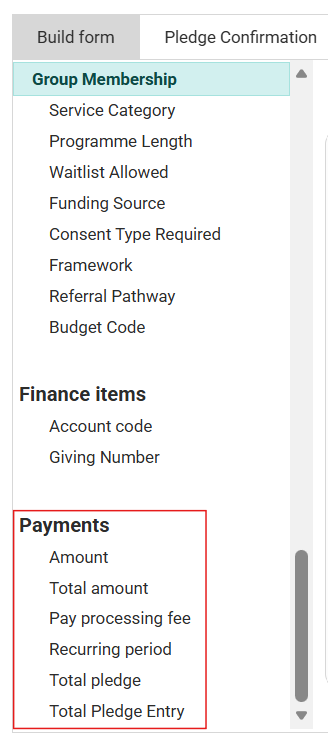
Step 3: Drag the field onto the form
- Drag Pay/Donate method into the form preview on the right.
- Next, drag in an Amount field so the form can capture how much to charge.
- Optionally, also drag in Total amount and Pay processing fee.
Step 4: Open the field settings
Click the Pay/Donate method field on the form preview. You will now see its settings open on the right.
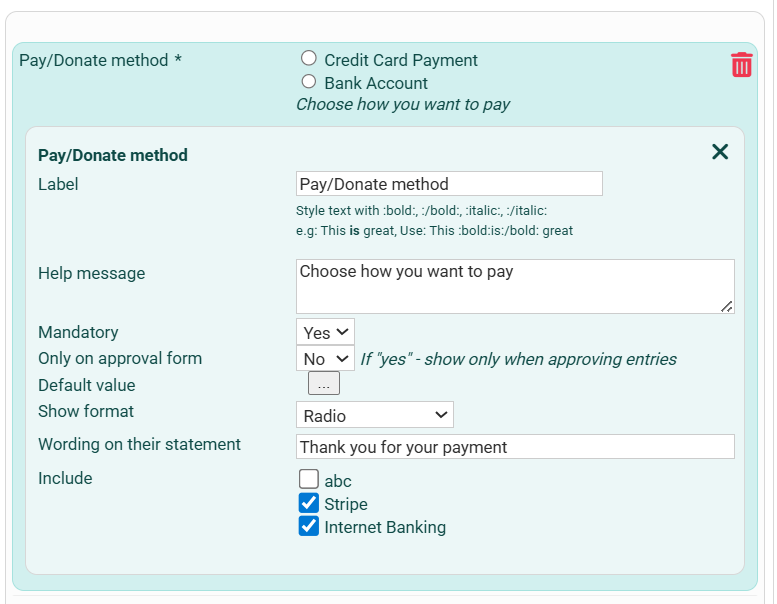
Configuring the Pay/Donate method field
The settings panel has two parts. The top half are the common form-field settings. The bottom half (Show format, Wording on their statement, Include) is specific to Pay/Donate method.
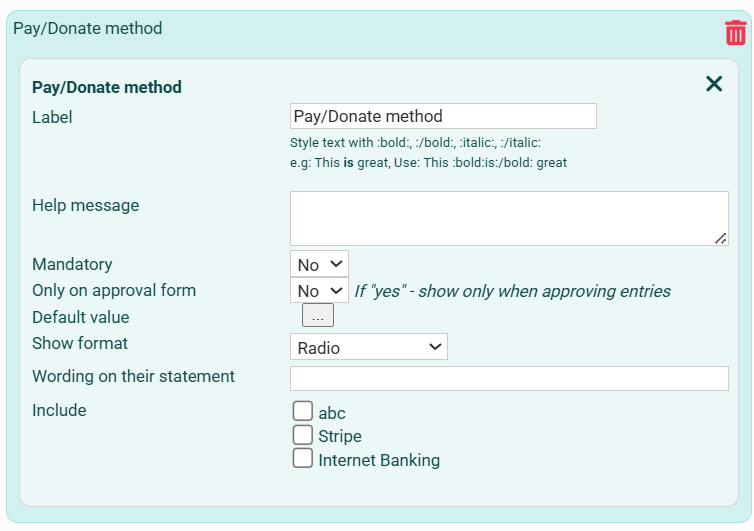
Common settings
- Label: the heading shown above the choices on the live form. For a donation form this is typically "How would you like to Pay?" or "Payment method". You can apply light styling with :bold:...:/bold: and :italic:...:/italic: markers.
- Help message: optional. Appears as a clickable question mark next to the label. Use it for a one-line clarification, for example: "Pick how you want to pay, bank transfer or card."
- Mandatory: set to Yes when a payment is required to complete the form (for example: a paid registration). Leave it No for a contact form that offers an optional donation.
- Only on approval form: set to Yes if you only want the field to appear when a staff member is approving the entry, not on the live form. Useful when a staff approver records the method after the fact, for example: a Direct Credit transfer that has already cleared. The audit trail attributes the choice to the staff user, so use this only when there is an offline source of truth (a cleared bank statement, a paper authority, and similar).
- Default value: the payment method pre-selected when the form first loads. Pick this when most people pay the same way and you want to save them a click. Leave it blank to make them pick deliberately.
Pay/Donate-specific settings
- Show format: controls how the choices are laid out. A single-column layout suits methods that have explanatory text underneath. A multi-column layout (such as Radio 2 Columns) is useful when you have several methods and want a more compact form.
- Wording on their statement: a short reference suggestion the donor sees alongside the chosen payment method. The bank does not enforce this on the resulting transaction, so reconciliation needs to tolerate near-matches. Leave blank if your methods are card-style gateways that generate their own references.
- Include: one tick-box for each payment method set up at Administration → Payment Methods. Tick a method to offer it on this form. Clear the tick to hide it. This is how you control which gateways are available on a per-form basis. For example: a donation form can offer Stripe and Direct Credit, while an event registration that needs an invoice trail can offer Direct Credit only.
The Wording on their statement setting does not change the reference text shown in the bank-deposit instructions block on the live form. To change the bank reference that donors will see in this block, edit the payment method, not the form field. See Payment Methods and Set Up.
What the form user sees
On the live form, the Pay/Donate method field shows a labelled set of options, one for each method ticked under Include.
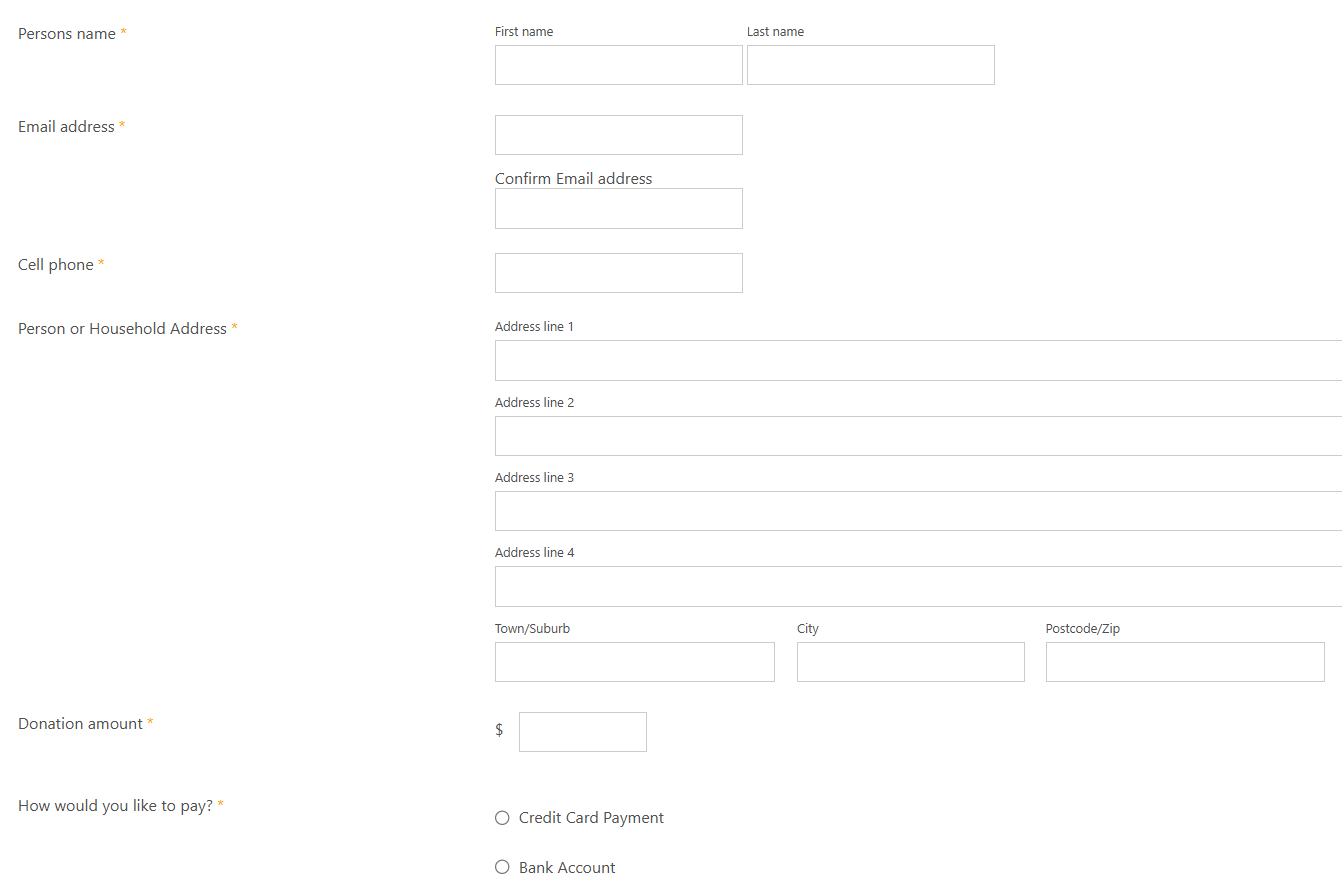
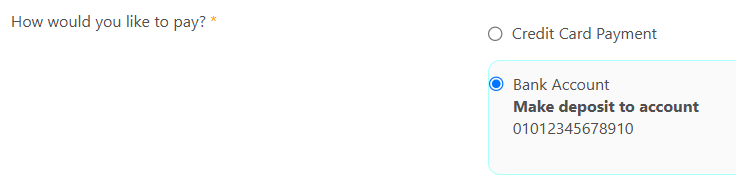
When the user picks a method, infoodle reveals any payment-specific detail underneath the choice:
- Direct Credit method: shows the bank-deposit instructions configured on the payment method itself, including the account number and the suggested transfer reference.
- Card-based gateway (such as Stripe, GoCardless, Ezidebit, PayPal/Braintree, Givealittle): shows the gateway's card-entry inputs. The user enters their card details there and infoodle hands the payment off to the gateway when the form is submitted. The card data never traverses infoodle's servers.
For gateway-specific behaviour, see Adding Payment Gateways.
What happens when the form is submitted
Submitting a form that has a Pay/Donate method field on it runs the payment as part of the submission. The behaviour depends on the method the person chose:
- Direct Credit / Manual Bank Payment: infoodle records the form entry and the payment intent, then waits for the user to complete the bank transfer outside infoodle. The entry sits until it is matched against the incoming bank transaction.
- Online gateway: infoodle sends the payment details to the gateway, the gateway authorises the card, and the result comes back to infoodle, which records the transaction against the form entry.
In both cases, the form entry appears in the form's Entries tab for processing, and the payment shows up under that payment method's Form Usage view. You can find this by going to Finance → Transaction processing → Payment methods. This is also where you reconcile or audit the run of payments collected through a specific form.
See Reconciling Against Forms for the manual-bank matching workflow, Payment processing for the gateway-side flow, and Form Usage for the per-method payment view.
Receipting
If auto-receipting is enabled for the donation account-code, campaign or stock item that the form entry maps to, infoodle issues a receipt automatically for the resulting transaction once the payment is authorised. No receipt is issued for declined or failed payments.
A receipt cannot be edited once it has been issued. It has a tax-receipt number and is a legal record. If the donor needs a corrected receipt, follow the re-issue workflow:
- Delete or void the original receipt.
- Edit the form entry to correct the details.
- Re-receipt the transaction.
See Reissuing a receipt and Receipts for the detail.
Refunds
Refunds are not initiated from the form or the form entry. They are issued in the gateway (Stripe, and similar), and infoodle records the refund when the gateway notifies it back.
Common questions
Why does my form show no payment options?
Either no payment methods have been set up for your site, or none have been ticked under Include on the field's settings. Check Administration → Payment Methods first, then revisit the form and tick the methods you want.
Why is the amount always zero on submission?
The Pay/Donate method field does not capture the amount. You need an Amount or Total amount field on the form too. The Total amount field calculates from the Amount plus the optional Pay processing fee, and that total is what gets sent to the gateway.
How do I add a recurring (regular) donation option?
Add the Recurring period field from the Payments section alongside Pay/Donate method. See Adding Recurring Payments to a Form for the setup, including what happens when a later recurring charge fails (expired card, insufficient funds, dishonour fees) and how donors are notified.
How do I change the order of payment options on forms?
The default order is the order set at Administration → Payment Methods. To override that for a specific form, see Form Payment Methods, reorder.
Where can I see the card number used for a donation?
You can't. Card details go straight to the gateway, and infoodle only stores the last four digits and the card brand. For a chargeback or dispute, work from the gateway side (for example: the Stripe dashboard).
Where do I see declined payments?
Failed authorisations for card-style gateways are recorded against the person at Finance → Transaction processing. The exact location and labelling varies by gateway, so check the per-gateway article (Stripe, GoCardless, Ezidebit, and similar) for where the failure record surfaces. The form entry itself is only created once the payment has authorised, so declined cards do not leave half-finished entries behind.
What does the user see when a payment is declined by the gateway?
The user stays on the form, and the gateway's decline message is shown next to the payment field. The exact wording and retry behaviour is set by the gateway. See the per-gateway article (Stripe, GoCardless, Ezidebit) for the decline-flow documentation.