Payment processing in infoodle is the bridge between someone making a payment to your organisation and that payment becoming a transaction you can reconcile, receipt, and report on. It covers the cards, bank payments, and manual entries that come in through forms or that you record by hand, and it sits between the payment provider you use and your finance area.
This article is the overview. The specific setup steps for each payment provider live in their own articles, linked below.
Before you start
Role Permissions
- Update System information, to add, edit, or configure payment methods on the Administration page.
- Manage finance configurations, to set up the bank accounts, account codes, and other finance settings that payment methods reference.
- Manage, Read and report on transactions, to view the transactions and batches that payments land in.
- Read and Report on Transactions, for read-only access to view transactions and reports.
For an explanation of these and other role permissions, see People role permissions.
How payment processing works in infoodle
At a high level, every payment flows through the same four stages, regardless of which payment method or gateway you use.
- The payer chooses a payment method. On a form, they pick from the methods you have enabled. In the finance area, you select the method when you add or reconcile a transaction by hand.
- The payment is processed. For online gateways (Stripe, GoCardless, eWay, and similar), the gateway handles the card or bank-payment processing. For Direct Credit, the payer transfers the money to your bank in their own banking app. For Cheque and Free Text, you record the payment manually after you receive it.
- infoodle records the transaction. Once the gateway confirms a successful payment, infoodle records the transaction against the form entry and the person. For manual methods, the transaction is created when you add or reconcile it in the finance area.
- The transaction lands in a batch. Transactions are grouped into batches in Finance → Transaction processing, where you reconcile against your bank, generate batch reports, and (if you use the Xero integration) send the batch to Xero.
A gateway confirming a payment is not the same thing as the funds being in your bank. Card and bank-payment gateways take a few business days to settle the money. infoodle treats a transaction as ready for the formal tax receipt only after the reconciliation step has been completed against your bank, so you do not end up issuing a receipt for a payment that later reverses.
Payment methods you can use
infoodle supports four broad categories of payment method. You configure them in Administration → Payment Methods. To add your first payment method, follow the steps in Payment Methods.

When you click Add, the new method type drop-down shows the categories below. Each category has its own configuration and its own setup article.
- Cheque: for cheques received in the mail or in person. You record the payment manually when you process the form entry or add it as a transaction.
- Direct Credit: for bank transfers the payer initiates in their own banking app. infoodle gives them your account details; you record the matching transaction when it appears on your bank statement.
- Integrate a payment gateway: for online card and bank-payment processing through an external provider. The available gateways on the Add screen are Flo2Cash, eWay, Windcave (Payment Express), Stripe, Stripe + ACH + Plaid (USA and Canada), Braintree, Ezidebit Credit card & Direct debit, Poli (New Zealand and Australia only), and GoCardless.
- Free text information: for cases that do not fit the other types. You type a free-form description of how the payment was made; infoodle records the transaction with that note attached.
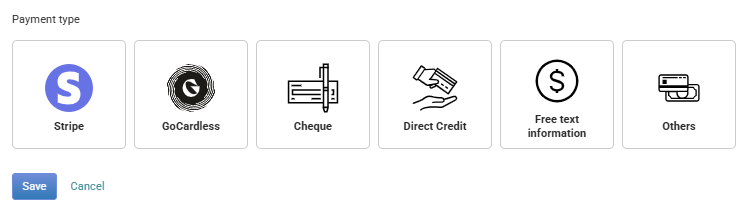
Each gateway's fees, currency, and notification email are configured on its detail page. The exact direct-debit schemes available through GoCardless depend on the country and currency you operate in; GoCardless itself determines which scheme is used. See the GoCardless setup article for the specifics that apply to your region.
For Stripe + ACH + Plaid, choose this option if you also want ACH bank-payment support alongside card payments in the USA and Canada.
See the Related pages list at the end of this page for each gateway's setup guide.
Where transactions end up
Once a payment is processed and recorded, it lands in a few places.
- Transaction processing: Finance → Transaction processing is where new transactions land. From here you reconcile them against your bank, group them into batches, generate batch reports, and send batches to Xero if you have that integration set up.
- Transaction List: Finance → Transaction List shows every transaction the site has, with filters by date, donor, payment method, and account code.
- The donor's profile: once a transaction has been reconciled, it appears in the giving history on the person's profile and is available for donor statements and receipts.
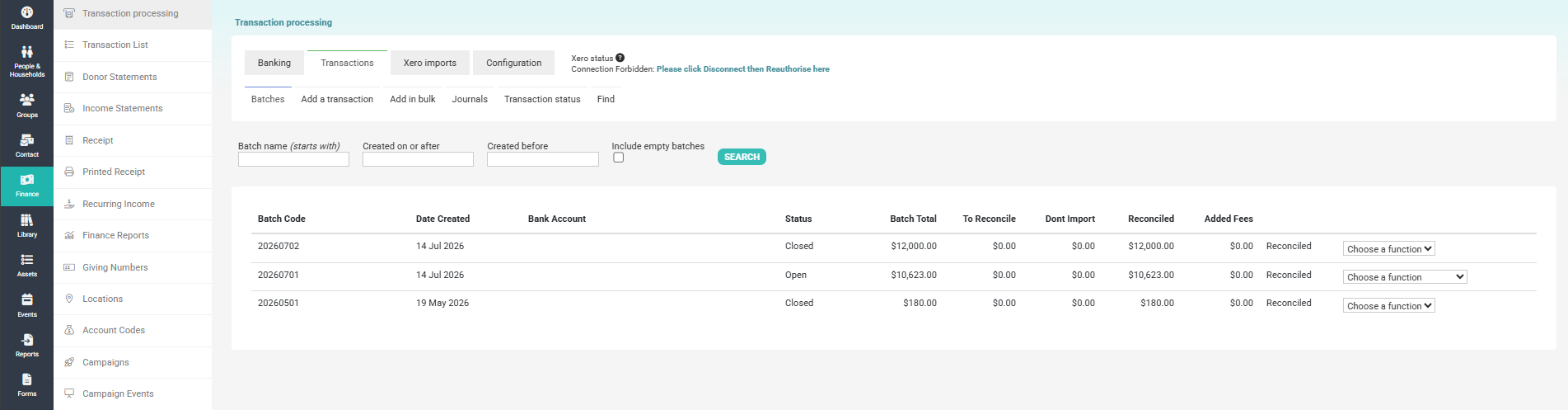
A transaction is created in infoodle once the form entry has been approved AND the Add Transaction or Reconcile step is complete. Until both of those have happened, the entry sits as an unprocessed form entry. See Receiving Payments for the approval and reconciliation flow in detail.
What infoodle stores, and what stays with your payment provider
This matters for security and for understanding what is in your audit trail.
For online card and bank-payment gateways, the sensitive payment details (full card number, security code, bank account number) are entered directly on the gateway's own pages, or in a secure field on your form that sends the details straight to the gateway. infoodle never receives or stores them. infoodle stores the gateway's reference for the payment, the amount, the currency, the date, and the form entry it relates to.
- Manual methods - the picture is different.
- Cheque - you can record the cheque number, branch, and donor name so the batch report can list cheques individually.
- Direct Credit - you record the reference the payer used.
- Free text - you record whatever description you typed. None of those involve card data.
When a gateway confirms or updates a payment, it sends infoodle an automatic notification. infoodle checks that each notification genuinely came from the gateway before acting on it, so you can trust the record of "this gateway confirmed this payment for this amount." Each notification is matched to the payment method that originated the payment, so it is recorded against the right form entry. The exact process varies slightly by gateway and is documented in each gateway's setup article.
For details on who can view the transaction audit trail and the read-only versus edit access models, see People role permissions.
Related procedures: refunds, reversals, and batch corrections
Refunds and corrections are operational tasks that have their own articles. The pointers below tell you which article handles each scenario.
- Refunding a gateway payment: the refund is done in the gateway's own dashboard (Stripe Dashboard, GoCardless Dashboard, and so on). The gateway then sends infoodle an automatic notification, and infoodle records the reversal against the original transaction.
- Refunding a Cheque, Direct Credit, or Free text payment: the refund is handled in your own systems (your bank, your finance team). You record the reversal in infoodle by adding a negative transaction or by editing the batch.
- Correcting a closed or Xero-imported batch: see the batch reconciliation article for the steps. The key constraint is below.
Once a batch has been closed (or imported from Xero), the editing shortcuts on the batch are removed. To make a correction to a closed batch, re-open it first, make the correction, and close it again. Xero-imported batches cannot be re-opened: those have to be corrected in Xero.
Common questions
How do I pick which gateway to use?
The choice depends on the countries you accept payments in, the currencies you charge in, and the fee structure that works for your organisation. As a starting point: in New Zealand and Australia, Poli, Windcave, Flo2Cash, and Stripe are common; in the UK and Europe, Stripe and GoCardless are common; in the USA and Canada, Stripe + ACH + Plaid covers card and ACH together. Each gateway's setup article lists what it supports. Talk to your finance lead or to infoodle support if you are not sure which fits.
What happens when a payment fails?
For online gateways, the gateway sends infoodle an automatic notification that the payment failed. infoodle records the failure against the form entry, and the notification email address on the payment method receives an email so you can follow up with the payer. For recurring payments, infoodle can be configured to retry the payment automatically under the rules you set on the payment method.
When does a transaction become available for a receipt?
Once the form entry has been approved and the transaction has been added or reconciled in the finance area, it appears in the receipts screen. infoodle uses the reconciliation step as the gate for the formal tax receipt, which means you have confirmed the funds against your bank before the receipt is issued.
Can I enter a payment by hand without going through a form?
Yes. In Finance → Transaction processing you can add a transaction directly, choose the payment method it came in on, and assign it to a person. This is the usual path for cheques and direct credits that did not start as a form entry.
Next steps
Once your payment methods are configured, the next step is usually to add a payment field to a form so payers can use them. See Form Usage to see which forms each payment method is in use on.