How to setup a Stripe Account
To use the integration with Stripe, you can use an existing account or create a new account through these infoodle screens.
- Click on the Administration (gearwheel/cog) icon at the top right corner of infoodle
- Select Payment Methods
- then Add
- and finally Stripe
- Complete the following fields that are specific to the Stripe Payment Gateway
Note: You will only see the Bank Account question if you have bank accounts setup - which is optional.
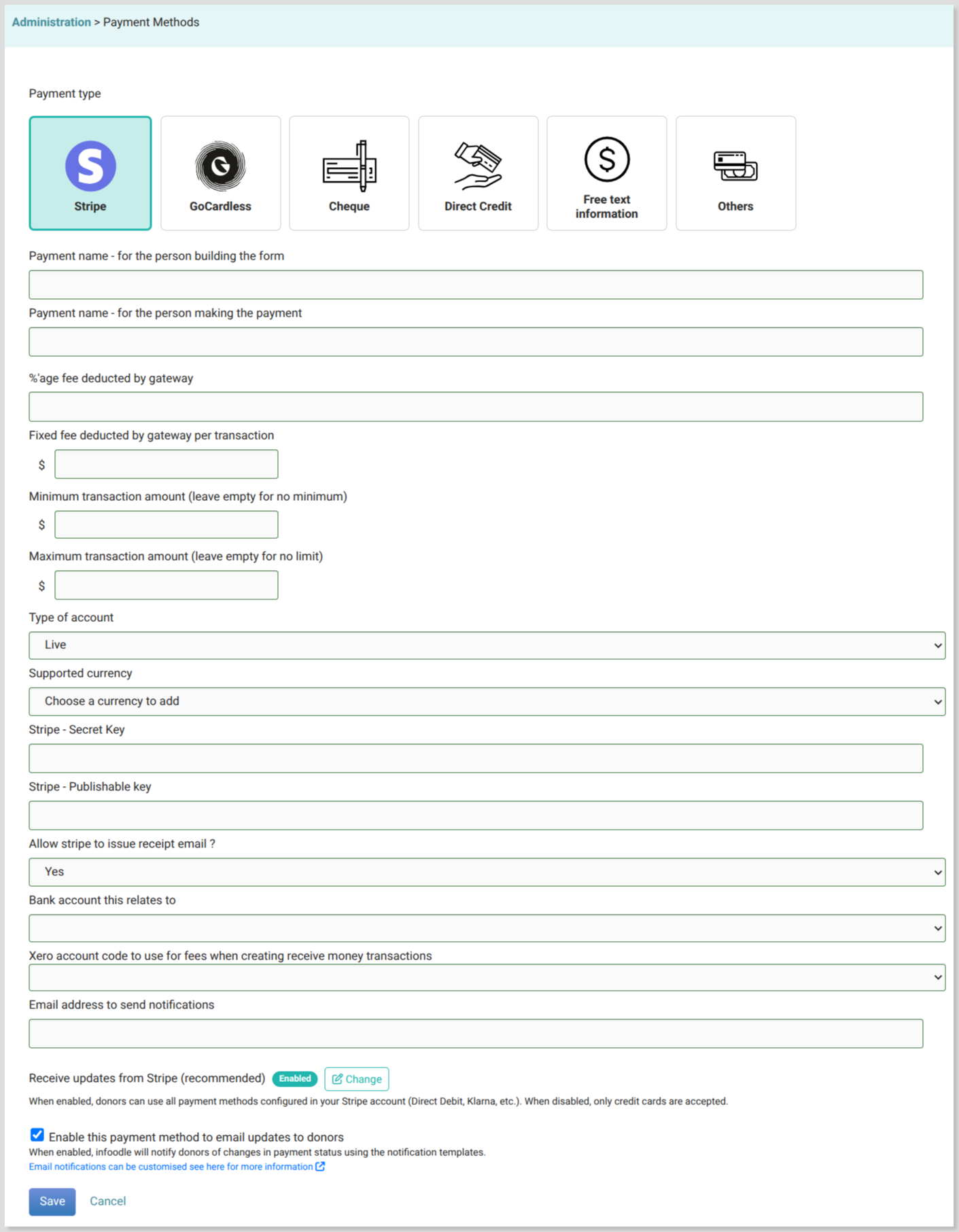
- Once complete select Save
- Then you will be directed to Stripe to connect your Stripe account to infoodle.
a. If you already have a Stripe account then use the same email address as the Stripe account
b. If you don't have an account, then use the email address to create the new account.
If Stripe does not recognise the email address, you will create a new account in Stripe.
What do these Stripe payment fields mean?
-
Payment name - for the person building the form - the name of the gateway when displayed in infoodle as you setup the form. This is an internal name.
-
Payment name - for the person making the payment - the name of the gateway when used on an infoodle form. This is what the donor sees on forms.
-
%'age fee deducted by gateway and Fixed fee deducted by gateway per transaction - these are the fees charged by Stripe in your country.
-
Minimum transaction amount (leave empty for no minimum) - this sets the minimum transaction value. If the user enters less than this value a message will be displayed informing them of this when they either move to the next page or attempt to submit the form.
-
Maximum transaction amount (leave empty for no limit) - this sets the maximum transaction value. If the user enters more than this value a message will be displayed informing them of this when they either move to the next page or attempt to submit the form.
-
Type of account - the options here are:
- Live and
- Test/Demo Account
-
Supported currency - select the currency that payments are to be made in. Only one currency is supported per gateway.
-
Stripe - Secret Key - A Stripe secret key is a highly sensitive credential used to authenticate backend API requests and process payments. You can retrieve or generate your key by:
- logging into the Stripe Dashboard,
- navigating to Developers > API keys,
- and clicking Reveal live key.
-
Stripe - Publishable Key - is used to securely tokenise payment information in your frontend code (like a website's checkout form) without exposing sensitive card details. It typically starts with pk_test_ or pk_live_
You can retrieve your publishable key directly from your Stripe Dashboard:
- Log in to your Stripe Dashboard
- Click on Developers in the left sidebar menu
- Select API keys
- Look under the Standard keys section to find your Publishable key
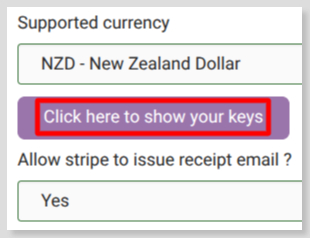
Note - the Secret Key and Publishable Key fields are shown when adding a new payment gateway. Once the gateway is set up the fields and the data are not shown by default. To display the keys you will have to select:
- Allow Stripe to issue receipt email?
- set to No when the payment is a one off or regular donation and you are using infoodle receipts or statements, and
- Yes when taking payments for one-off events, e.g. tickets for an event.
Currently infoodle doesn't support the immediate sending of tax receipts. These are generally required when users are expecting a receipt when having completed a payment.
- Bank account this relates to - select the associated bank account for associated transactions.
- Xero account code to use for fees when creating receive money transactions - select the associated account code that fees are reconciled to in your Xero chart of accounts.
- Email address to send notifications - enter the email address where any issues with infoodle taking the payment will be sent to along with suggested remedies. An email address is mandatory.
- Receive updates from Stripe - infoodle now processes asynchronous payments in Stripe. This ensures payment statuses are accurate even when the user leaves the page or the bank takes time to confirm the transaction. This is essential for methods like ACH, iDEAL, SEPA, and 3D Secure. For more information, see Stripe Receiving Notifications.
- Enable payment notifications - when enabled, infoodle will notify users of changes in payment status. For more information, see Stripe Notification Emails.
One field that is different and unique to Stripe on the setup screen is the Allow Stripe to issue receipt email.
This is set to Yes by default, but you can change it to No.
By changing it to No this means that Stripe will not issue an email when a charge is made to the account, you will need to manage any communication out of infoodle alone.