Sometimes a person fills in the wrong form. When your forms are set up as a family, with a parent form and one or more child forms built from it, you can move an entry onto the right form while it is still waiting for approval, instead of deleting it and asking the person to fill the form in again.
The entry keeps its original reference number and links to emails sent and payment gateways (if relevant). That matters, because the reference is what your reports, your payment gateway records and any email already sent to the person all point at. Answers that exist on both forms carry across, and infoodle shows you what will move, what will be cleared, what will not come across and what you will need to fill in yourself before you commit to the move.
Parent and child forms
A form family is a parent form plus the child forms inherited from it. Each child form inherits the parent's fields, and can offer a different set of choices on dropdown fields such as Campaign. A family is usually one form tailored for different campaigns, groups, dates, notification groups or audiences.
You can only redirect an entry to another form in the same family, either the parent or one of its children.
Before you start
Role Permissions
You will need Need forms menu item, which puts Forms on the main menu.
You will also need one of the following, so that you can process the entry:
- Can Approve Entries on all Forms (bypasses processing restrictions, cluster members still restricted): lets you process entries on every form.
- Create and manage forms and entries (subject to cluster and form restrictions): lets you process entries on forms that do not set a specific person or group to process them.
- Your name, or a group you belong to, set on the form itself as the person or group who processes it. This works whichever role you are on.
On its own, Process responses of forms given permission to does not let you process an entry.
For what each permission does, and how to change them, see Reports, Forms & Workflow Permissions.
When you can redirect an entry
The Redirect Form button appears on an entry when all four of these are true:
- The feature is switched on for your site.
- The entry is still waiting to be approved. Entries you have already approved, and entries you have deleted, cannot be redirected.
- The form is part of a family. It is either a child form, or a parent form that has children.
- The form is not set to approve every entry automatically.

Redirect an entry
- Click Forms on the main menu bar on the left.
- Find the row for the form the entry was submitted to.
- Click the number in the To Process column on that row. The entries waiting for approval are listed.
- Click the form entry you want to redirect so that you can see the details of the form entry.
- Click Redirect Form in the row of buttons at the bottom of the entry, just before Show entries, to open the Redirect form entry window.
- Choose which form to redirect to by searching the Redirect to form dropdown.
- Click the form you want to move the entry to.
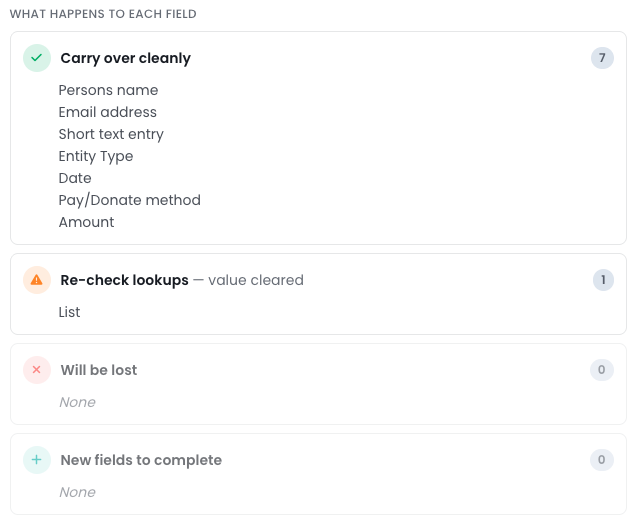
- Read the What happens to each field summary that appears.
- Click View original submitted values if you want to check what the person sent in.
- Click Redirect entry.
What happens when you redirect the entry
infoodle confirms with the message "Entry redirected. Complete any new fields, then approve." and reloads the entry on the form you chose. The move is made in one go, so the entry is either fully on the new form or untouched.
- The entry reference stays the same. The Entry ID at the top of the entry does not change, so reports, payment records and anything already sent to the person still line up.
- The form name changes. Form at the top of the entry now shows the form you moved it to. The entry appears in that form's list of entries to process, and no longer appears in the original form's list.
- Matching answers are kept. Anything listed under Carry over cleanly moves across unchanged.
- Cleared dropdowns are ready for you to choose again. Anything listed under Re-check lookups is emptied, because the two forms offer different choices for that field. Pick again from the list the new form offers.
- The status returns to OK to process. If you had set the entry to Needs review or On hold, set it again in the Status dropdown after the move.
- A note recording the move is written to the entry. It reads "Form entry originally submitted via Form '[old form]'. Redirected to Form '[new form]' by [your name] on [date]." If any fields were left behind, the note lists them too.
- The original answers are kept on screen. A yellow panel appears at the top of the entry, headed "This entry was redirected from another form. Original submitted values:", with the answers the person originally gave for the fields it covers listed as a read-only table.
The field mapping summary
Before you commit, the What happens to each field summary sorts the fields into four lists, each with a count:
- Carry over cleanly: the answer moves to the new form unchanged.
- Re-check lookups — value cleared: a dropdown field, such as Campaign, whose choices differ between the two forms. The answer is cleared and you pick again on the new form.
- Will be lost: a field on the current form that the new form does not have.
- New fields to complete: a field on the new form that the current form did not have. Fields the new form makes mandatory are marked (required).
The summary compares the two forms rather than the answers the person actually gave, so read the counts each time before you commit. For how infoodle decides which fields match, and why a list is sometimes empty, see Understanding the Field Mapping Summary.
Common questions
I can't see the Redirect Form button
Work through the four conditions above. The most common reasons are that it sits on its own rather than in a family, or on a form set to approve every entry automatically.
To check the last one, open the form and go to its Approval tab. The button only disappears when both Automatically approve the form and Automatically approve the form and create a contact are ticked.
If the button is there but the form you want is missing from the Redirect to form dropdown, the dropdown only offers published forms in the same family that your role lets you process, so ask an administrator to check your access to that form. If the dropdown offers no forms at all, there is no other published form in the family that your role lets you process.
Some data is missing after redirecting
Anything listed under Will be lost does not move to the new form, because the new form has no field to put it in. The answers are not deleted. The yellow panel at the top of the entry shows the answers the person originally gave, so you can copy what you still need into the new form before you approve.
If an answer you are looking for is not in the panel, it is still stored against the entry. Contact infoodle support and they can get it for you.
The campaign field is blank after the redirect
The two forms offer different sets of campaigns, so infoodle clears the answer and you pick again. Choose a campaign from the list on the new form, then click Save Entry Changes. The same applies to the other dropdown fields listed under Re-check lookups.
Can I undo a redirect?
There is no undo. You can redirect the entry again while it is still waiting for approval, but the panel of original values is replaced each time you redirect, so read the summary carefully before you click Redirect entry.
I can't approve the entry because a field is required
The new form makes some fields mandatory that the old form did not. They are marked (required) under New fields to complete. Fill each of them in, then approve. If an answer genuinely is not available, tick Override mandatory field requirements at the top of the Approve this form section.
The notification email wasn't sent
Redirecting an entry does not send any email by itself. The yellow panel on the entry has Re-send notification email and Re-send response email buttons, which build the email again from the entry's current answers. See Re-triggering Notification and Response Emails After a Redirect.
The Redirect entry button stays greyed out
Choose a form in Redirect to form first, as the button stays inactive until you have. It also stays inactive when the entry holds payment details and the form you picked has no payment field, and infoodle shows a red message saying so. Pick a different form in the family, one that collects payment.
Finish the entry
- Fill in the fields listed under New fields to complete.
- Choose a value for each field listed under Re-check lookups.
- Set the Status dropdown again if you had the entry on Needs review or On hold.
- Click Save Entry Changes.
- Approve the entry as you normally would.
Next steps
Once the entry is on the right form and complete, approve it: see Approving a Form Entry.