Once a preview looks right, you confirm the run. infoodle saves it exactly as previewed and works through it in the background. You will need a preview first. See Preview a bulk run.
Step 1: Confirm the run
You must click preview before you are able to click confirm which actually runs the bulk memberships and generates the emails and invoices etc.
- Check the summary in 4. Run, and the sentence above the button, for example "This run will create 1 membership (1 new, 0 renewals) for 1 Jan 2027 to 31 Dec 2027, invoice $99.00, and email each holder."
- Read the warning below.
- Click Confirm run, then Confirm run again in the dialog.
Check the preview first. Confirming creates the memberships, raises any Xero invoices and emails the holders. You can stop a run while it is queued or running, but what it has already done stays. See Stop, undo or correct a bulk run.
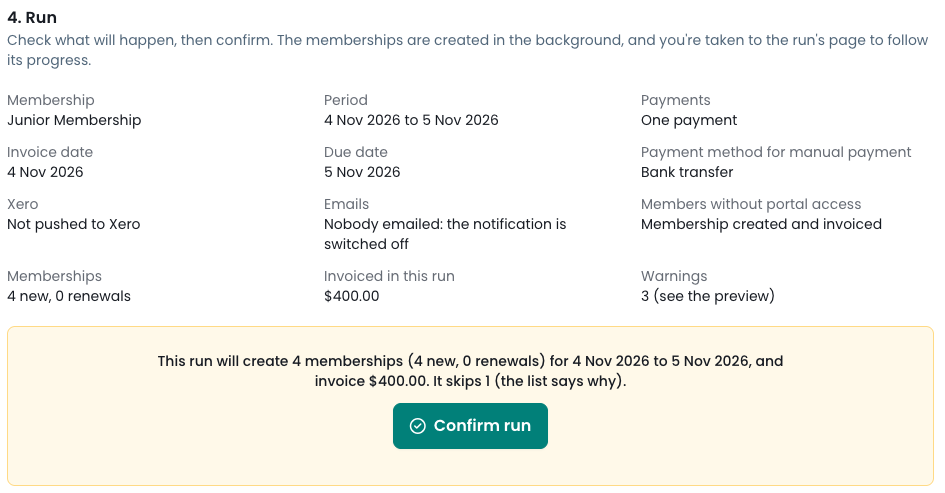
If Confirm run stays greyed out, the note beside it says why, for example that a run for this membership is still being worked through (one at a time for each membership), or that instalments need a payment method for manual payment.
Step 2: Follow the run
You are taken to the run's page. Its progress bar updates by itself as memberships are created, invoiced in Xero if the run pushes to Xero, and emailed. While the run is being worked through, the progress box has a Stop this run button. To find a run later, click the eye icon beside it on the bulk runs list.
- Run settings: what the run was set up with. Later changes to the membership don't change it.
- Cards: click one to see just those rows, for example Waiting for Xero. Each list has Take to Contacts and Download CSV.
When the run finishes, the person who started it and the product's failure notification recipients are emailed a summary.
A stopped run sends no summary.
Step 3: Contact members manually
Open the No email (contact manually) card: these holders have no email address, or the email they would get is switched off. Click Take to Contacts to write to them by letter or text, or Download CSV for a mail merge.
Also check:
- Not created: someone it covers got this membership after the preview, or the run was stopped.
- Not invited: the invitation wasn't sent. Each row says why.
- Needs attention: rows that couldn't be finished, such as a Xero invoice Xero kept refusing. Fix what the row says, then click Try again.
Common questions
What happens if Xero is down?
infoodle tries the invoice a few times after a growing wait. If it is still failing a day later, the row needs attention, and you and the failure notification recipients are emailed.
Next steps
To stop a run, or cancel memberships it created, see Stop, undo or correct a bulk run.