A bulk membership run creates memberships for a whole group of people in one go, from the office. You choose a membership product and who it is for, infoodle shows you what would happen, and once you confirm, it creates the memberships and, if you choose, emails each holder.
One run can create new memberships, renew members of a product set to be renewed by a bulk run, and invite new members who can't log in to the Portal to sign up online. You can stop a run while it is being worked through, but what it has already created stays, so the preview is your check.
When to use a bulk run
Use a bulk run when the office decides who becomes a member: bringing an existing member list into infoodle, signing up everyone in a group, or renewing a whole membership base each period. Use Portal joining when members sign themselves up. See Joining a membership through the Portal.
Add a 100% promotional discount to the product and do a bulk run. Each member is created at $0.00 with nothing to pay, and stays Pending until the period's first day if the period starts later. Remove the discount once the run has finished: while it is on, Portal joins of this product are free too.
Before you start
Role Permissions
- Manage finance configurations
For what each role permission means and how to change them, see People Permissions.
You will need the Membership package switched on, and a membership product with at least one rate.
You will also need to say whether your organisation is GST (or VAT) registered when memberships need these taxes added. Click the administration cog in the top right hand corner, then go to System settings > Finance. Without it you can preview a run but not confirm one.
Opening bulk runs
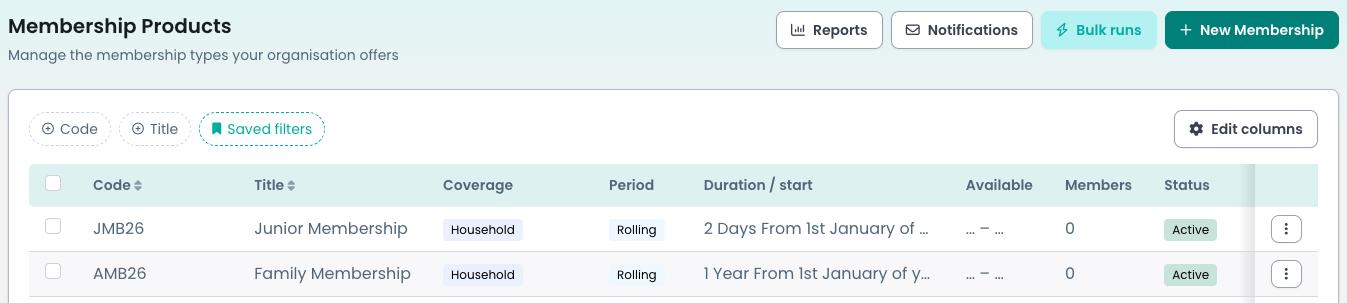
You can find this by going to Finance > Bulk membership run, or by clicking Bulk runs on the Membership Products list. Click New bulk run to start one.
A new run has four parts:
- Choose who a bulk run includes
- Set up a bulk run
- Preview a bulk run
- Start a bulk run and follow its progress
Afterwards, see:
- Stop, undo or correct a bulk run
- Collecting payment after a bulk run
- Reminders and cancellation for unpaid bulk run memberships
- Renew members with a bulk run