The second part of a new bulk run, 2. The run, sets the period, the invoice dates and how members are asked to pay. It appears once you have chosen a membership in Choose who a bulk run includes, filled in with defaults.
Dates
- Period starts on: the first day of the memberships this run creates. It defaults to the start of the product's next period. On a product whose periods start on a set day, you can also choose this period's start, or today to join part-way, priced by the product's late-joiner setting. On other products, any date from today up to a period ahead works. Other dates are refused, with the dates you can use.
- Invoice date: the date on each payment request. It defaults to today.
- Due date: it defaults to two weeks after the invoice date, and can't be before it or after the period ends. On a product with payment days, each member's first payment is due on their payment day instead of the run's Due date. See How payment days change a member's payment dates.

How members pay
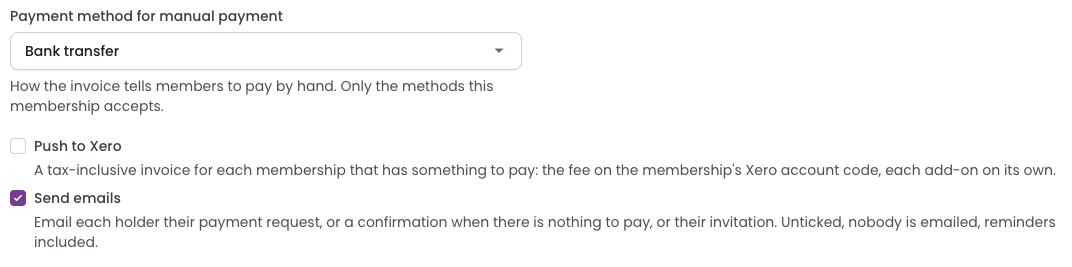
- Payment method for manual payment: the method the email tells members to pay by, for example a bank transfer. You must choose one when the product is paid in instalments, or when you push to Xero.
- Push to Xero: shown when your site uses Xero. Raises a Xero invoice for each membership that has something to pay. The product needs a Xero account code for its membership fee, on its Xero tab, or the run can't be confirmed. See Collecting payment after a bulk run.
- Send emails: ticked, each holder is emailed their payment request, confirmation or invitation. Unticked, nobody is emailed, reminders included, so contact members yourself: unpaid memberships are still cancelled at the end of the period.
A membership notification that is switched off is not sent, even with Send emails ticked, and the preview tells you so. See Notifications.
Members without portal access
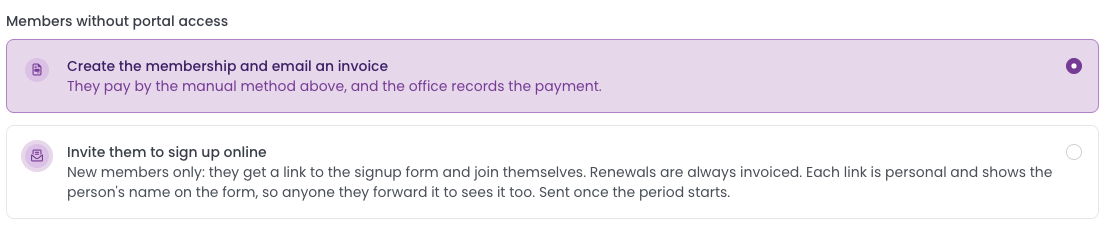
A holder has portal access when they have an active login and their role includes the Portal access role permission. For new members without it, choose:
- Create the membership and email an invoice: they pay by the manual method, and the office records the payment.
- Invite them to sign up online: they get a personal link to the membership's signup form and join themselves. See Invite members to sign up online.
Renewals are always invoiced.
To provide the sign-up online the "Membership Invitation (Bulk Run)" notification needs to be set as enabled. See Notifications for more info.
Check what the settings mean
What this means, with examples
You have now configured the bulk run. To get more assurance of what the process will be once you trigger the bulk run we have provided a 'What this means, with examples'. This gives a dated timeline for one new member.

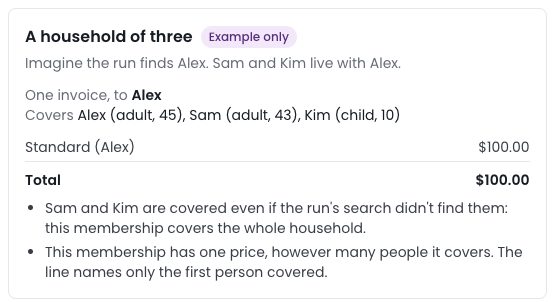
How the invoices will look, with examples
Shows invoices for made-up people at this product's rates. Click a heading to open it.
Next steps
If the run invites people, see Invite members to sign up online. Otherwise, next, Preview a bulk run.