A preview shows exactly what a bulk run would do, person by person. Nothing is created, invoiced or emailed by a preview, so click preview as often as you like while you adjust the run. You will need the membership, conditions and settings filled in first. See Set up a bulk run.
Run the preview
- In 3. Preview, click Preview.
- Read the summary cards across the top, and any warnings under them.
- Check the list of rows below, using the filters to narrow it down.
Changing any condition or setting clears the preview, so preview again before you confirm.
The summary cards
The first item shown on the preview screen is the summary card which shows quick stats of what the run will generate should you proceed along with any errors that should be addressed.
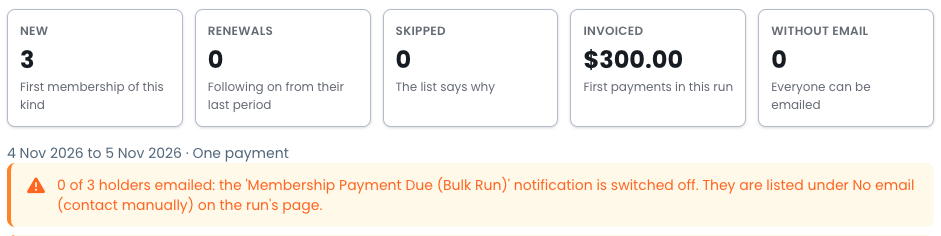
- New and Renewals: memberships the run would create.
- Invited: people who will be asked to sign up online, when the run invites. See Invite members to sign up online.
- Skipped: people left out. People you don't have access to are counted here but not listed.
- Invoiced: the total of the first payments this run asks for.
- Without email: holders with no email address. Contact them another way.
The list
Each row is one membership, invitation or skip:
| Column | What it shows |
|---|---|
| Type | New, Renewal, Invitation or Skipped |
| Holder | The person who holds the membership and is emailed |
| Covered | Everyone the membership covers |
| Also renews | Another membership of theirs that renews by itself during this period |
| The holder's email address, or None: contact manually | |
| Portal access | Whether the holder can log in to the Portal |
| How they'll pay | For example "Bank transfer, no portal access. First of 12 payments (monthly)", "Bank transfer, no online payment method", or "No email – notification switched off" |
| Due | When the first payment is due |
| Amount | What the first payment asks for, for example $8.33 of $100.00 when paid in instalments |
How they'll pay shows "Pay online" for a holder with portal access only when the product takes an online payment method and the run doesn't push to Xero, the same as the Pay now button in their email. Otherwise it shows the payment method for manual payment, for example "Bank transfer, no online payment method", or "Bank transfer (Xero invoice)" on a run that pushes to Xero.
A skipped row shows its reason instead of a price. See Choose who a bulk run includes.

Download the preview
Use the download and breakdown buttons to explore how infoodle will create these memberships prior to you triggering the run.

- Rate breakdown: each priced membership with a column for every rate, add-on and discount in it, useful for a household priced as a whole.
Warnings
Warnings don't stop a run, but read each one before you confirm. They include:
- A notification the run would send is switched off.
- Some people match but you don't have access to their records.
- Someone covered has another membership that renews by itself this period.
- No payment method for manual payment is chosen.
- The last instalment of some memberships would fall after the period ends. An earlier Due date helps.
Anything that stops the run being confirmed is shown beside Confirm run.
Common questions
The preview says it is no longer the latest one. Why?
A preview was run since, perhaps in another tab. Click Preview again. A preview more than two hours old is refused at Confirm too.
Next steps
When the preview looks right, Start a bulk run and follow its progress.