A bulk run can invite new members who can't log in to the Portal to sign up online, instead of invoicing them. Each person gets a personal link to the membership's signup form and joins themselves. You choose this under Members without portal access when you set up a bulk run.
Before you start
You will need the membership's signup form live on the public page, Send emails ticked on the run, and the Membership Invitation (Bulk Run) notification switched on. See Notifications.
Invitations aren't available for organisation memberships, because the public signup form can't create an organisation. When invitations aren't available, the screen says why under the option.
If you need the ability to create organisation memberships on public forms - use the household option - and on the form ensure you include the Household name (or Organisation Name) field. This will create an individual contact with that organisation as the name - it wont create two records: individual and organisation.
Step 1: Choose invitations for the run
- In 2. The run, under Members without portal access, choose Invite them to sign up online.
- Preview the run. Each person to be invited is an Invitation row, counted on the Invited card. Its amount is an estimate: nothing is invoiced, and the form prices the membership when they sign up.
- Confirm the run. See Start a bulk run and follow its progress.
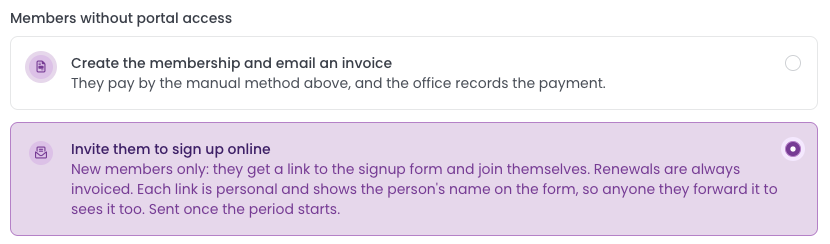
Only new members are invited. Renewals are always invoiced, even with this option chosen.
Confirming turns on matching for the signup form, so an invited person's signup is matched to their own record. If the form needs that change, a note beside Confirm run says confirming will update the form. If someone has started changes on the form and not yet published them, the note warns that confirming publishes those too.
What invited people get
- When: invitations are sent once the run's period starts. A run for a later period finishes with its invitations waiting, and sends them on the period's first day.
- The email: Membership Invitation (Bulk Run), with a Sign up button.
- The link: personal to them, and it doesn't expire. The form shows "Signing up as" with their name, so anyone they forward it to sees it too.
Approving their signups
- Individual memberships: a signup through the link is approved onto the invited person's existing record, so no duplicate contact is created.
- Household memberships: the signup waits for you to approve it, already matched to the invited person. See Approving a form entry.
- A forwarded link: a signup whose email isn't one of the invited person's addresses waits for you to approve it.
Once a signup is approved, the member is given Portal access and emailed a link to set their password.
Step 2: Follow the invitations
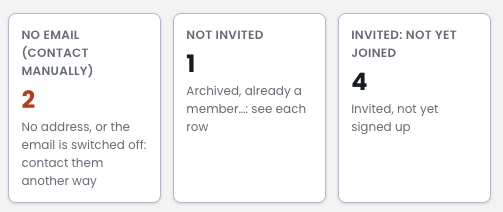
On the run's page, the cards show where each invitation is:
This is the list of available figures - note that those with 0 values are not shown.
- Invited: waiting to send: held until the period starts.
- Invited: not yet joined: sent, and they haven't signed up yet.
- Invited: joined: they now hold this membership for the run's period, or are covered by one. The row links to it.
- Not invited: not sent. Each row says why, for example the person is archived or already a member for this period.
- No email (contact manually): no email address, or the invitation email is switched off. Contact them another way.
Next steps
Next, Preview a bulk run.