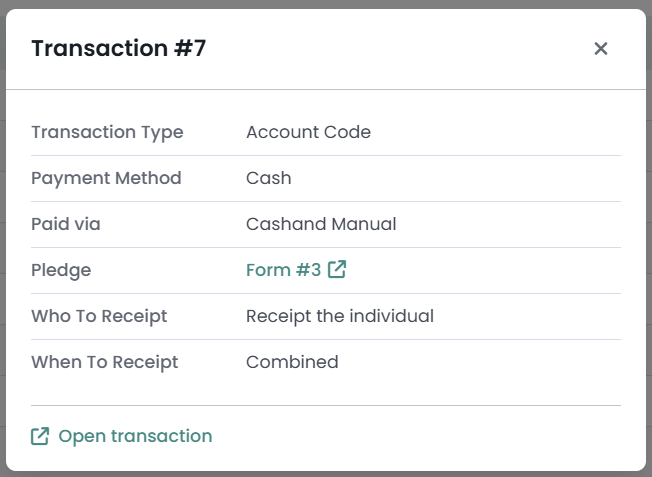
The transaction detail popup is a small window that opens over the page you are already on and shows the extra information recorded against a single transaction. It covers the fields that do not have a column on the list by default, such as the payment method, the campaign, the location and the receipting settings. You open it with the eye icon on a transaction row.
The popup is read only. Looking at a transaction this way changes nothing about it.
Before you start
Role Permissions
You will see the eye icon if your role already lets you see transactions. Any one of these role permissions is enough:
- Manage, Read and report on transactions
- Read and Report on Transactions
- View others on API, profile, and reports only, which shows you transactions for the people you share a group with
- Limit finance admin to just users own groups
- Access to Finance area, which shows you your own transactions only
For an explanation of what each finance role permission does, see Finance Permissions.
You will need the Finance, Finance Full or Gift Aid Pro package on your infoodle site.
You will also need one of the following to reach the Transactions list:
- Manage, Read and report on transactions,
- Read and Report on Transactions, or
- Manage finance configurations
The eye icon on a person's profile works with any of the role permissions listed above.
Opening the popup
The popup shows the same fields on both screens, so use whichever screen you are already on. To close it, click the X in its top right, press Esc, or click anywhere outside the popup.
From the Transactions list
- Click or hover on Finance on the main menu bar on the left, then click Transaction List.
- Find the row for the transaction you want.
- Hover over the eye icon at the right-hand end of that row. Its label is View details.
- Click the eye icon.
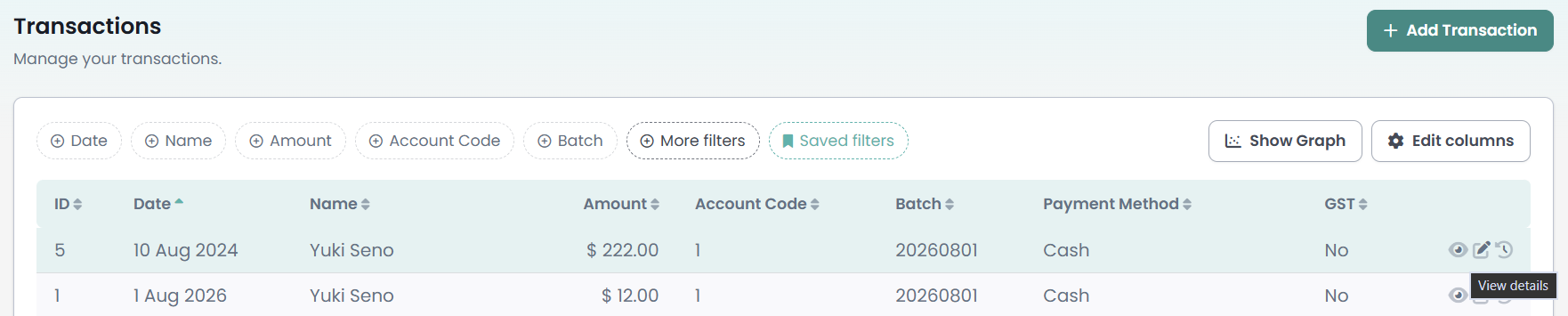
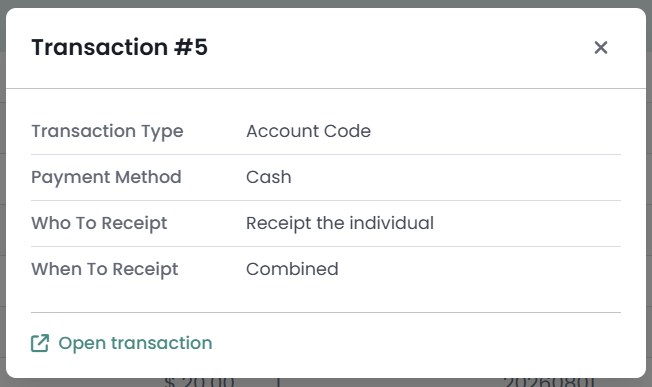
- Read the details in the popup. Its heading is Transaction # followed by the transaction's ID number.
- Close the popup when you have finished reading it.
From a person's profile
- Find the person you want and open their profile. For help with this, see Searching for a Person.
- Make sure the Finance section is showing on the person's profile.
If this is not showing, click the settings cog next to their name, and then click profile page layout, then click the eye to show finance.
- Open the Activity tab.
- Look at Transactions For Year. It starts on the current financial year, so transactions from earlier years are not in the list yet.
- Choose Any time in Transactions For Year to list every transaction on the record.
- Find the row for the transaction you want.
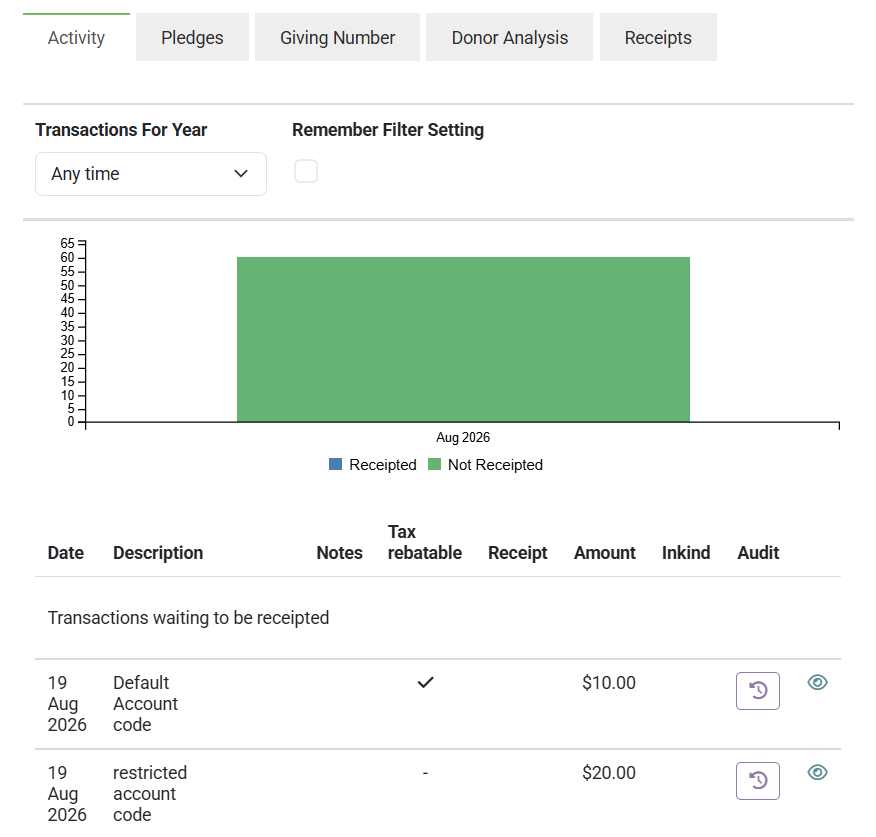
- Click the eye icon at the right-hand end of that row. Its label is View transaction detail.
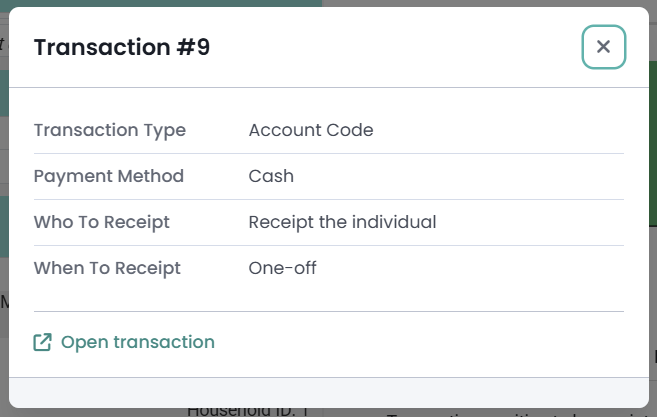
- Close the popup when you have finished reading it.
Rows listed under Collective transactions have no eye icon, because each of those rows adds up several transactions from different people rather than showing one.
What the popup shows
Each row is one field from the transaction, in this order:
| Field | What it shows |
|---|---|
| Transaction Type | The kind of transaction: Account Code, Event, Membership, Stock or Inkind. |
| Payment Method | The payment method recorded on the transaction, for example Cash, Cheque or Direct credit. |
| Paid via | The gateway payment method the money arrived through. A gateway is the online payment service your site uses to take card and direct debit payments, for example Stripe or Ezidebit. |
| Campaign | The campaign the transaction belongs to. It is a link when the transaction is against a real campaign, and plain text when the campaign comes from a tracking tag. |
| Location | The location recorded on the transaction, shown as a link. |
| Tracking categories | One row for each tracking category that has a value on this transaction, labelled with the category name you set up, for example Fund or Countries. |
| Pledge | The pledge this transaction paid. |
| Who To Receipt | Who the receipt is made out to: Receipt the individual, Receipt the Household or No Receipt. If your site uses its own word for households, that word appears here. |
| When To Receipt | How the receipt is issued: One-off, Combined or No receipt. |
Rows you will not always see
The popup lists only the fields this transaction actually has a value for. A field with nothing recorded against it is left out, so there are no blank rows to read past. A donation keyed in against an account code often shows just four rows, while one taken through a form with tracking tags shows many more.
Tracking categories
Each tracking category with a value on the transaction gets its own row, labelled with that category's name. A transaction tagged in four categories shows four rows: they all appear, not just the first two.
Each row carries one value. Where a transaction has two tags in the same category, the row shows one of them, so use Open transaction to see every tag. A tracking category set up for campaigns also feeds the Campaign row, so the same value can appear twice.
The Pledge row
The Pledge row appears when the transaction paid off a pledge, and it reads in one of four ways:
- Form # and a number, shown as a link: the pledge was set up through a form, and the number is the form entry it came from.
- Several Form # numbers separated by commas: the transaction paid instalments that trace back to more than one form entry.
- Form # and a number as plain text: the form behind that entry cannot be found, so there is nothing to link to.
- Pledge on its own: the pledge was set up by hand, so there is no form entry behind it. Nothing is missing from the row.
A transaction that is not linked to a pledge has no Pledge row at all.
Opening the full transaction page
At the foot of the popup is an Open transaction link. It opens the full transaction page in a new tab, where you can see everything recorded against the transaction and edit it if your role allows.
On the Transactions list you can also click a cell in the row itself, rather than the eye, to open the full transaction page. That opens in the same tab. On a person's profile only the eye opens the popup, and the rest of the row is not clickable.
What the popup does not show
The popup fills in the detail the list leaves out. It does not repeat the fields the full transaction page is there for. Use Open transaction for the amount, the donor, who presented the transaction, the account code, the batch, the note, the tax and GST settings, the receipt number and the Pledge Drive.
Pledge and Pledge Drive are two different things. Pledge is the pledge this transaction paid, and it is in the popup. Pledge Drive is the drive that pledge belongs to, and it is on the full transaction page. You can also add Pledge Drive as a column on the Transactions list under Edit columns.
Payment Method and Paid via
These two rows answer different questions, so the popup shows both.
- Payment Method: the method recorded on the transaction itself. It is the value you choose when you add or edit a transaction, and the value the Payment Method column shows on the Transactions list.
- Paid via: the gateway payment method the money actually came through, such as a Stripe or Ezidebit method set up on your site.
The two can say different things about the same transaction, and both are correct. A card donation through a form can be recorded as Payment Method: Direct credit and show Paid via: Stripe Test Account, because the money reached your bank account as a direct credit while the payer used a card on the form.
infoodle works out Paid via in this order:
- The pledge instalment this transaction paid, which records the method used for that one payment. A payer who changes card partway through a pledge still shows the right method against each payment.
- Where there is no pledge instalment, the form entry the payment came from.
Three things follow from that:
- A transaction with no gateway payment behind it, such as one keyed in by hand or brought in from a bank statement import, has no Paid via row.
- Where a gateway method was recorded but that method has since been deleted from your settings, the row reads Payment method deleted. The money did come through a gateway, so infoodle says so rather than leaving the row out.
- Where the pledge instalments used two different methods, infoodle does not pick one of them. It uses the method recorded on the form the payment came through instead, and leaves the row out when there is no form either.
Common questions
Why do Payment Method and Paid via show different things?
They record different things. Payment Method is what was recorded on the transaction, and Paid via is the gateway method the money arrived through. Direct credit alongside Stripe Test Account is a normal pairing for a card payment that settles into your bank account.
Why does the Pledge row just say "Pledge" with no number?
That pledge was set up by hand rather than through a form, so there is no form entry for the row to link to. The row is complete as it stands.
The Transactions list shows an eye on every row, but clicking it says I do not have permission
Every row on the Transactions list carries an eye icon. If your finance access comes from Manage finance configurations, that role permission gets you to the list but not to individual transactions, so the popup answers You do not have permission to view this transaction. Ask an administrator to add Read and Report on Transactions to your role. On a person's profile the popup reads Transaction not found. when the transaction it was asked for is no longer there.
Why is there no Open transaction link in my popup?
This happens on a person's profile. The link appears for the roles that can open the full transaction page, which are Manage, Read and report on transactions and Read and Report on Transactions. A role can be allowed to see transaction detail without being allowed to open that page, and infoodle leaves the link out rather than offering one that will not open. On the Transactions list the link is always there.
Why does a transaction on a person's profile have no eye icon?
On a person's profile the eye is worked out one transaction at a time. If a transaction sits under an account code or a campaign your role cannot see, the row still lists but carries no eye. Rows under Collective transactions never carry an eye, because each of them covers several transactions. Income transactions, listed further down the same tab, do not have an eye icon either.
Where do I see who changed a transaction?
Use the history icon next to the eye rather than the eye itself. It sits in the same row and opens the audit trail for that transaction. On a person's profile its label is View audit trail for this transaction, and on the Transactions list it is Audit Trail. The icon appears when your site has the audit trail turned on.
Can I change anything from the popup?
No. The popup only shows you what is recorded. Use Open transaction and then edit from the full transaction page.
Next steps
To change any of the values you have just read, follow Editing a Transaction. To add the Payment Method column to the list so you can filter and sort by it, see Viewing Transactions.