After you have entered transactions or reconciled them, there are times when you may need to make changes. You can edit most transaction details directly from the transaction list.
Before you start
You cannot edit a transaction that has already been receipted!
If the transaction has been included on a generated receipt, the receipt number will appear in place of the Edit button. To make changes, you must first delete the receipt (see Deleting a Receipt), edit the transaction, then re-issue a new receipt.
Gift Aid Transactions
For transactions that have been claimed through Gift Aid, a correction will need to be applied to your next claim.
Closed Batches
When a batch has been closed it is locked from further editing. You must re-open the batch before you can edit any transaction within it. Click Re-Open on the batch to do this. Remember to re-generate any reports and check balances again if you alter values in a closed batch.
See Finance Terms for definitions of receipts and statements (terminology varies by country).
Finding the transaction
- Click or hover over Finance in the left-hand menu, then click Transaction List.
- On the Transactions list you can search and filter by Date, Name, Account Code, Batch, and Type using the column filters.
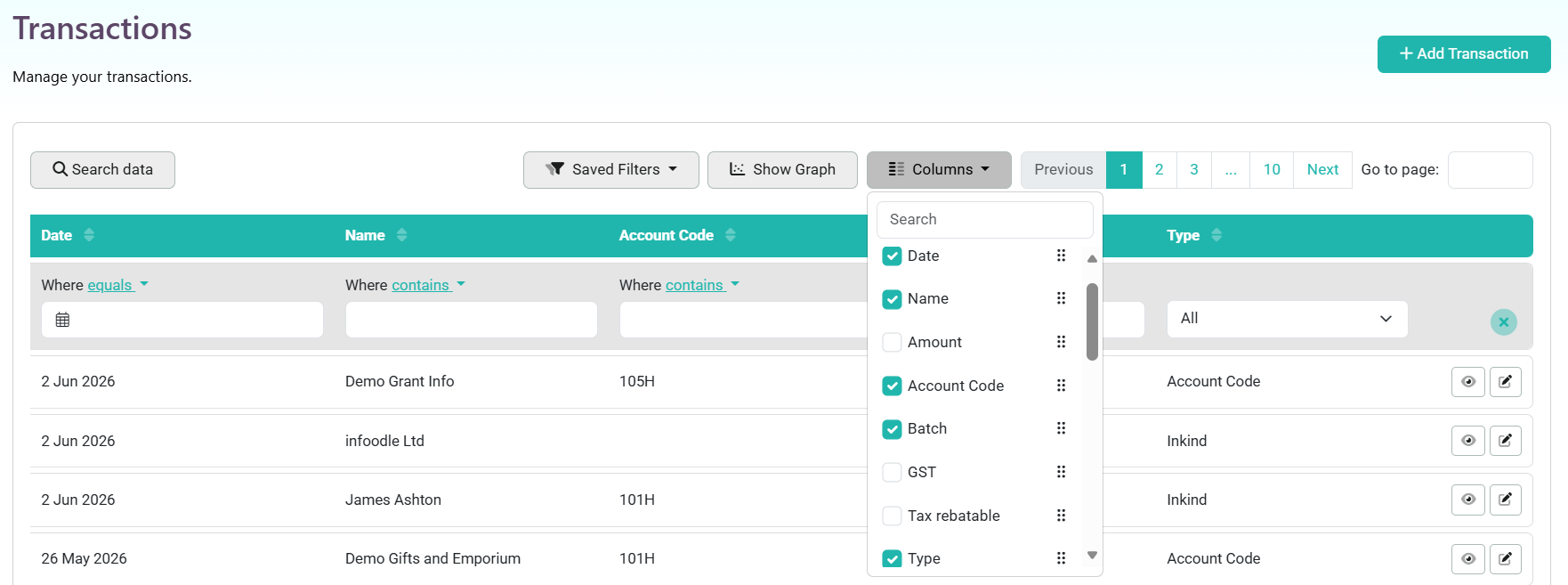
- Each row has two action icons on the right:

- The eye icon — opens the read-only View Transaction screen.
- The pencil icon — opens the Edit Transaction screen directly.
- Click the pencil (edit) icon next to the transaction you want to change.
Viewing a transaction before editing
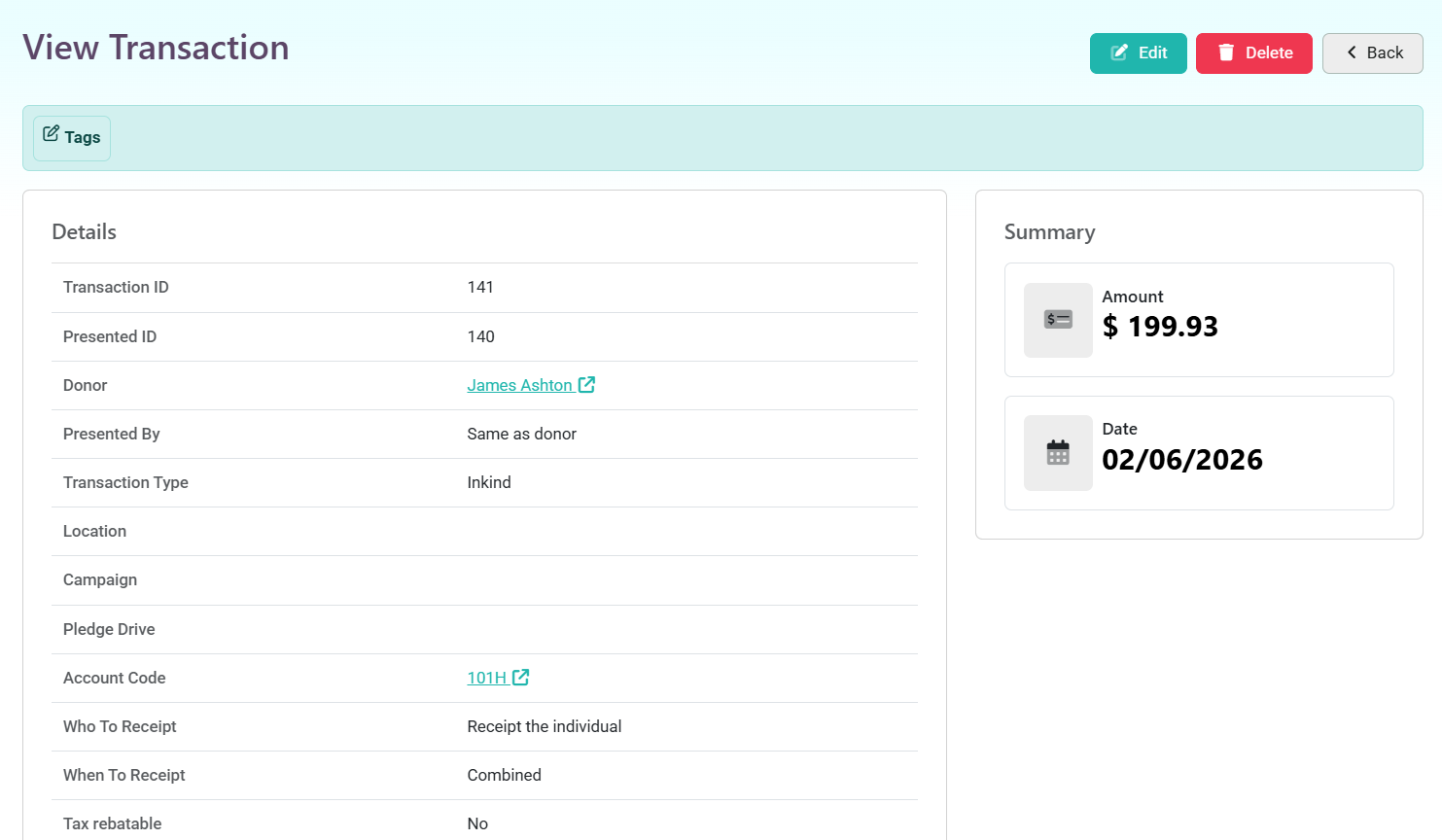
Clicking the eye icon opens the View Transaction screen, which shows a full summary of the transaction details:
- Transaction ID and Presented ID
- Donor (links to the contact record)
- Presented By (the person who physically presented the transaction — shown as "Same as donor" if they are the same person)
- Transaction Type (e.g. Inkind, Account Code, Stock, Event, Membership)
- Location, Campaign, Pledge Drive, Account Code
- Who To Receipt and When To Receipt
- Tax rebatable status
- A Summary panel on the right showing the total Amount and Date
From this screen you can click Edit to open the edit form, Delete to remove the transaction, or Back to return to the list.
Editing the transaction
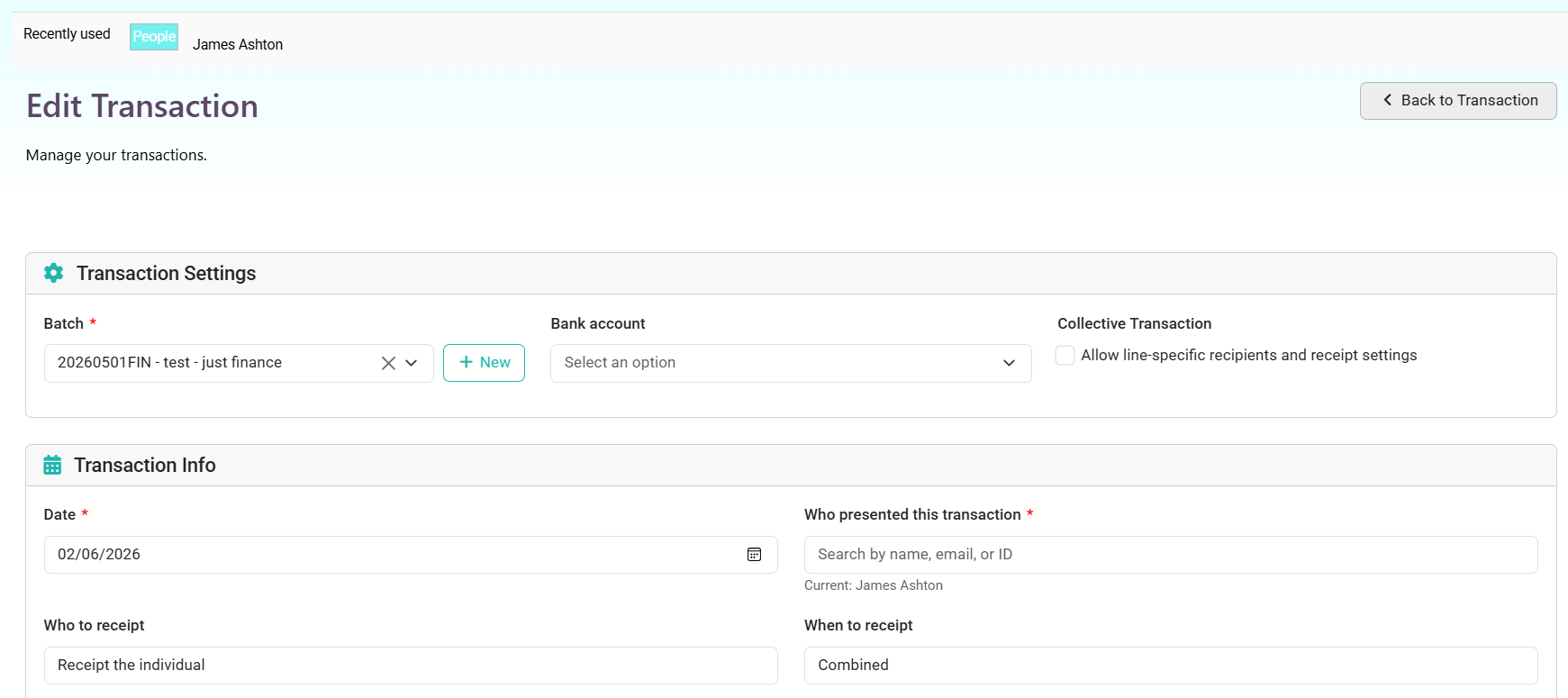
This screen is the same as when you added the transaction, just edit the section that you need, then click Save.
Reassigning a transaction to a different person
If a transaction has been allocated to the wrong person, you can Edit the transaction and use the Who presented this transaction field to search for and select the correct person, then save the change.