You can search for people who have made individual donations above a threshold amount, then view, export, or contact them easily. This is useful for identifying major donors, managing donor relationships, or creating targeted communications.
Creating a Report
- Select Reports from the main menu
- Under Report areas, select People
- Click Add finance criteria
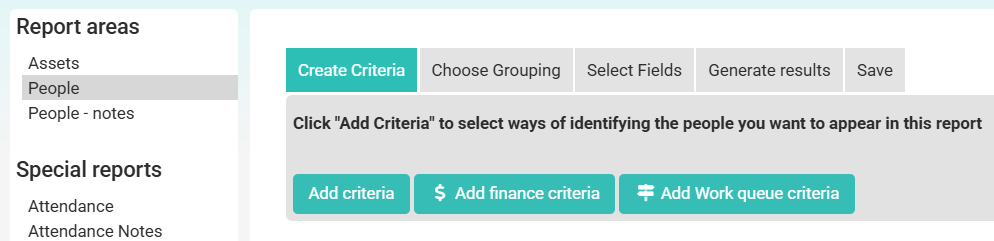
- Select Transaction (Finance amount) value
- Choose an amount option:
- Greater than — find donations above a specific amount
- Less than — find donations below a specific amount
- Equals — find donations for an exact amount
- Enter the amount if required (e.g., $1000)
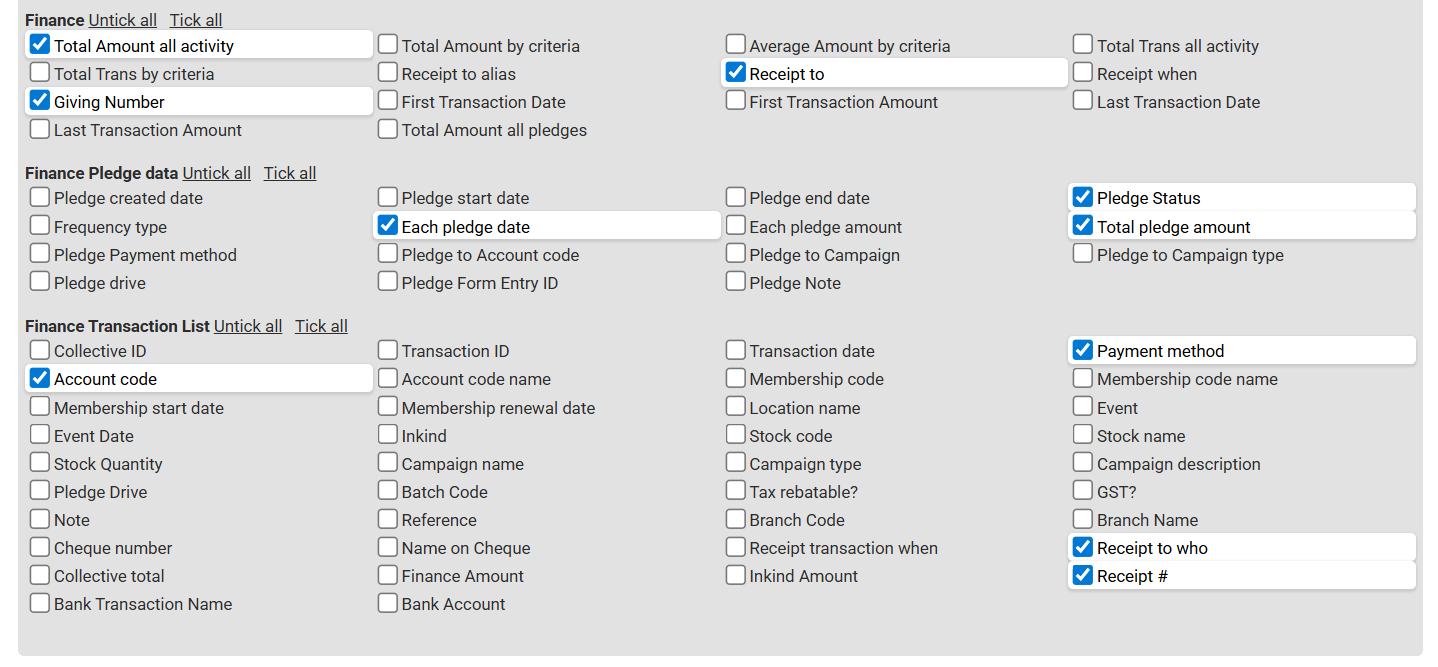
- Click Select fields and choose which contact information to display (name, email, phone, etc.). The last three sections are finance related.
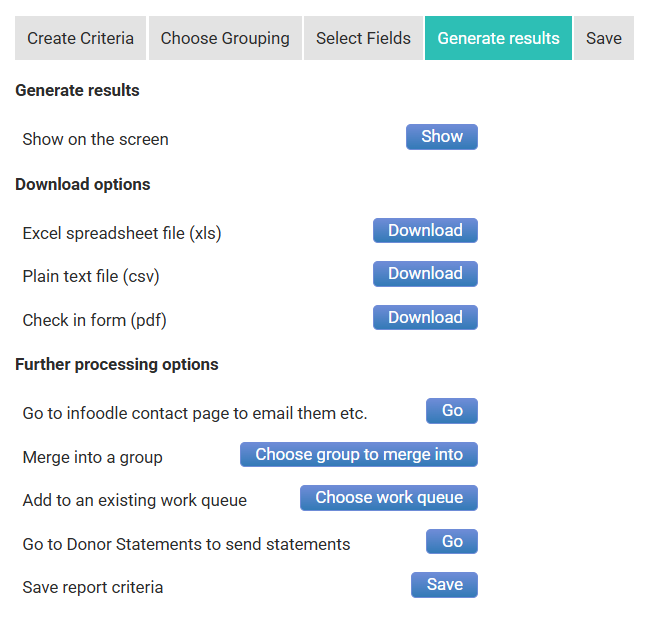
- Click Generate results
Viewing Your Results
Your report will display a list of contacts and the transactions matching your criteria.
- To view on screen, click Show

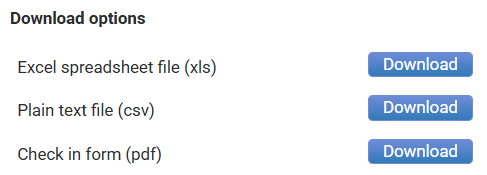
- To download as Excel or CSV, click Export to Excel or Export to CSV
Note: The report finds individual transactions above your threshold amount. It does not total each person's giving across all donations — it shows each transaction separately.
Adding Results to a Group
To add the contacts from your report to a group (for example, to send them an email or add them to a mailing list):
- Click Choose a group to add the results to
- Either:
- Use an existing group — select the group from the dropdown
- Create a new group — enter a name for a new group
- Set the group permission to apply to all contacts
- Click Save
The contacts will be added to the group with the selected permission level.
Related Articles