A membership product sends two quite different kinds of email, set up on two of its tabs. Communications covers the emails your members receive about their own membership: joining, renewing, paying, lapsing and cancelling. Failure Notifications covers the alert your own people receive when a member's payment fails, so that somebody in the office knows to chase it.
They are kept apart because the people who chase a failed payment internally are usually not the same people as the member whose payment did not go through.
Before you start
Role Permissions
- Manage finance configurations
For an explanation of what each role permission does, see People Permissions.
You will also need the Membership add-on package turned on, because the membership product screens only appear once it is. See Turning on the Membership and Portal packages.
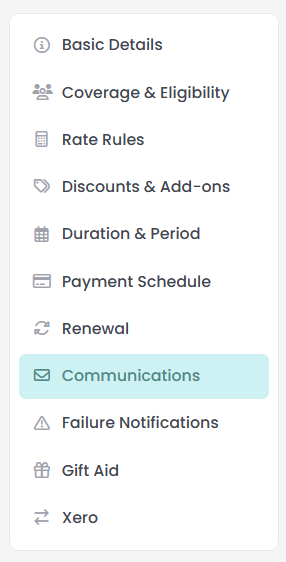
You can find both tabs by going to Finance → Membership Products, opening a membership product, and choosing Communications or Failure Notifications from the list of sections down the left of the screen.
Which tab does what
| Communications | Failure Notifications | |
|---|---|---|
| Who receives the email | The member | Your own staff and volunteers |
| What you control | The wording of each email | Who is told |
| Where the setting lives | One set of templates shared by every membership product | Set separately on each membership product |
Communications: the emails your members receive
The member emails always send. That part is not a setting, and there is no switch to turn any of them off. What you control is what each one says.
One set of templates covers your whole organisation. Editing a template changes what members of every membership product receive, not just the product you opened it from. Each template fills in the membership name, the member's first name, the amount and the relevant date by itself, so the same wording reads correctly for every product.
Because the templates are shared, an edit made from one membership product changes the emails sent for all of them. Read the wording back with your other products in mind before you save.
The member emails
Every member email is listed on the Membership Notifications screen, which you reach with the Edit shared templates button on the Communications tab. The Communications tab itself shows a shortened list, so Edit shared templates is the route to all of them rather than the Edit link beside an individual email.
| When it is sent | |
|---|---|
| Join Confirmation | When someone joins a membership. |
| Payment On Its Way | When someone joins by Direct Debit and the first payment is still with the bank. It says the membership starts as soon as the payment clears. |
| Renewal Reminder | At the lead time set on the Renewal tab, for a product that renews by itself. |
| Confirmation Needed | At the lead time, for a product where the member has to confirm the renewal. It is sent again while the member has still not answered. |
| Payment Due | When a membership collected by cheque, direct credit or bank transfer is renewed. It carries your own payment instructions for that method. |
| Successful Renewal | When a renewal is paid for, whether the payment was charged automatically, recorded by hand, or there was nothing to pay. |
| Payment Failed | When a membership payment is refused. A later refused payment on the same membership produces its own email. |
| Action Needed | While a membership is waiting on the member to pay, on day 3, day 7 and day 14. Three at most, then the emails stop. |
| Grace / Lapse Warning | When a membership period ends and the membership moves into its grace window or lapses. |
| Cancellation Confirmation | When a membership is cancelled. It also covers a renewal the member declines, and a membership that has sat unpaid long enough to be given up on. |
Four of these titles appear on screen as two halves with a dash between them. This article names them by the second half, which is the part that tells them apart: Payment On Its Way, Confirmation Needed, Payment Due and Action Needed.
Payment Due is the one to read before you offer a membership collected by cheque, direct credit, bank transfer or any other method you record by hand. Nothing is charged on a renewal collected that way, so this email asking for the money is what makes the renewal happen. On a product where the member confirms each renewal, it goes out once they have confirmed.
Editing a template
- Open Finance → Membership Products and open any membership product.
- Choose Communications from the list of sections, then click Edit shared templates to open the screen holding every email.

- Where the tab lists an email with an Edit link beside it, that link opens the same screen with that template brought into view and highlighted.

- To change the subject line, click Click to Edit beside it, type the new subject, and click Save. A subject cannot be left empty: saving a blank one brings up the message "Subject line cannot be empty".

- To change the body, click the message text. It opens in an editor with bold, italic, underline, bulleted and numbered lists, and links.
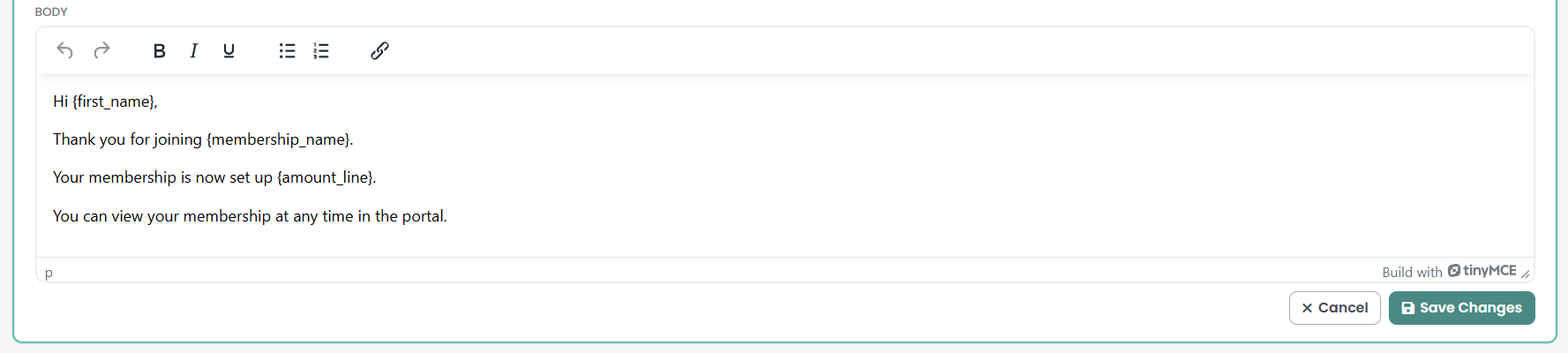
- Click Save Changes. Use Cancel to close the editor and leave the stored wording alone.
Merge fields
A template can carry these placeholders, and infoodle replaces each one as the email is sent.
- {first_name}: the member's first name.
- {membership_name}: the name of the membership product.
- {amount_line}: the amount, worded as part of the sentence around it. It is left out when there is no amount to name.
- {renewal_date}: which date this is depends on the email it lands in: the date the renewal falls due in Renewal Reminder, Confirmation Needed, Payment Due and Action Needed, and the date the current period ends in Join Confirmation, Payment On Its Way, Successful Renewal and Grace / Lapse Warning.
- {portal_link}: a button taking the member straight to this membership in the Portal. Put it in the body on its own line, wherever the email asks the member to do something.
The Payment Due and Action Needed templates also carry {payment_instructions}, which is replaced with your own wording for the payment method the member chose. It is the same text your signup form shows them, so the email and the form say the same thing.
That wording is set on the payment method itself, under Administration → Payment Methods. Keep the placeholder in those two templates: it is how the member learns where to send the money.
A placeholder you remove is simply not filled in, and a placeholder infoodle has nothing to put in is replaced with nothing rather than left on the page.
Failure Notifications: telling your own people
Failure notifications go to people you choose, on this membership product. They are not driven by a role permission, so someone who can see every other finance screen is not told about a failed membership payment unless you list them here. It reads the other way too: anybody you list is sent the alert, including somebody who holds no finance permissions and cannot open this screen.
You can list individuals, groups, or both. Choosing a group means everyone in that group at View only level or higher, and the alert names the member along with the reason their payment was refused, so choose the group with that in mind.
Adding a recipient
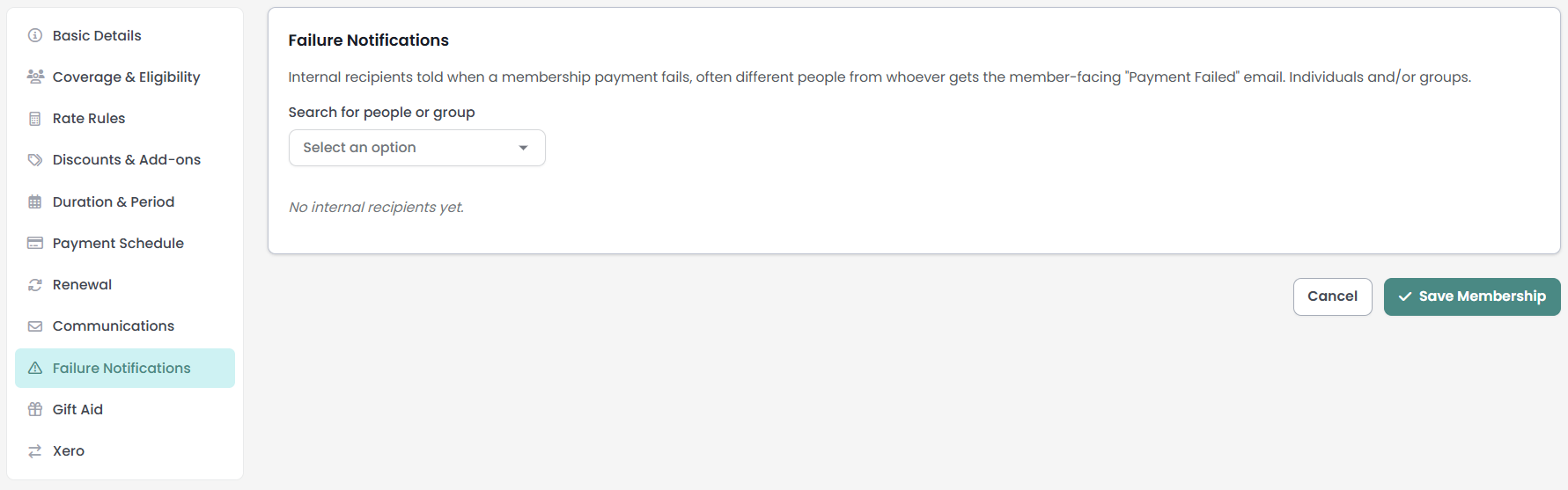
- Open the membership product and choose Failure Notifications.
- Open the Search for people or group list and choose what you are adding: your own name followed by (me), an individual, or a group.
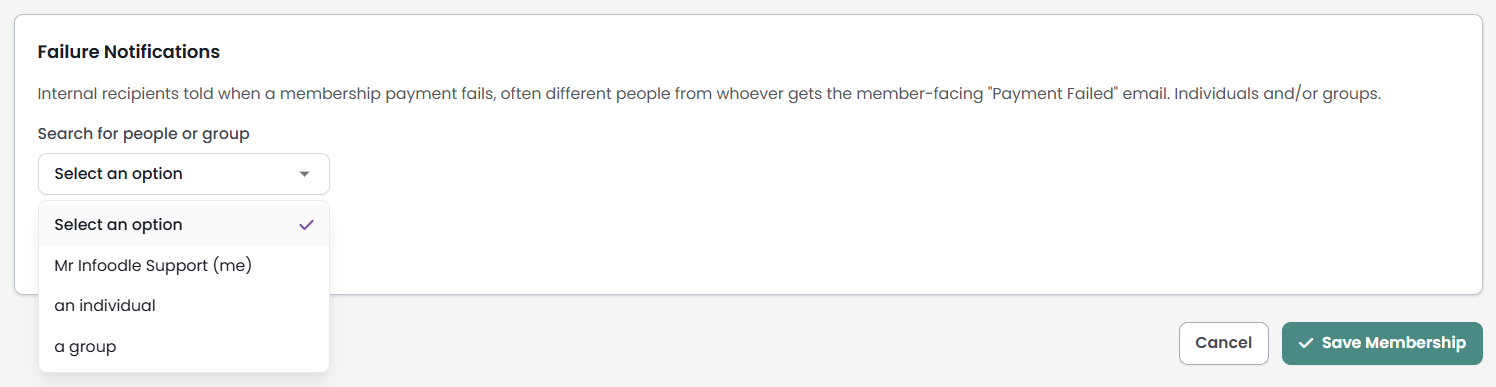
- Choosing yourself adds you straight away. Choosing an individual opens a person search, and choosing a group opens a list of your groups. Picking from either adds the recipient and closes the sub-list ready for the next one.
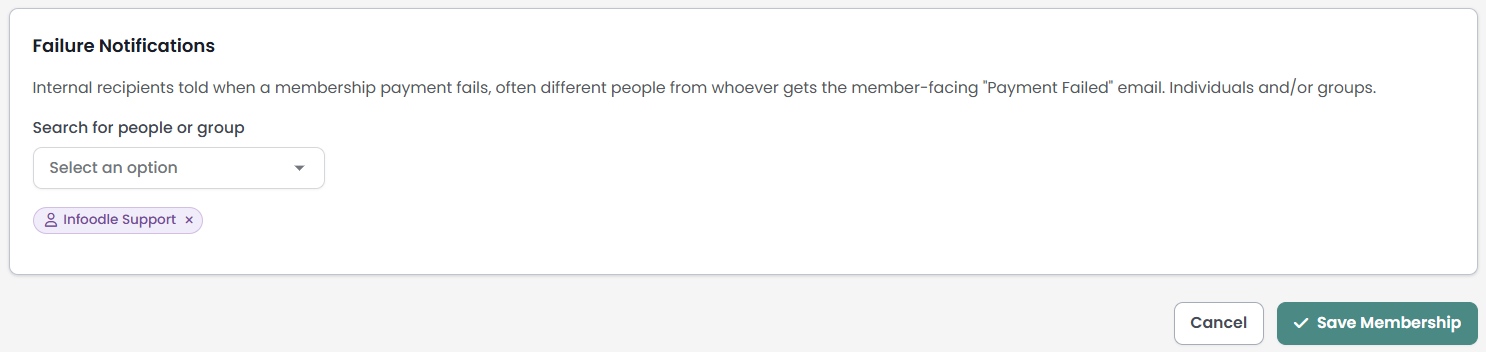
- Each recipient appears as a labelled tag. Click the cross on a tag to remove that recipient.
- Click Save Membership. Recipients are stored when the membership product is saved, not when you pick them.
Recipients with no email address
An alert is addressed to the recipient's preferred email address. A recipient who has no email address on file is marked in the list, with a note underneath saying the alert will not reach them. A group is marked the same way when nobody in it has an email address. The mark is worked out from the saved membership product, so it appears once you have clicked Save Membership rather than as you pick people.
Add an email address to that person, or to somebody in the group, or choose a different recipient.
What the alert says, and when it is sent
Recipients are emailed in two situations.
- A membership payment has failed. The alert names the member, the membership and the reason the payment was refused. Each refused payment on a membership produces its own alert, so a renewal that fails a year after an instalment failed is reported too.
- A renewal could not be opened because no rate applies to someone it covers. The alert names the membership, the people who could not be priced, and the date the current period ends.
A membership covers everybody on it as one price. If a rate no longer applies to one covered person, the renewal for the whole membership is held rather than opened at a price that leaves that person out, and the current period is left running. infoodle keeps trying each night, and the renewal opens by itself once the product's rates or the person's details cover everyone again. You can also renew it by hand.
Recipients are told about that once for the period, not once a night, so a membership that needs attention for a fortnight produces one email rather than fourteen.
Common questions
Can I stop one of the member emails from sending?
No. Which emails send is fixed. You control the subject and the body of each one.
I edited a template from one membership product. Does it affect the others?
Yes. There is one set of templates for your whole organisation, and every membership product sends from it.
Who gets told when a payment fails, the member or my staff?
Both, and they are two different emails. The member receives Payment Failed from the shared templates. Your own people receive the internal alert, and only if they are listed on that membership product's Failure Notifications tab.
A member never received one of these emails. Why?
The member emails go to the member's preferred email address. Check whether that member has one on their record, because a member with no email address on file is passed over.
I listed somebody and they never hear anything. Why?
Check whether they have an email address on their record. The Failure Notifications tab marks a recipient who has none, because the alert has no address to go to.
Do failure notification recipients copy across when I duplicate a membership product?
Yes. Duplicating a membership product copies its settings, including its failure notification recipients.
A renewal has been stuck for a week and we were told once. Should we expect a reminder?
No. The alert for a renewal that cannot be priced is sent once for that period. Fix the rate or the person's details and the renewal opens on its own.
Next steps
The remaining tabs on a membership product are Gift Aid, which prompts members for a declaration as they join, and Xero, which holds the Xero account codes the membership's money is coded to. Both appear only when your organisation has those features, and both are covered in Gift Aid and Xero account codes.