Portal Configuration is the Administration screen that decides what your Portal offers the donors and members who sign in to it. You choose:
- which features appear
- what each one is called
- which shortcuts sit on the Portal dashboard
- what a statement covers
- how far back and forward the dashboard panels look.
Every feature and quick action is switched on by default. Three of them need a form or a template chosen before they appear, which is covered below.
Before you start
Role Permissions
- Update System information
For more information on roles and specific portal access roles, see the following pages:
About Permission Roles
What the Portal is and how members get access
You will need the Portal package active on your site. The Memberships feature on this screen additionally needs the Membership package. See Turning on the Membership and Portal add-ons.
Open Portal Configuration
- Click the administration cog in the top right hand corner, then click administration.
- Click Portal Configuration.
The screen opens as a single form of settings cards, with one Save configuration button at the bottom. Nothing is saved until you use it.
Features
The Features card turns whole Portal features on or off and renames them. Each feature has a switch and a Label box of up to 100 characters. The label is what donors and members see in the Portal side navigation and on the dashboard, so a site that calls its pledges "Regular Giving" can say so here. Clearing a Label box and saving restores the standard name.
Pledges
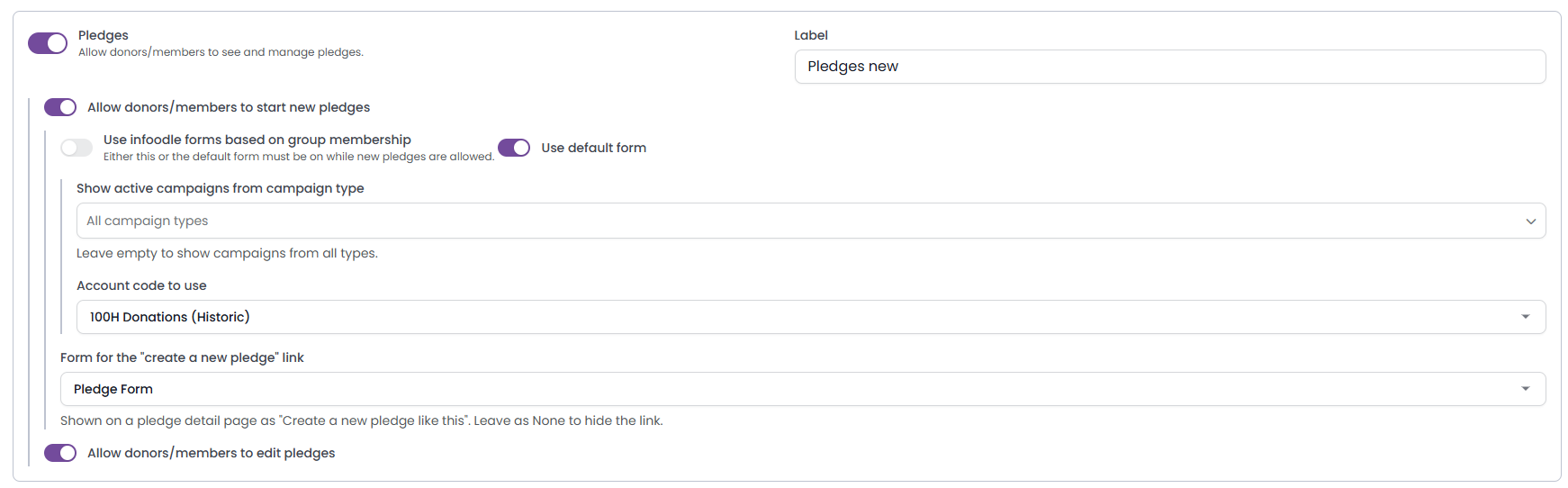
Turning Pledges on gives donors and members a pledges page in the Portal. The options underneath it appear once the feature is on:
- Allow donors/members to start new pledges: lets someone begin a new pledge from the Portal. Turning it on reveals the two form options below.
- Use infoodle forms based on group membership: offers the forms that match the groups the person belongs to.
- Use default form: offers one form to everyone. Turning it on reveals the two settings below.
- Show active campaigns from campaign type: narrows the default form to campaigns of the types you pick. Leave it empty to offer campaigns from every type.
- Account code to use: the account code the default form records against.
- Form for the "create a new pledge" link: the form behind the "Create a new pledge like this" link on a pledge detail page. Leave it as None to hide that link.
- Allow donors/members to edit pledges: lets someone change a pledge they already hold.
While Pledges is on and new pledges are allowed, keep at least one of Use infoodle forms based on group membership and Use default form switched on. If you turn both off and choose Save configuration, infoodle asks you to choose one, with the message "Choose at least one way to start new pledges (group forms or the default form)." Your other changes stay on screen, so pick a form option and save again.
Memberships

Turning Memberships on gives people their own membership page in the Portal and lets them browse the memberships they can join.
This feature also depends on the Membership package. On a site without that package the switch is shown off. You can still move it, and choosing Save configuration reports the save as successful. Your own choice is stored separately and is not overwritten, so it comes back when the package does. See Turning on the Membership and Portal Packages.
Messages

Turning Messages on gives people a page where they can start a conversation with your organisation.
Message topics is the list they choose from when they start a message, one topic per line. The standard list is My Pledge, My Membership, My Invoice and General Question. You can store up to 20 topics.
Payment Methods

Turning Payment Methods on gives people a page where they can manage the cards and accounts they pay with.
Quick actions
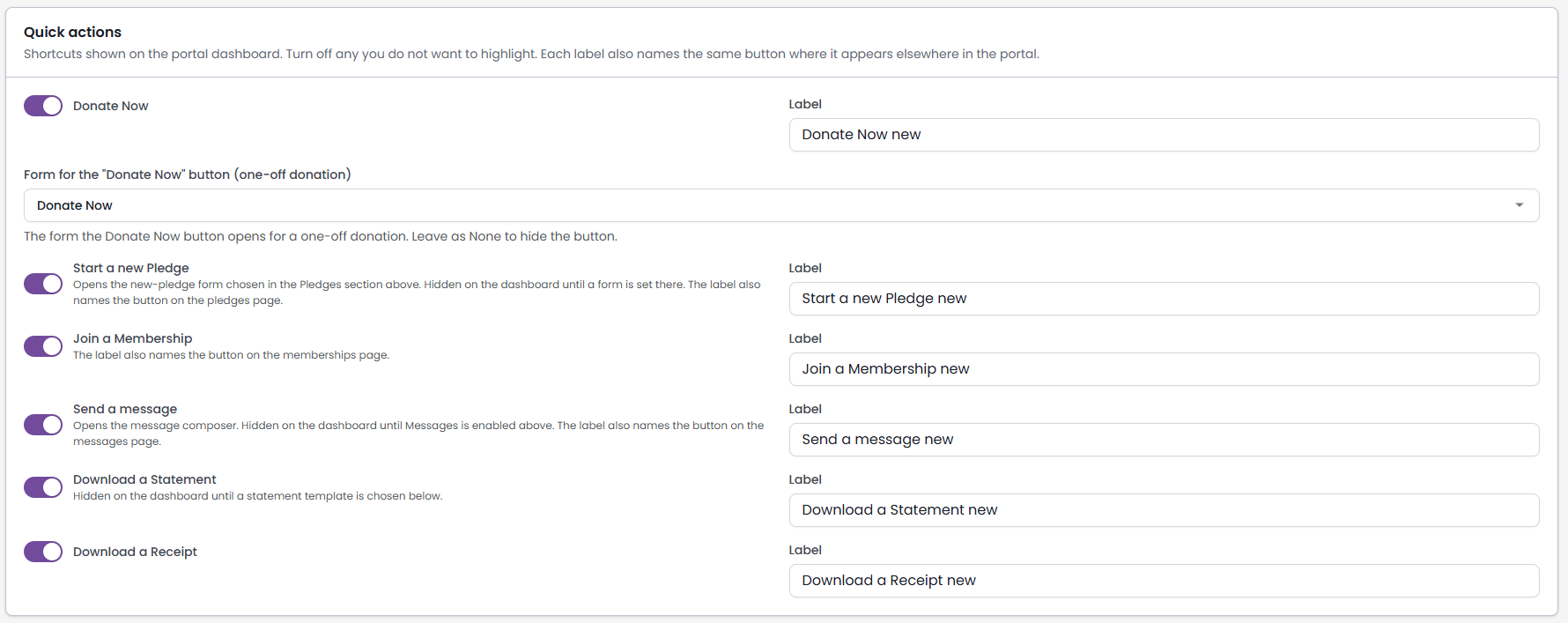
Quick actions are the shortcut buttons on the Portal dashboard. Each one has a switch and a Label text entry box. The label also names the same button where it appears elsewhere in the Portal, so renaming Send a message renames the button on the messages page too.
| Quick action | Where it takes the reader | Also needs |
|---|---|---|
| Donate Now | A form for a one-off donation | A form chosen in Form for the "Donate Now" button (one-off donation) |
| Start a new Pledge | The new-pledge form | New pledges allowed and a form chosen in Form for the "create a new pledge" link, both set up under Pledges |
| Join a Membership | The page listing memberships to join | Memberships on |
| Send a message | The message composer | Messages on |
| Download a Statement | The Portal statement page | A template chosen under Financial statement |
| Download a Receipt | The Portal tax receipts page | Nothing further |
Join a Membership is the exception to the table above. Its button follows only its own switch, so it stays on the dashboard while Memberships is off and returns the reader to the dashboard when they use it.
Turn this quick action off whenever the Memberships feature is off, including on a site without the Membership package.
Financial statement

This lets donors and members download a statement of their own transactions.
- Statement template: the document template the statement is generated from. Leave it as None to hide the Portal statement page and the Download a Statement quick action.
- Transaction types to include: what the statement covers. All transaction types is the default and includes everything. The other choices are the same ones the Donor Statements screen offers, so picking Membership here produces the statement the Finance tab would produce for Membership.
- Account code to include: appears only when the transaction type is Account code, because an account code narrows an account-code statement and nothing else. Leave it as None to include every account code.
Choosing a narrow type matters. A donor whose giving sits entirely outside the type you pick sees nothing to download.
Dashboard panels
Three areas control the panels that fill the Portal dashboard below the quick actions.
Upcoming events

Shows events the reader can attend. How many days in advance to show events accepts 1 to 365 days.
When the events controls are not available on your site, the card shows an Events package required note in place of them, and your stored settings are carried forward untouched. Showing the panel itself needs the Events package, which the Portal checks separately from the check that decides whether these controls appear.
Upcoming payments

Shows pledge instalments and membership renewals that are coming up. As well as the switch, there is a Label box that names the panel and a How many days in advance to show box that accepts 1 to 365 days.
Recent transactions

Shows what the reader has given or paid recently, over the number of days set in How many days in the past to show, from 1 to 365. The Label box names the panel.
Turning Show recent transactions off also removes the Transactions item from the Portal side navigation, so the reader loses the full transactions page as well as the dashboard panel.
Messages, who receives them

Two switches record who you want handling the messages that come in from the Portal:
- Roles with the 'Process portal messages' permission: the roles that carry the Process portal messages permission. You assign that permission on the Roles screen.
- Users who are administrators of the relevant groups: the people who administer the groups a message relates to.
Notifications

Email message processors about new messages records whether you want the people handling Portal messages to be emailed about new ones.
Messages themselves are read and answered under Administration → Portal Messages. That entry needs the Process portal messages permission as well as Update System information before it appears in the Administration list.
Save your changes
Choose Save configuration at the bottom of the screen. infoodle confirms the save, and the Portal picks the new settings.
Common questions
Can I rename a feature to suit our organisation?
Yes. Every feature and every quick action has a Label box holding up to 100 characters, and the name you type there is what donors and members see. Clear the box and save to go back to the standard name.
I turned Memberships on and saved, but it is off again
This is what you see on a site that does not hold the Membership package, whether you left the switch alone or moved it yourself. The save does succeed and infoodle confirms it, but the Portal applies the package check before it reads your setting, so the screen shows the switch off again when you reopen it. Your own choice is stored separately and is not overwritten, so it comes back when the package does. See Turning on the Membership and Portal packages
I turned Upcoming events on but the panel does not appear
The Upcoming events panel and the Events item in the Portal side navigation both need the Events package. The Portal checks that separately from the check that decides whether the Upcoming events controls appear on this screen, so the controls can be available to you while the panel is not yet available to your donors and members.
Why is the Donate Now button missing from the dashboard?
Donate Now needs a form to open. Choose one in Form for the "Donate Now" button (one-off donation) in the Quick actions card. The same applies to Start a new Pledge, which needs the form set in the Pledges card.
What happens if I clear the Message topics box?
Saving with the box empty restores the four standard topics: My Pledge, My Membership, My Invoice and General Question.
Does turning off Recent transactions hide the whole transactions page?
Yes. That switch controls the dashboard panel and the Transactions item in the Portal side navigation together.
Why can I not see the Account code selector?
It appears only when Transaction types to include is set to Account code, which is the one type an account code narrows.
Next steps
Once the Portal offers what you want it to, read and answer what comes back from it under Administration → Portal Messages.