A Gift Aid approval is infoodle's record of a donor's Gift Aid declaration. Until a person has one, none of their donations can go into a claim.
An approval also carries the dates it covers. infoodle matches those dates against the date of each donation, so the approval decides not only whether you can claim for someone, but which of their donations you can claim on.
Before you start
Role Permissions
- Search People: lets you open a person's record.
- Manage, Read and report on transactions: lets you add, change and delete approvals, and open the Gift Aid Summary screen.
For an explanation of what each role permission does, see Finance Permissions.
Read and Report on Transactions on its own is enough to see a person's Gift Aid tab, but the Add button and the Action menu will not appear.
You will also need the following:
- You will need Gift Aid switched on for your site. An administrator turns it on by clicking the administration cog in the top right hand corner, then Packages & Views, on the Gift Aid for UK Charities row. Until it is on, the Gift Aid tab does not appear on anyone's record.
- You will need the donor's signed Gift Aid declaration, or a note of where you keep it.
Open a person's Gift Aid tab
- Click or hover on People & Households on the main menu bar on the left.
- Search for the person.
- Open their record.
- Find the Finance panel on the right of their profile.
- Open the Gift Aid tab.
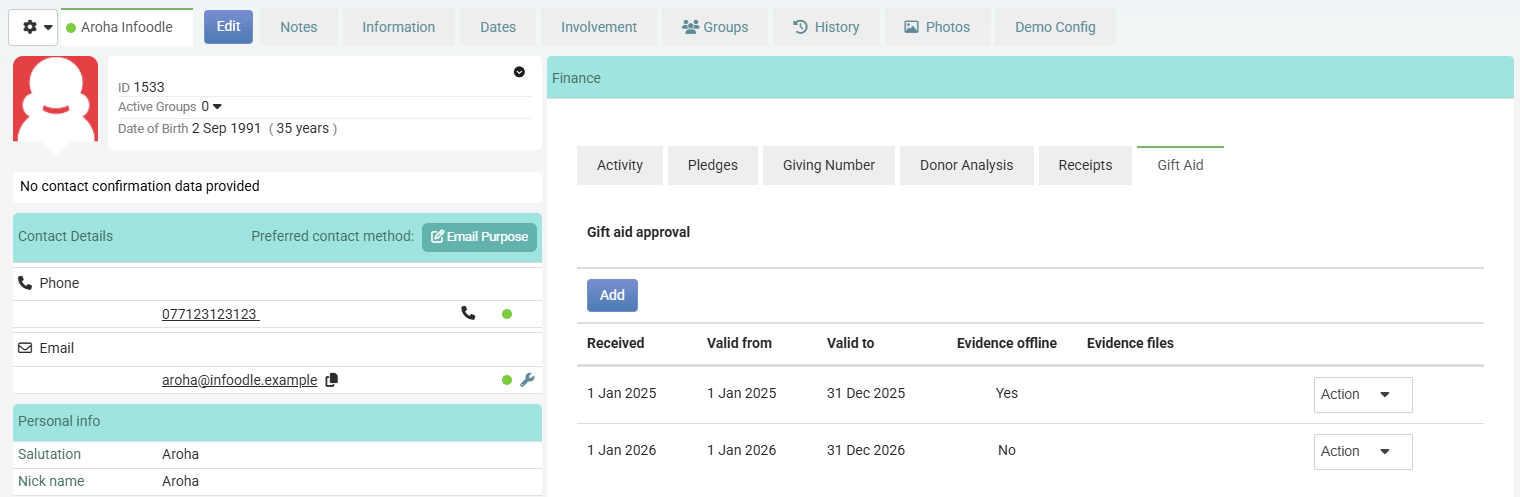
The Gift Aid tab sits in the Finance panel on the profile page itself. It is not behind the More profile functions cog at the top left of the profile.
Add an approval
Most declarations need only Date approval signed. The other three dates are there for the cases described under What each date does, so leave them empty unless one of those applies.
- Open the person's Gift Aid tab.
- Click Add.
- In Date approval signed, pick the date the donor signed their declaration.
- In Date approval starts (inclusive), pick the first day you may claim from.
- In Date approval ends (inclusive), pick the last day you may claim to.
- In Oldest date for historic transactions, pick the earliest date you may reach back to.
- To attach the signed declaration, click Upload a file, or drag the file onto Drop a file here.
- If you hold the declaration somewhere else, such as a paper file, tick Evidence of approval is available offline?.
- In Note, type anything you want to record about this approval.
- Click Save.
Each uploaded file can be up to 15MB, and the note can be up to 1000 characters.
HMRC expects you to be able to produce a donor's declaration if it asks for it, so record where yours is. Attach the file if you hold it electronically, and tick Evidence of approval is available offline? if the signed copy is in a filing cabinet instead.
The approval now appears in the list on the Gift Aid tab.
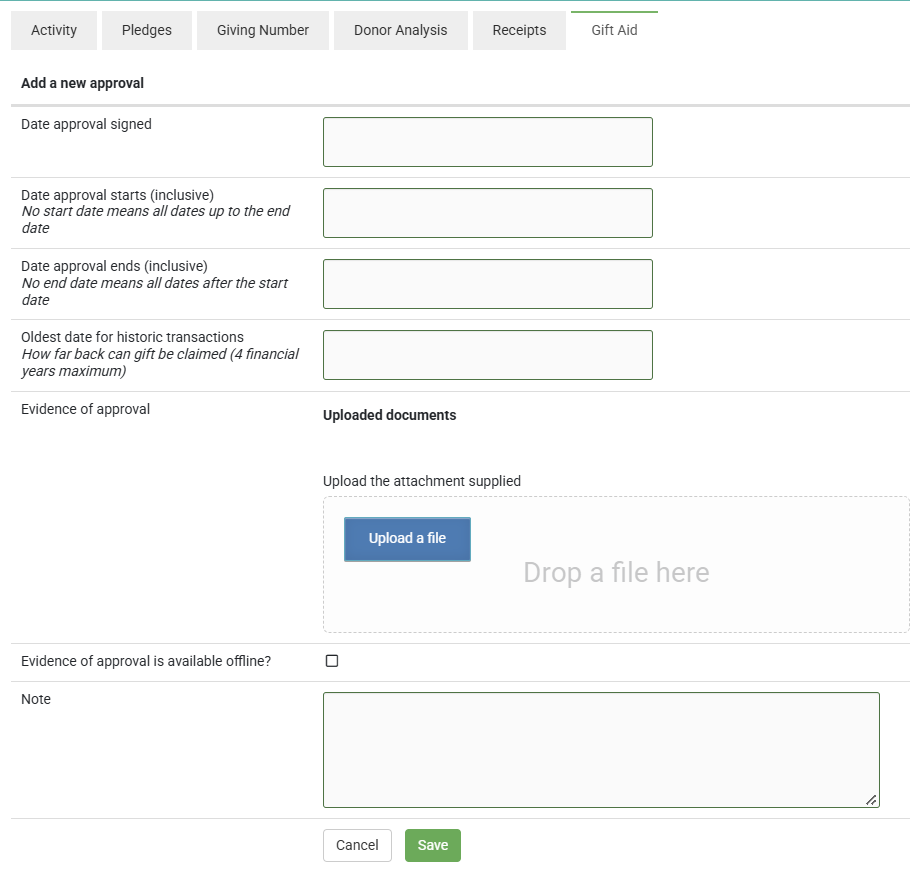
Date approval signed is the only date you have to fill in. Leave it empty and infoodle shows Please select the date this approval was signed. Set an end date earlier than the start date and infoodle shows The start date must be earlier than the end date.
The three other dates can each be left empty. See What each date does for what happens when you do.
What each date does
| Field | What it does | If you leave it empty |
|---|---|---|
| Date approval signed | Records when the donor signed. It is for your own records and does not change which donations are claimed. | You cannot save. This is the only date infoodle insists on. |
| Date approval starts (inclusive) | The first day of donations you may claim. | The approval has no earliest date, so donations of any date up to the end date count. |
| Date approval ends (inclusive) | The last day of donations you may claim. | The approval has no end and keeps running. |
| Oldest date for historic transactions | Stops infoodle reaching further back than this date, even though the approval itself starts earlier. | infoodle reaches back as far as HMRC allows. |
HMRC lets you claim on donations up to four financial years old, counted back from 6 April. infoodle applies that limit whatever you put in Oldest date for historic transactions, so the field can shorten how far back a claim reaches but never lengthen it.
Three worked examples
- An approval that has ended: starts 1 January 2024, ends 30 June 2025. Donations between those two dates are still claimable. Donations after 30 June 2025 are not, and the donor no longer counts as having a current approval.
- An approval with an oldest date: starts 1 January 2024, oldest date for historic transactions 1 June 2025. Donations before 1 June 2025 are left out, even though the approval itself starts eighteen months earlier.
- An approval that starts after the donor began giving: starts 1 October 2025. Donations the donor made in August and September 2025 are left out.
Check whether a donation is covered
You do not have to wait for a claim to find out whether a donation is covered by an approval. The donor's own transaction list tells you.
- Open the person's record.
- Find the Finance panel.
- Open the Activity tab.
- In Transactions For Year, choose a year, or choose Any time.
- Read the Can claim Gift Aid column.
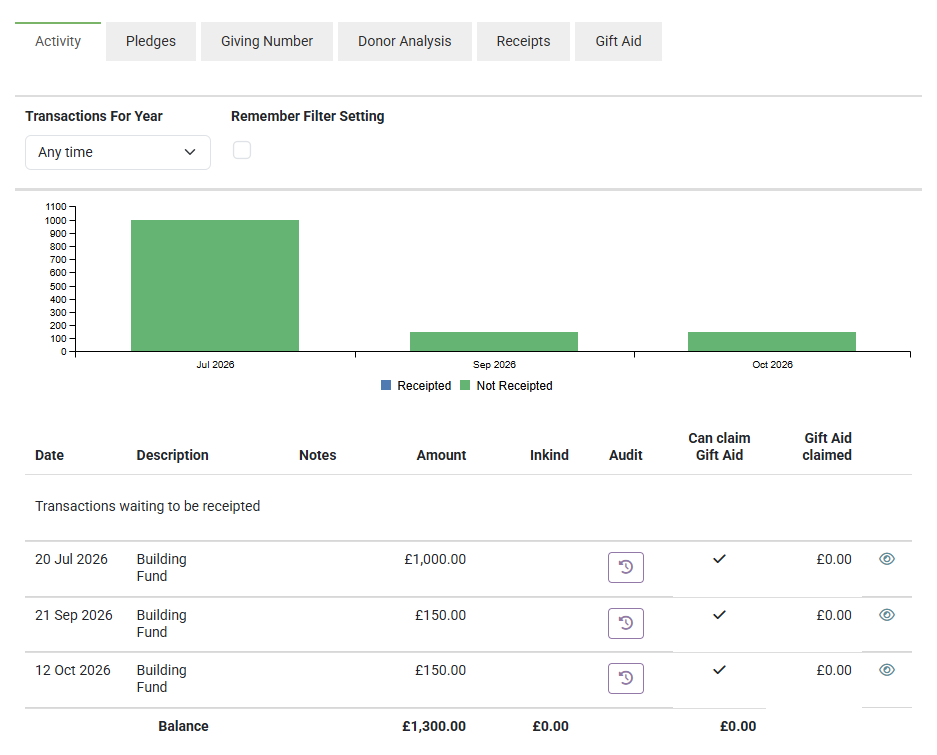
A tick means two things are true:
- the donation date falls inside one of that person's approval periods
- the donation sits on an account code you can reclaim tax on.
If you see a dash, that means one of the two is not true.
A tick is not a promise that the donation will appear in your next claim. A claim also leaves out donations more than four financial years old, in kind donations, amounts that are not positive, and donations already attached to another claim.
For everything a claim checks, see Transactions Included in a Gift Aid Claim.
Which account codes can you reclaim tax on?
You set this per account code. Click or hover on Finance on the main menu bar on the left, then click Account Codes. The Tax reclaimable column tells you which of your codes count for Gift Aid. Donations posted to any other code are never claimable, however good the donor's approval is.

You need the Manage, Read and report on transactions role permission to open that screen.
More than one approval on the same person
A donor can have several approvals on their record at once. Use this when someone lets you claim for some periods and not others: add one approval for each period they allow.
A donation is claimable if its date falls inside one of those periods.
Keep the periods apart, so that no two approvals cover the same day. When a donation's date falls inside two approvals, infoodle uses only the one you added most recently and ignores the other, which can leave a donation out that the earlier approval would have allowed.
Other ways an approval can arrive
Recording an approval by hand is not the only route. These are useful when you are moving to infoodle, or when you want donors to give their own declaration.
| Route | When to use it |
|---|---|
| The Gift aid approvals import | You have a list of existing declarations to load in one go. |
| A start date column on a bank statement import | Your donation file also tells you when each new donor's approval starts. |
| Xero contact creation | You let Xero create your contacts and want every new one to arrive with an approval already on it. |
| A Gift Aid? field on a form | You want donors to give their declaration themselves. |
Import a list of approvals
- Click the administration cog in the top right hand corner, then click Administration.
- Click Data Import.
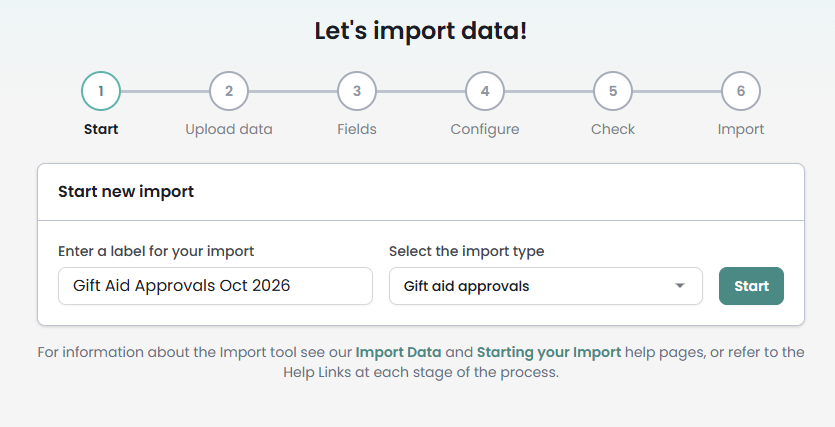
- Enter a label for your import.
- In Select the import type, choose Gift aid approvals.
- Click Start.
 {height="" width=""}
Each row needs a Person Unique ID and a Date Received. The approval dates are optional columns you can map alongside them.
Gift aid approvals only appears in the import type list when Gift Aid is switched on for your site, and you need the Access Import Tool role permission to reach the import screens at all.
For the full import, including how to build the spreadsheet, see Importing Gift Aid Approvals.
From a bank statement or donation file
When you import a bank statement or donation file and let infoodle create new contacts from it, you can map one of your columns to Gift Aid Approval Start Date.
Each contact that import creates arrives with an approval already on it. infoodle uses your date as both the start date and the oldest date for historic transactions, so nothing before that date is ever picked up for them. Contacts that were already in infoodle are not touched.
From Xero
If your contacts come across from Xero, the Xero settings screen carries two Gift Aid fields:
- Add Gift aid approval to all contacts added this way: set this to Yes to give every contact Xero creates an approval.
- Date of last completed gift aid claim: the end date of the last claim you filed before you started using infoodle.
infoodle gives each new Xero contact an approval whose oldest date is the day after that claim date, so you do not re-claim anything you have already claimed elsewhere. Contacts already in infoodle are not changed.
For how contacts come across in the first place, see Contacts from Xero.
From a form
- Open your form in the form builder.
- In the list of available fields, find Gift Aid? under Payments.
- Drag it onto the form.
- To change the declaration wording, edit the field's Message setting.
infoodle supplies HMRC's standard declaration wording by default. Gift Aid? only appears in the field list when Gift Aid is switched on for your site.
When you approve the entry, infoodle records an approval on that person, dated the day the form was submitted, with a note saying which form entry it came from.
Read the donor's answer before you approve the entry. infoodle records the approval whenever you approve that field, whether the donor answered yes or no.
A form approval carries no start date, no end date and no oldest date, so it reaches back as far as HMRC allows. Approving one form entry can therefore make up to four financial years of that donor's earlier donations claimable in your next claim. If the declaration only runs from a particular day, open the donor's Gift Aid tab afterwards and set the dates.
See how many donors have a current approval
- Click or hover on Finance on the main menu bar on the left.
- Click Gift Aid.
- Click Summary.
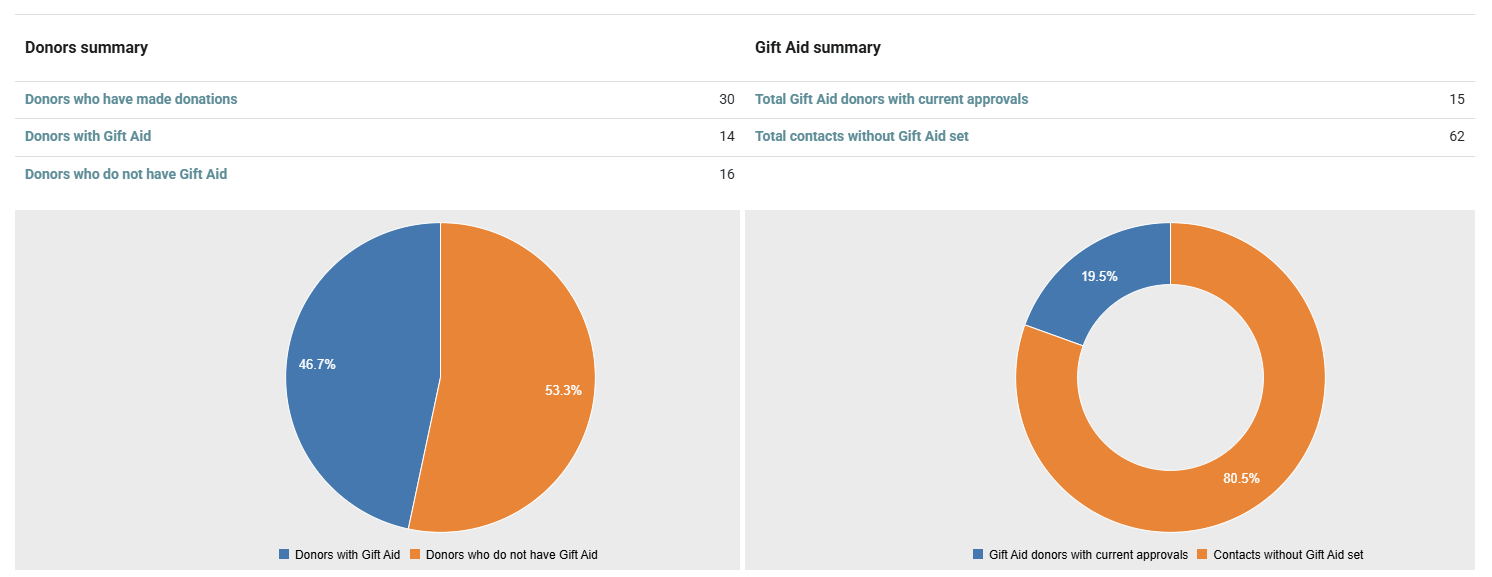
Two of the numbers on this screen count approvals. They count different groups of people, so read them one at a time rather than as a pair.
- Donors with Gift Aid: people who have an approval on their record, whatever its dates, and have given at least one donation on an account code you can reclaim tax on. Someone with an approval who has never given such a donation is not counted here.
- Total Gift Aid donors with current approvals: people whose approval covers today's date. This one takes no notice of donations at all, so someone who has an approval but has never given is still counted here.
Total Gift Aid donors with current approvals is not a count of the donors you can claim for. It asks whether an approval covers today. A claim asks whether an approval covers the date of each donation, which is a different question. A donor who is not current today can still have donations you can claim on.
For example, an approval that ran to 30 June 2025 is not current now, but that donor's donation of 30 April 2025 is inside the approval period and is still claimable. Open the donor's Activity tab and read the Can claim Gift Aid column to see for yourself, as described under Check whether a donation is covered.
Because the two numbers count different groups, the gap between them is not a list of expired approvals, and either number can be the larger one. To find out who is in one group and not the other, download both lists and compare them.
Each number on the screen is a link. Click one and infoodle downloads a file called GiftAid.csv listing those people with their unique ID and name.
For example, if your Summary shows 27 donors with Gift Aid and 26 with a current approval, download both files and compare the names. On a site whose only difference is an approval that has run out, the one extra name in the first file is that donor, and nothing needs fixing.
If your login is limited to particular groups, these numbers and the files you download count only the people in those groups, not everyone on your site.
Common questions
Does adding an approval claim anything by itself?
No. The approval records that you are allowed to claim for that donor. The donations still have to fall inside the approval dates, sit on an account code you can reclaim tax on, and be picked up by a claim.
A donor has an approval, so why is their donation missing from my claim?
Check the donation date against the approval dates. infoodle looks for an approval that covers the date of each donation, so a donation outside the approval dates finds no approval at all. On the Not claimable list it appears as No Gift Aid approval, the same wording used for a donor who has never given a declaration.
The one exception is Oldest date for historic transactions. Donations left out by that field get their own wording, with the date in square brackets, for example Gift Aid approval starts [01/06/2025].
Can I record an approval with no start date?
Yes. Leave Date approval starts (inclusive) empty and donations of any date count, back to the four financial year limit.
Where do I see the oldest date and the note I set?
Click Action then Edit on the approval. The list on the Gift Aid tab shows only Received, Valid from, Valid to, Evidence offline and Evidence files. Neither the oldest date nor the note is a column.
A donor has told us to stop claiming. What do I do?
- Open the person's Gift Aid tab.
- On their approval, click Action.
- Click Edit.
- Set Date approval ends (inclusive) to the last day they allow.
- Click Save.
Donations up to that date stay claimable, and donations after it stop being picked up. Use this rather than deleting the approval, which would take the earlier period away as well.
Next steps
With approvals recorded, the next step is to see what a claim will and will not include. See Transactions Included in a Gift Aid Claim.