infoodle allows you to add as many custom fields as you like, change the titles of the fields, and choose the type of information to capture.
Before you start
- What information you need to capture
- Whether it relates to a person, a household/organisation, or a group
- Whether you need a Lookup or Multi‑select Lookup field
- If so, create the Lookup List first
How to add a Custom Field
The instructions below are the same for Person, Household, and Group Custom Fields.
- Click on the administration cog
- Then click on Custom Fields
- Click on Manage Fields under the area you are wanting to add a custom field to
- Then click Add
- Go through the options (see below for help on what these fields mean)
- Finally click Save
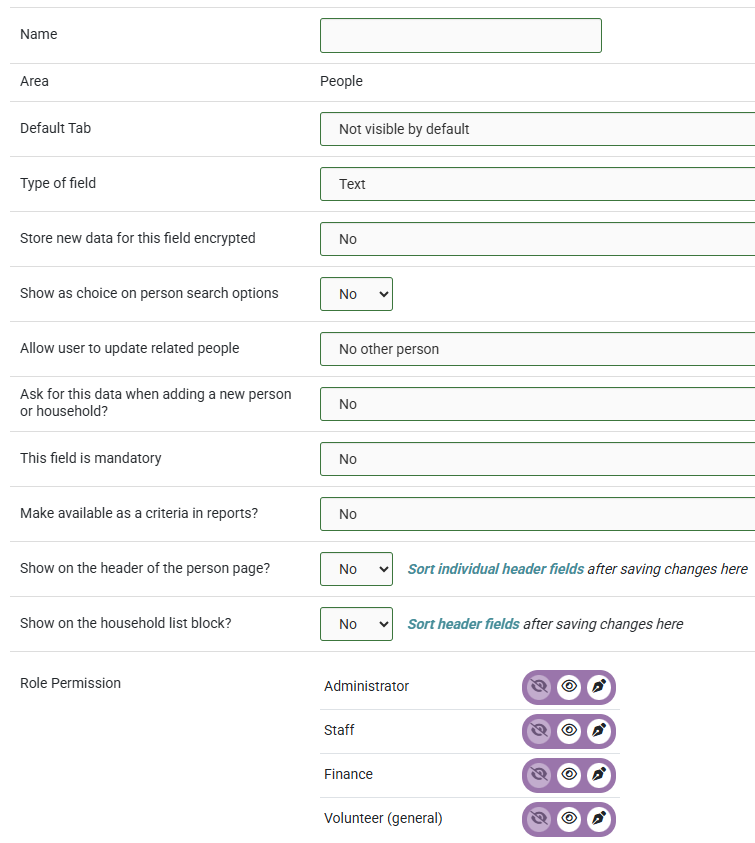
Manage Fields: People
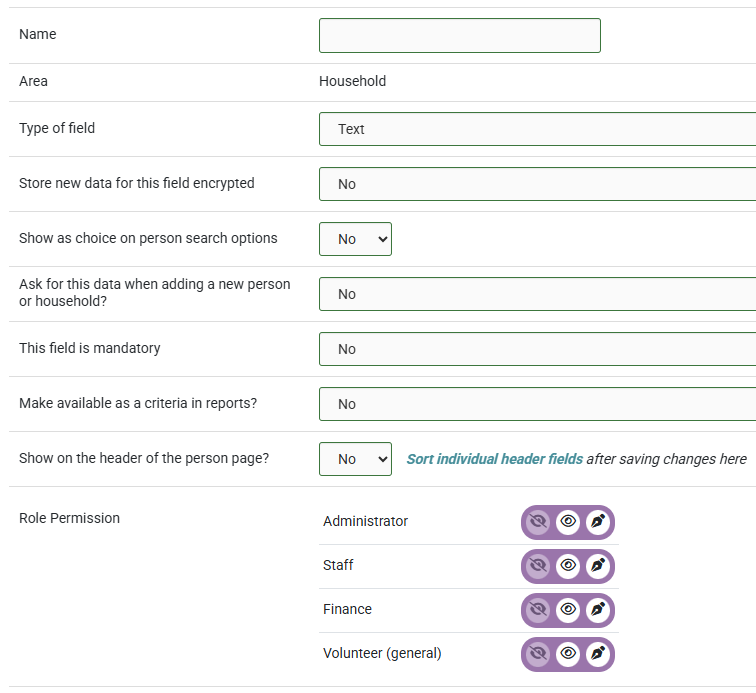
Manage Fields: Household
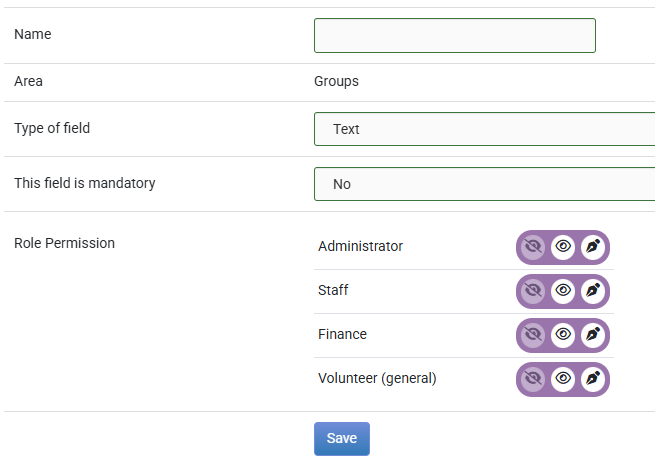
Manage Fields: Groups
What do these custom field options mean?
Name
- The label shown throughout infoodle
- Avoid the following characters - + * / %
- Use spaces or underscores instead
Area
- Set automatically based on the section you selected (People, Household/Organisation, Groups)
Default Tab (People only)
- Choose where the field appears on a person’s profile
- Includes Not visible by default to hide the field initially
This replaces the outdated label “Tab”
Type of field
- Determines the kind of data captured
- Once data is saved, the field type cannot be changed
- See Custom Field Types for details
Which lookup list to use
(Lookup & Multi‑select Lookup only)
- Select an existing lookup list
- Lookup lists must be created before the field
Store new data encrypted
(Text & Incrementing fields; People & Household only)
- Encrypts stored data
- Encrypted fields support exact‑match search only
- Note: This applies to Text and Incrementing fields (not just Text)
Show as choice on person search options
(People & Household only)
Appears only for these field types:
- Text
- Web address
- Incrementing
- Integer
- Number (2 decimal places)
Not available for Lookup or Yes/No fields.
For more information, see Searching for a Person or Searching for a Household/Organisation
Allow user to update related people
(People only)
Choose how updates propagate:
- No other person
- Also update the spouse
- Also update all members in the household
Ask for this data when adding a new person or household?
(People & Household only)
- Adds the field to the new‑contact form
This field is mandatory
- Requires a value before saving
Make available as a criteria in reports?
(People & Household only)
- Allows filtering by this field in reports
Add Day/Month/Year as criteria fields
(Date fields; People & Household only)
- Creates separate report filters for day, month, and year
Show on the header of the person page?
- Displays the field at the top of the profile
- Use Sort Header Fields to control order
Show on the household list block?
(People only)
- Displays the field in the household members block
Role Permission
Set access per role:
- Hide – field not visible
- Read Only – visible but not editable
- Write – visible and editable
For more information on Role Permissions, see Field-Level Permissions
If you are creating a new Lookup or Multi-select Lookup type of custom field, you will need to create the Lookup List first, if a suitable list has not already been added.
For more information, see Lookup Lists for Custom fields.