When a pledge payment arrives in your bank statement, you reconcile it against the donor's pledge on the Reconcile screen. The Recurring Pledges panel lists the donor's pledge dates (instalments) and lets you choose which ones the payment pays, and how much goes to each. One bank payment can pay one instalment in full, pay part of an instalment, cover several instalments, or be shared across several donors' pledges and an ordinary account code.
A pledge can be created on a person's profile (Adding a Pledge), through the import process or from a form entry. If the payment belongs to a form rather than a pledge, see Reconciling Against Forms. The same panel appears when you add a transaction by hand, see Adding Individual Transactions.
Before you start
Role Permissions
- Manage, Read and report on transactions: needed to see and use the Recurring Pledges panel.
- Manage pledges: needed only for the Allocate to Adjusted Pledges button, which changes a pledge to take a leftover amount (see Add the leftover to the donor's pledge).
To learn what each finance role permission allows, see Finance Permissions.
Transaction
You will need a transaction to apply to the pledges. These can be provided using any of the transaction methods: Adding a Transaction, bank statement imported, Payouts through Stripe, GoCardless into a batch, with the pledge payment showing as an unreconciled row.
How infoodle finds the pledge dates
Once the person is chosen in Who, infoodle lists that person's open pledge dates that fall from 50 days before the bank transaction date to 14 days after it. Open means the date has not been paid, or has only been part paid.
infoodle ticks one date for you to start with: the nearest date on or before the bank transaction date. If there is no date on or before it, the nearest later date is ticked. If two dates are equally close, it prefers the one whose amount owing matches the payment. You can untick it and choose different dates.
If the person has no open pledge dates in that period, the panel does not appear and the row reconciles like any other transaction.
The Recurring Pledges panel
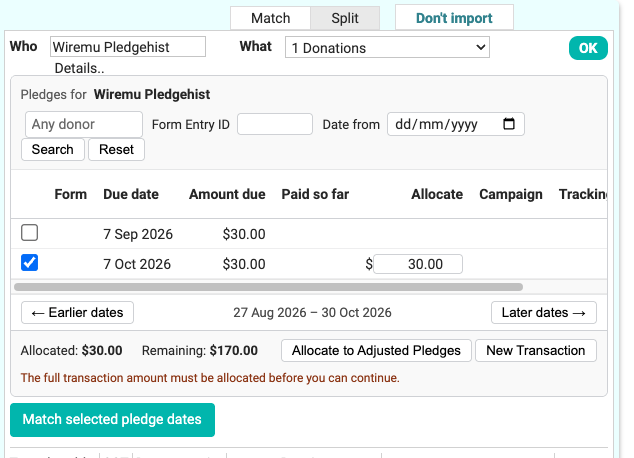
For full details on how to use the recurring pledges panel, see the following information
Next steps
To check how the payment has landed, open the donor's profile and look at the pledge on the Finance tab. See Pledges on Profile Screen.