Publishing a Form

Prev Next

So you've Added a Form, applied the Form settings and setup an Email Response. The next step is to Publish it.

All you need to do is click the Publish button.
Image

How to share your form?

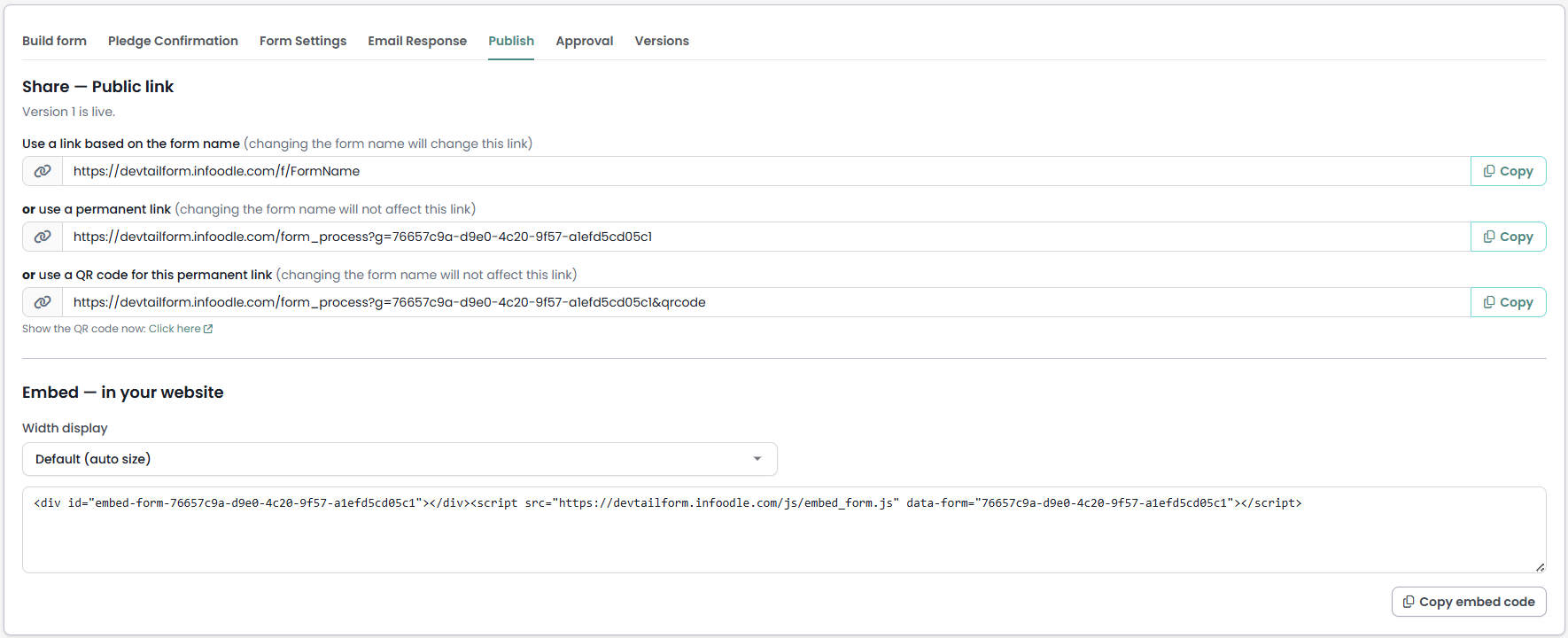
When you are in the form you have just published, click on the Publish tab. Here you can see various links on how to share your form.

Share - Public link

Use the public link when you want to share your form via an email link or add it to a social media page.
The options available are:

  • Use a link based on the form name (changing the form name will change this link)
  • or use a permanent link (changing the form name will not affect this link)
  • or use a QR code for this permanent link (changing the form name will not affect this link)
  • or show the QR code now. This will show it on the screen in a new tab and allow you to take a screenshot or right click on the image to save it.

image.png

The public links are created by infoodle automatically when the form is saved.

Emailing the link from infoodle

  1. Copy the preferred link as explained above
  2. In the body of your email, insert a link using the insert/edit link button.
    image.png
  3. Paste the link in the URL box.

Display of the Form
When the email recipient selects the link, the form will be displayed and and they will be able complete it. No login to infoodle is required.

Emailing from outside infoodle

  • Simply copy and paste the link into the email you're creating

Publishing via QR Code

You can use copy the QR code link and paste it into a web browser to show the QR code, or use the Click here option to view the QR code in a new tab.
image.png

After viewing the QR Code, you can right click on the image to save the image to your computer and then add it to your material.

Embed - in your Website

Use this function if you wish to include this form directly on your website instead of a link. It's the same idea as embedding a Youtube video.

Your website design will determine how wide you want the form (the height is auto calculated). If you leave it to default it will display as the maximum size available. If your page is responsive (designed to shrink and grow depending on what browser you are using) then choose the Default option as infoodle's form will respond and resize to the space available.

  1. Choose the Width display from the drop down list.
    image.png

  2. Copy the code given in the Embed - in your Website box

  3. Paste the code into your website.

This will depend on how your website tool works. Get in contact with who maintains your website to use this feature.


Note: the script tag has a div tag also which can be placed separate to the script code if needed. An example of this is shown below
image.png

Once you have published the form on your website it becomes public and people will be able to complete the form.

Need further help?

Some website management systems that have a guide on how to add the published links to a webpage:

For advanced options when adding data to a form, see Adding data to a form - advanced usage

Once the forms have been completed and submitted they will need processing.

For more information, see Processing form entries