When a form entry is approved in infoodle, workflows do not trigger automatically — even if the form carries out an action that would normally start a workflow, such as adding a person to a group or updating a field.
Instead, workflows must either:
- be manually selected by the person approving the entry, or
- be pre-configured on the form's Approval tab to run automatically.
See also: Processing Form Entries and Adding a Workflow
Which workflow triggers work with form approval?
Only two workflow trigger types are compatible with the form approval process. A workflow must have at least one of these triggers to appear during (or be auto-run on) form approval:
| Trigger | When it applies |
|---|---|
| When a Person is Added | Shown when the approver creates a new contact from the form entry. |
| Manually, from the Person or form approval Screen | Shown when the approver assigns the entry to an existing contact. |
Important: Workflows using any other trigger type — such as When the Group has a new member added or When a Person field is set or changed — will not appear during form approval, even if the form carries out that same action (e.g. adding the person to a group via a Group field). If you need those actions to happen on approval, add the steps directly to a workflow that uses one of the two supported triggers above.
Option 1 — Manually select workflows during approval
When approving a form entry, after you choose to Create or Assign the contact, the system displays any available workflows before you click Approve.

To select workflows manually:
- Open the form entry and begin the approval process.
- Choose to Create a new contact or Assign to an existing contact.
- A list of available workflows appears with tick boxes. Select the workflows you want to run.
- If your form uses a Repeating People Block, the workflow list appears separately for each person in the block — select workflows for each one individually.
- Click Approve to complete the approval and trigger the selected workflows.
Tip: If a workflow's trigger is set so that "Can the user choose whether to do this?" is Yes and the Initial state is Action, the workflow will be pre-ticked by default. The approver can still untick it before approving if needed.
Option 2 — Auto-run workflows on approval
You can configure a form to automatically run specific workflows whenever an entry is approved, without the approver needing to select them each time.
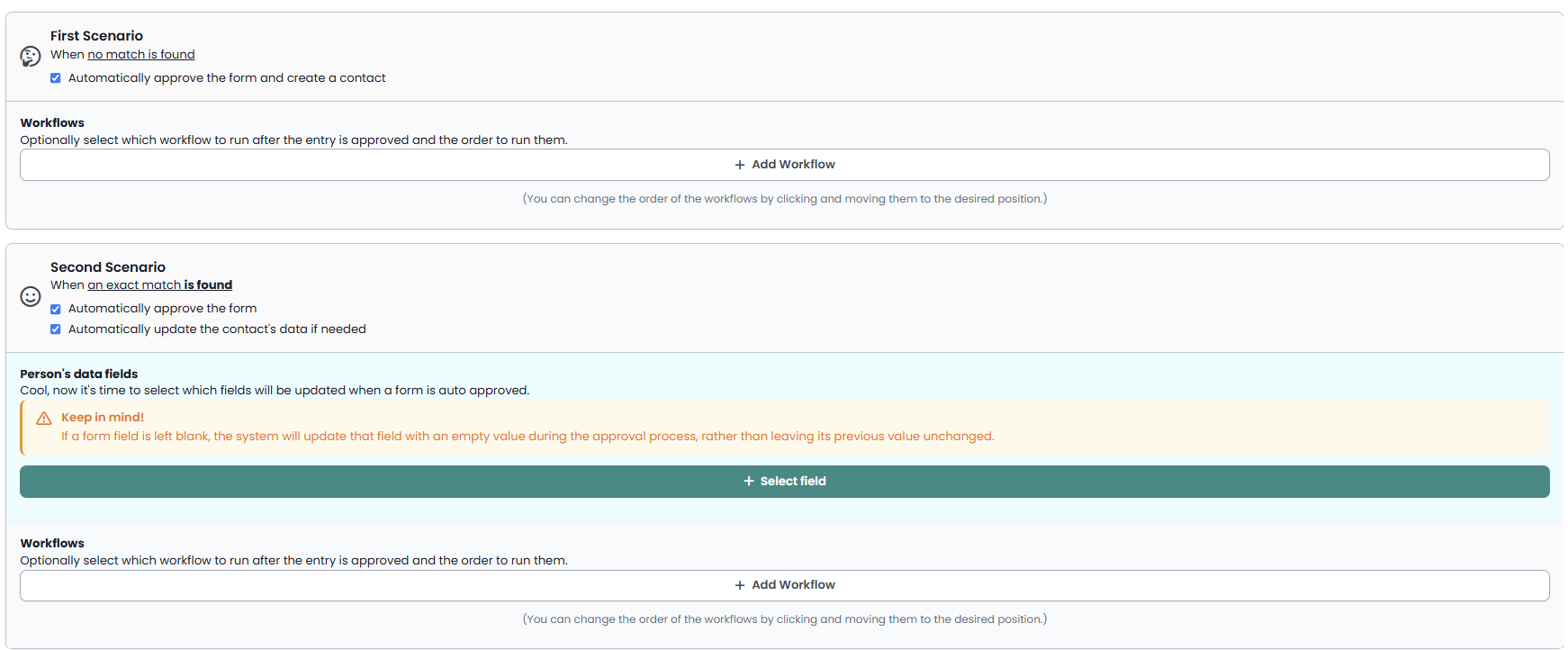
To set this up:
- Go to Forms and open the form you want to configure.
- Click Edit form, then open the Approval tab.
- Under Choose how to handle auto-approval for this form select the tick boxes from the three scenarios.
- Save and Publish the updated form.
For more information on the scenarios, see the Form Auto-Approval help page
When an entry is approved, the selected workflows will run automatically. This is useful when a particular workflow should always run for every entry on a specific form.
Note: Only workflows with a compatible trigger (When a Person is Added or Manually, from the Person or form approval Screen) can be set up here. Other trigger types will not appear in the list.
Alternative: Use a Group field instead of a workflow
If your only goal is to add the person to a group when the form is approved, you may not need a workflow at all. A Group field on the form can do this automatically on approval — without requiring any workflow setup.
You can configure the Group field with a default group value and hide it from the public-facing form so that the person filling it in never sees it, but the group add happens automatically on approval.
See Adding a Form for details on adding a Group field.